Configuring player cards with custom data fields

Configuring player cards with custom data fields

Configure RinkNet Press Room Settings and Player Card Preferences


Learn how to customize your player card display settings with optional data fields to display in RinkNet PressRoom.

1. Click on Settings
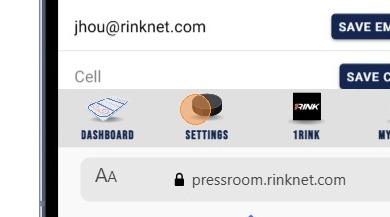
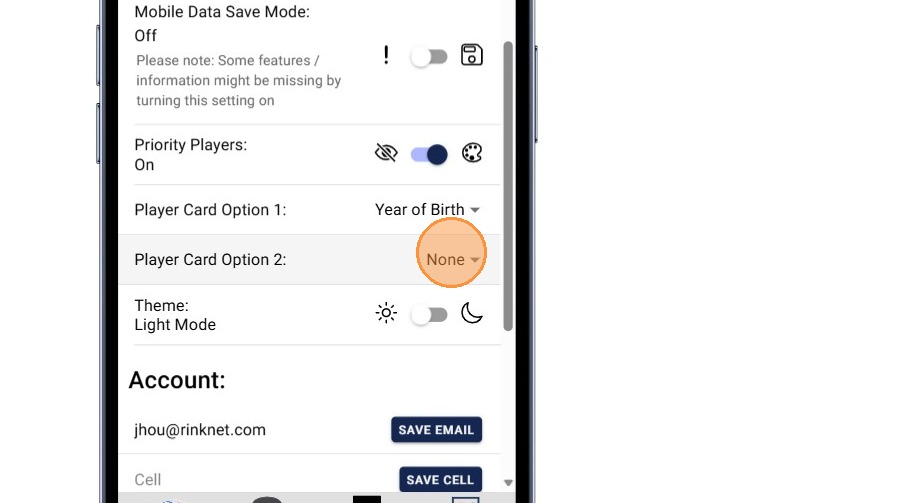
2. There are now 2 Player Card Options that you can select to display information relevant to a payer. Player Card Option 1 will appear in the top left corner of the player card in a linechart. Click on the drop down to select an option.
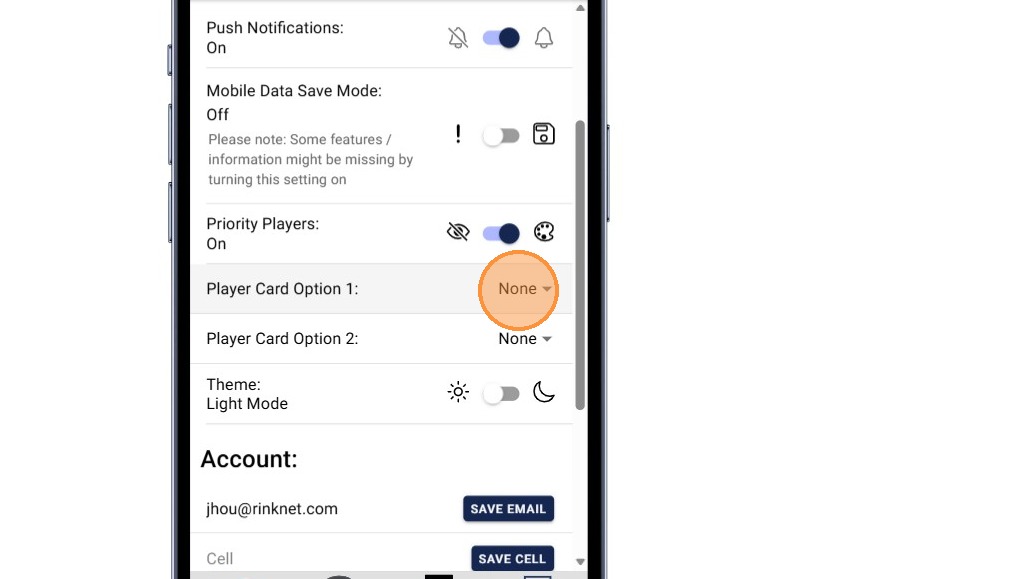
3. Available options include: Draft Status, Year of Birth, List Rankings. Select one of the options.
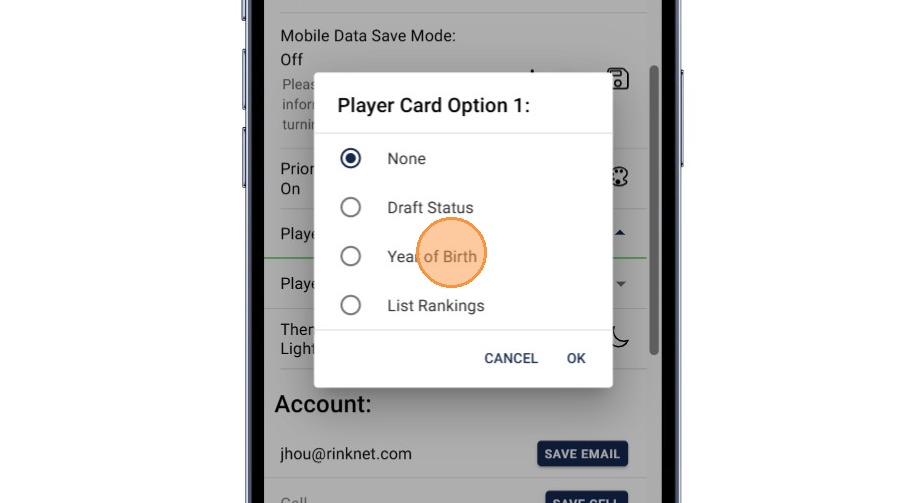
4. Click "OK"
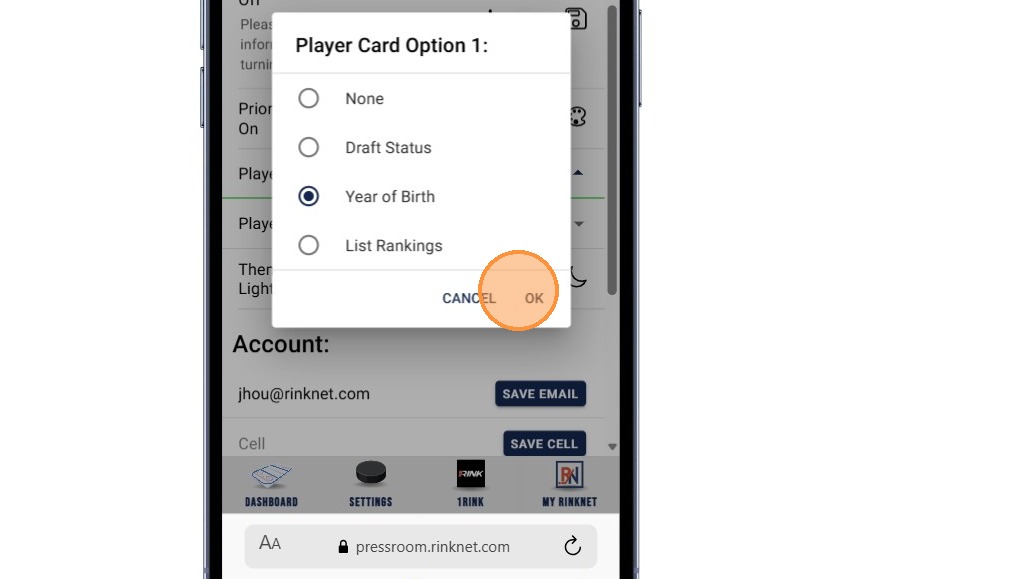
5. You can also select to show an additional field in the player card. This will appear at the top right of the player card in the linechart.
6. Click "List Rankings" as an example.
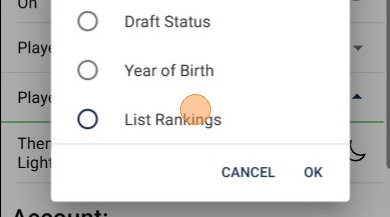
7. You can select the List Owner and the List. This is dependent on your RinkNet access rights.
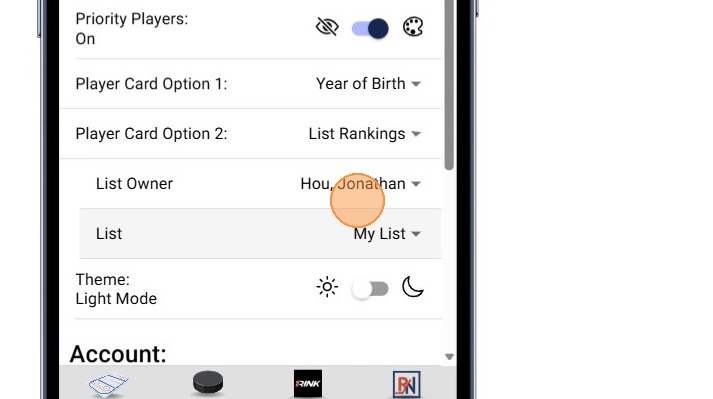
8. Select a List Owner
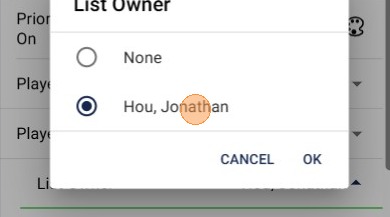
9. Click "OK"
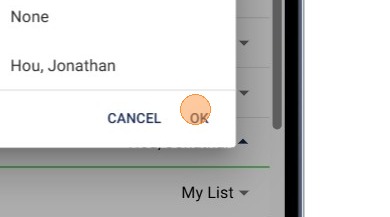
10. You can then select a list belonging to the List Owner.
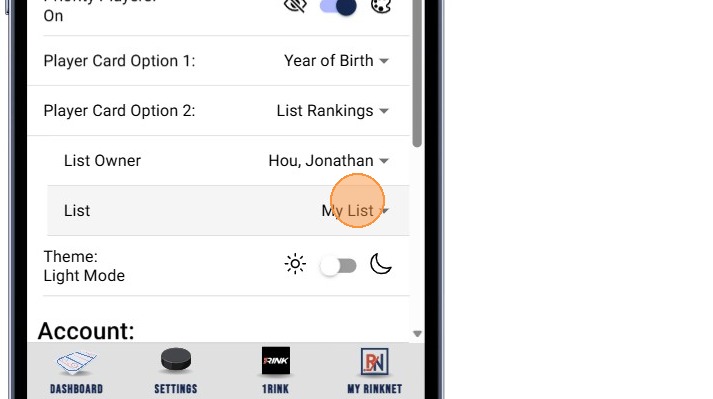
11. Select one of the lists
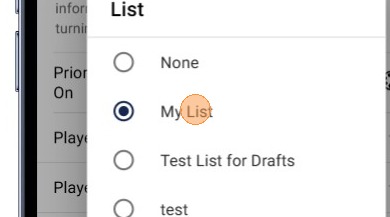
12. Click "OK"
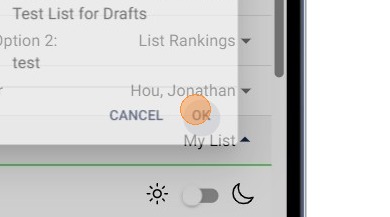
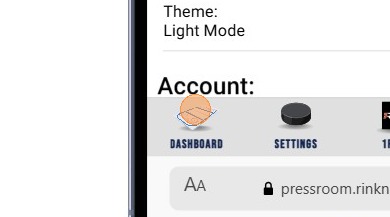
13. Click this Dashboard icon to return back to view your schedule
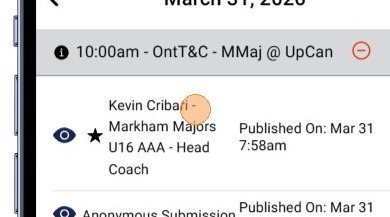
14. Click on a line chart
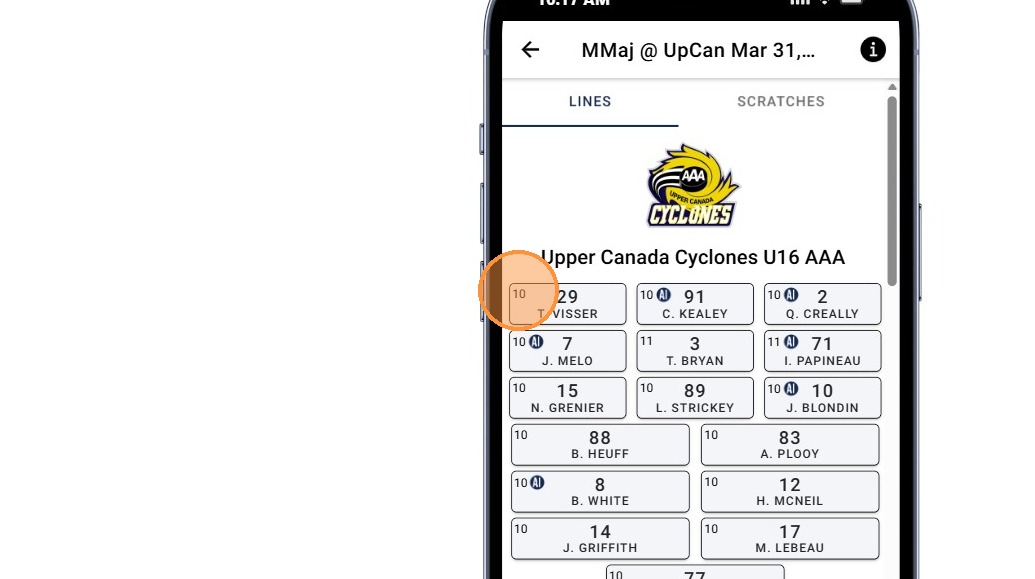
15. The top left corner corresponds to Option 1 for the data field you selected. In our example, we are using the Year of Birth.
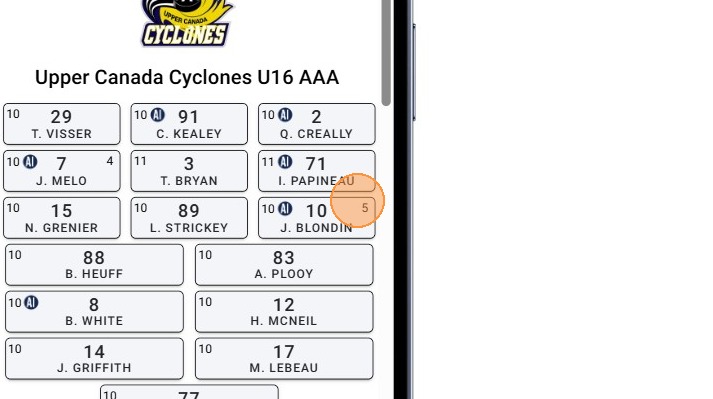
16. The top right corner corresponds to Option 2 for the data field you selected. In our example, we are showing rankings from a selected list.

    • Related Articles

    • Data Export Screen

      1. In the Players > Queries screen build the Query you would like to gain Player Contact information out of  2. When you have completed your Query, Close out of the screen and open the Data Export utility under the Administration tab 3. Within the ...
    • PowerPlay AI Player Evaluations

      The new PowerPlay AI Evaluations features allows management to be able to evaluate data their teams on players to see where there are point of agreement, disagreement or potential questions. This is based on the scouting reports available from your ...
    • Player Alerts (Online)

      RinkNet announces a significant enhancement to its Program which allows custom notification of game event activity for players you are interested in tracking. How it works How much time do you spend each morning poring over game sheets to find out if ...
    • Introduction to the new PowerPlay AI Player Comparison Dashboard (Beta)

      PowerPlay AI Player Dashboard (Beta) The PowerPlay AI Player Dashboard is an exciting new feature in RinkNet that will allow quick analysis of players based on you or your team's game reports. This is private AI engine developed by RinkNet that works ...
    • Data Execution Prevention Settings

      Go to Control Panel > System > Advanced System Settings > Advanced > Performance Options or Settings > Data Execution Prevention. This should stay in the top button and not button two. You will have to reboot when the setting is fixed. I have only ...