How to Access Central Registry and View Protected Lists

How to Access Central Registry and View Protected Lists

How to Access Central Registry and View Protected Lists

This guide provides a straightforward method for accessing the Central Registry and viewing protected lists, essential for anyone involved in league and team management. It simplifies the process with clear steps, ensuring users can efficiently navigate the RinkNet platform. By following this guide, you can easily access Protected Lists, and Player Information, enhancing your understanding of league dynamics.


1. Navigate to https://accounts.rinknet.com/ and use your RinkNet Online credentials (email address and online password) to sign in
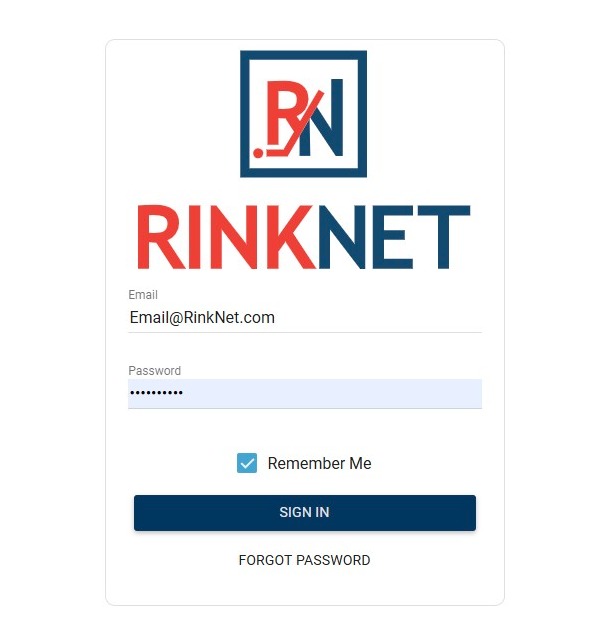

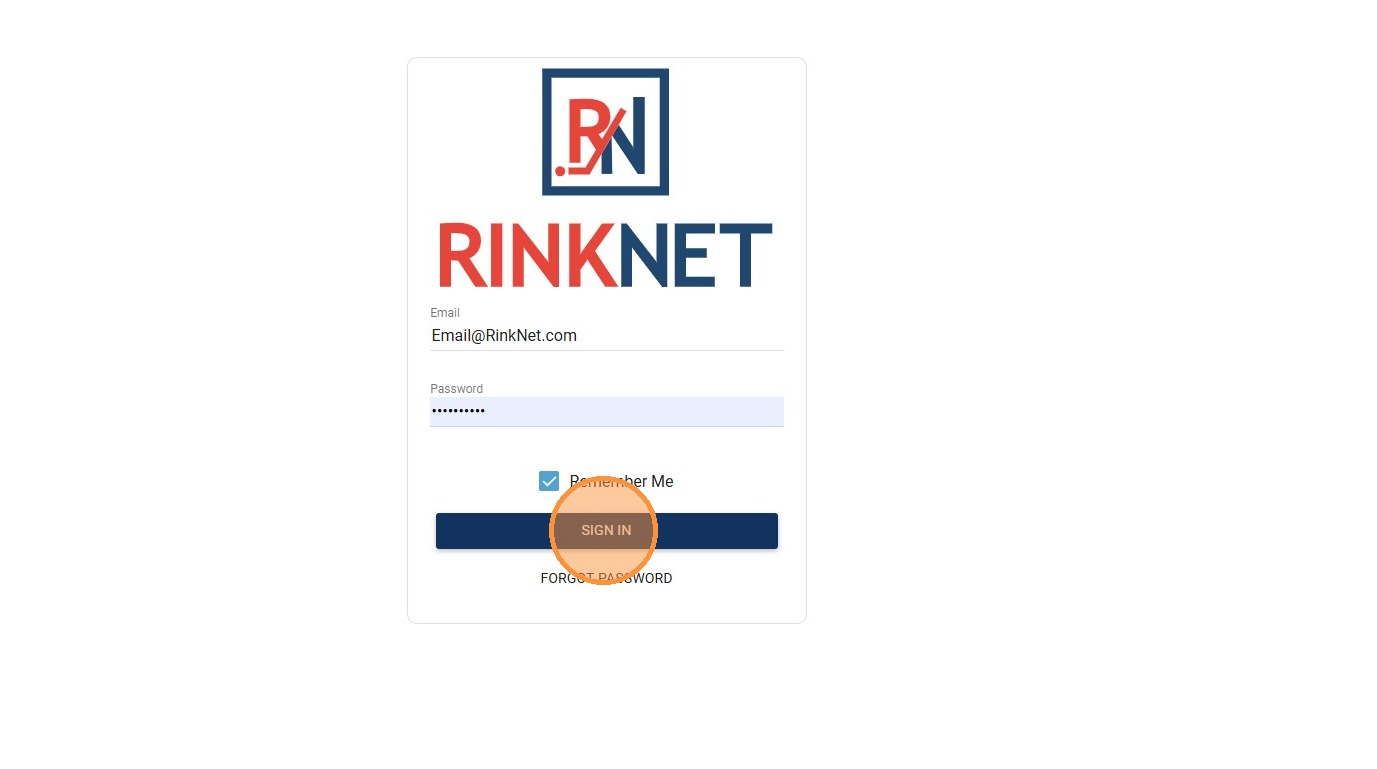
2. Enter Your RinkNet Online Sign-In Credentials, then "Sign In"

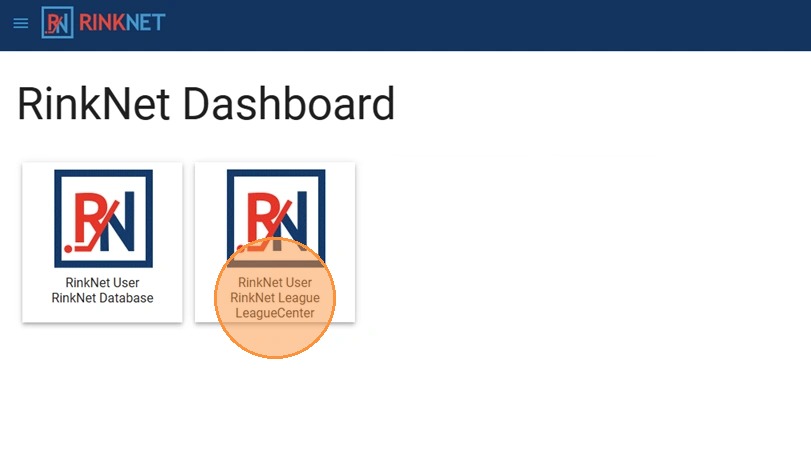
3. Click on the "League Center" Tile on the RinkNet Dashboard

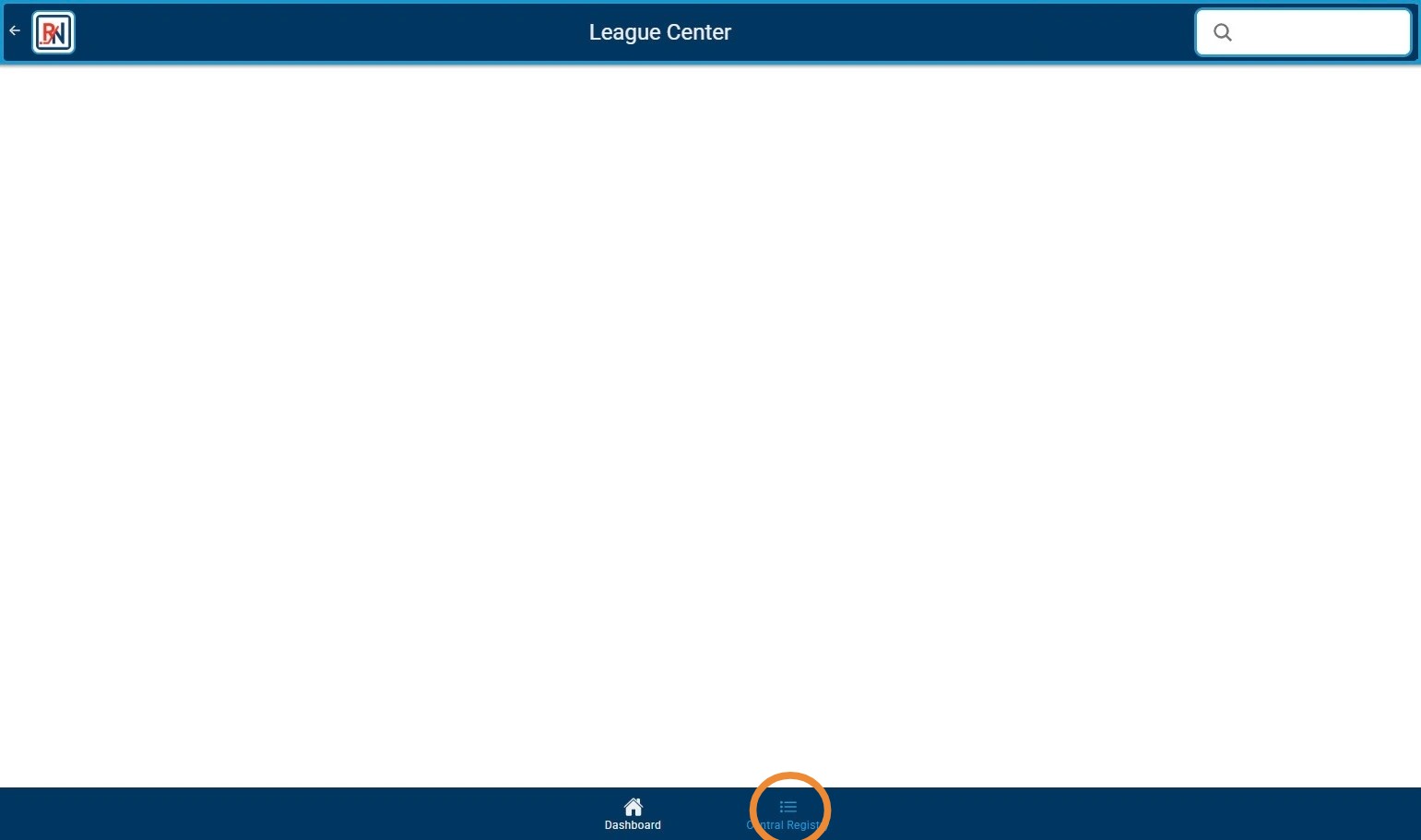
4. Click "Central Registry" Along Bottom Menu to Open Central Registry

5. First Available Team Protected List Will Appear
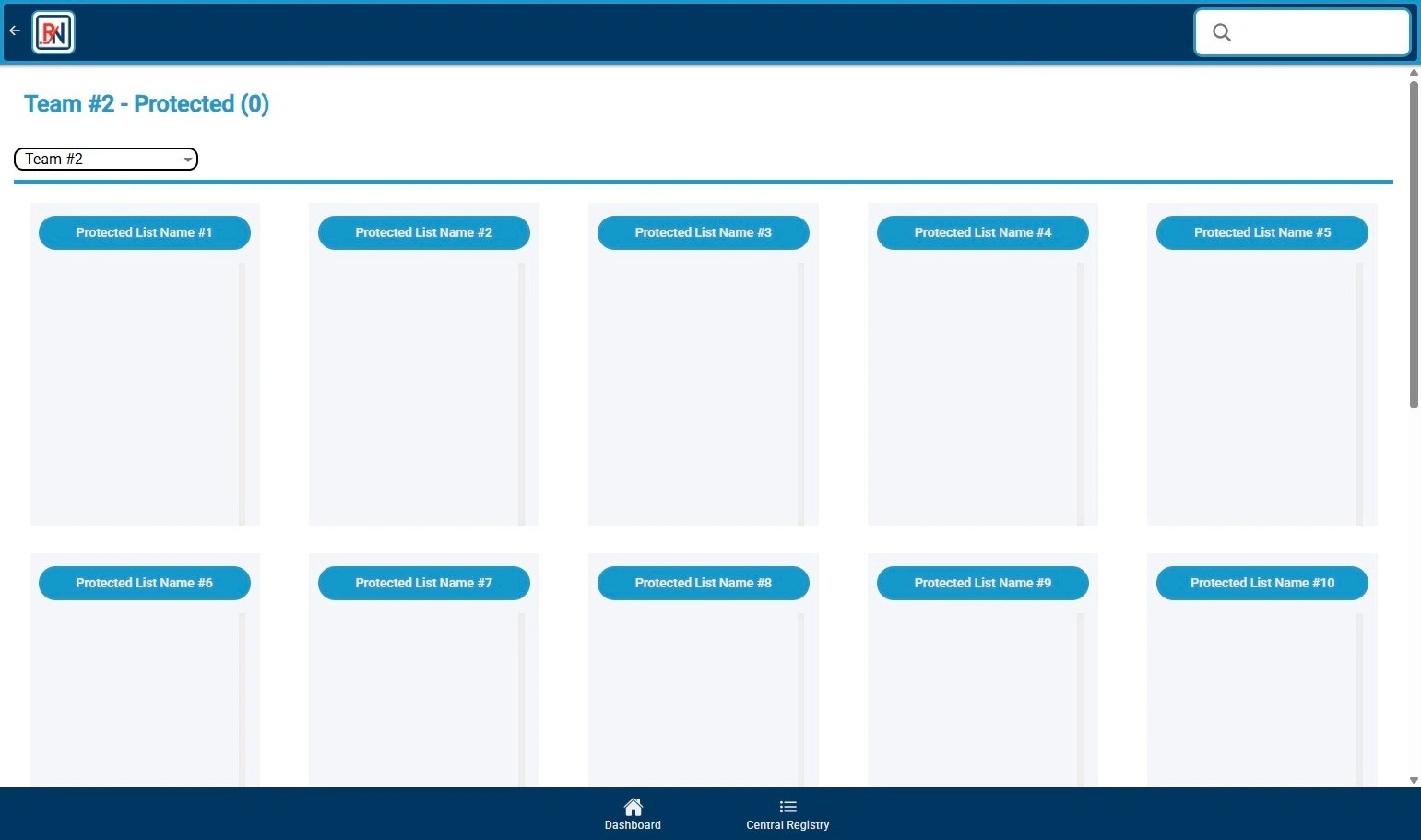

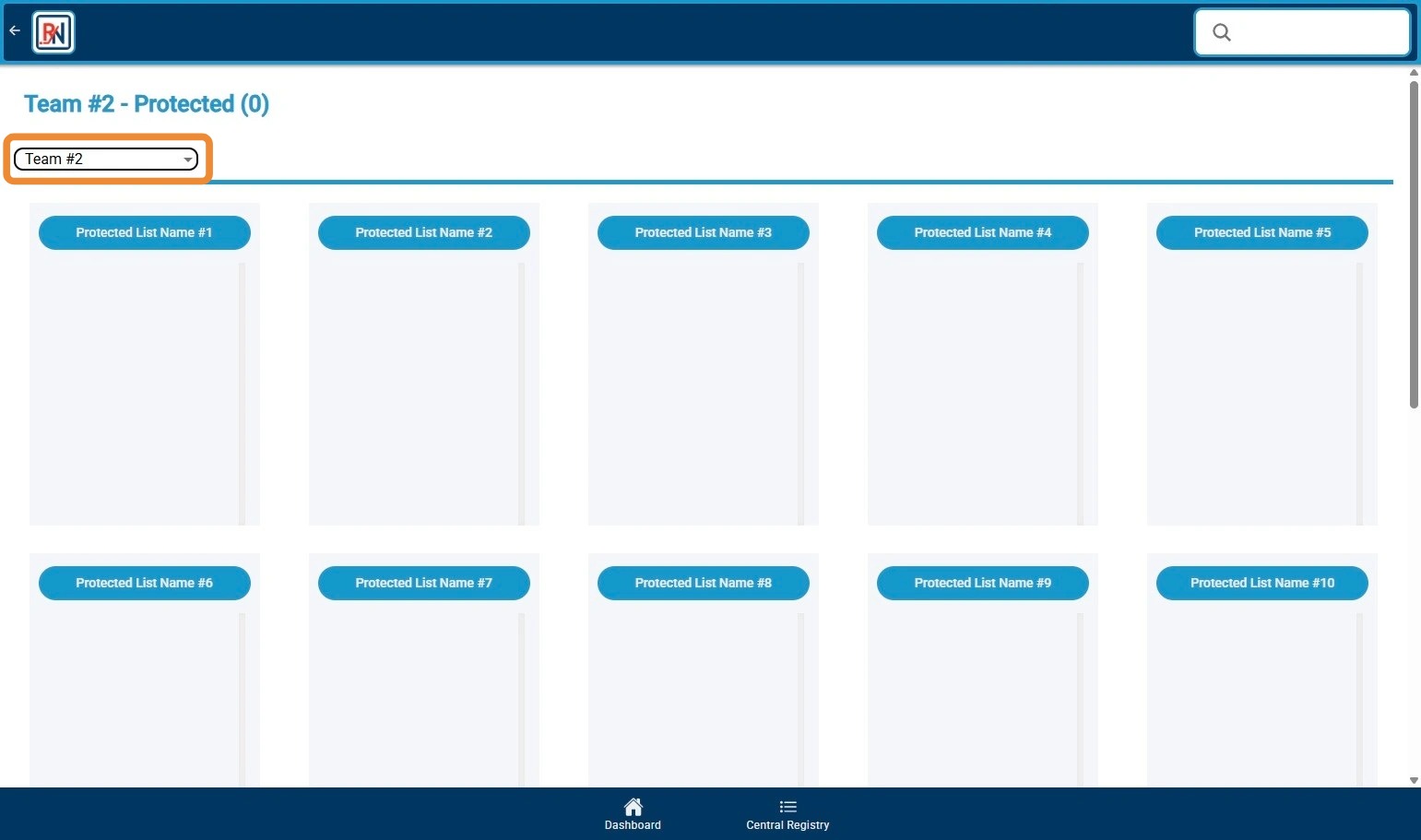
6. To Change Team Viewing, Click on Team Dropdown

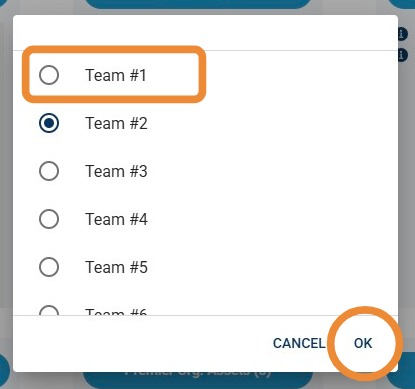
7. Click on Team You Would Like to View, then "OK"

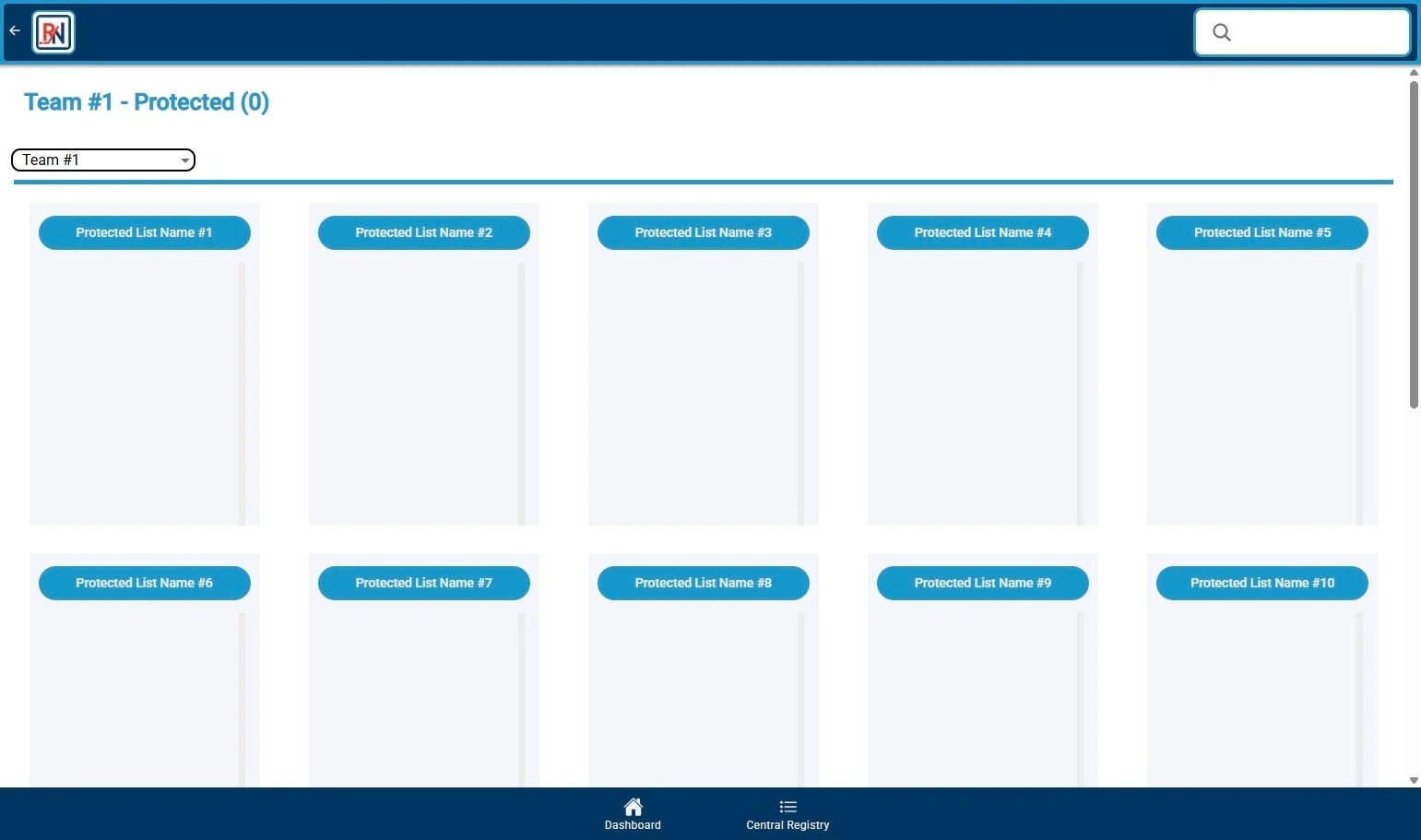
8. Selected Team's Protected List Will Appear

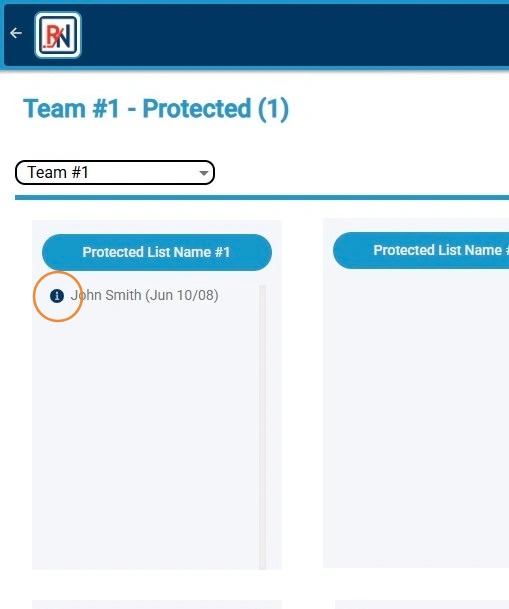
9. To Access Player Information on a Player, Click on the "i" Icon Next to Player's Name

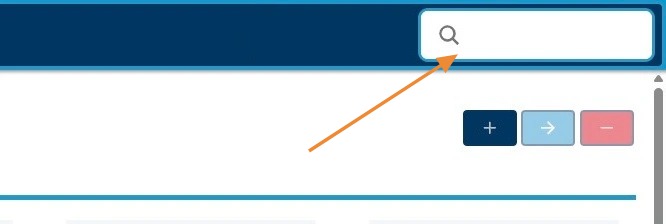
10. Alternatively, You Can Also Search for Player(s) to View Using Search Bar in Top Right Corner


    • Related Articles

    • Building Lists in List Builder from Queries

      1. Under the Player tab select the Queries screen  2a. Within the Query screen begin selecting the specific criteria you would like to run your Query off of by checking the specific boxes 2b. In this scenario I selected the following criteria checked ...
    • Lists of Lists Screen

      The "Lists of Lists" screen allows a user to combine many lists from their RinkNet program, into one master list.  This feature is particularly useful at team meetings and drafts. This feature is activated at the request of the team administrator.  ...
    • List Basics for Offline

      Main List Screen How to Access the screen 1.       Open the scouting program 2.       From the menu on the left click on Lists 3.       Click on the Main Lists Screen Option Screen Basics ·         When you first enter the screen, you will see lists ...
    • LEAGUE - Moving Players on Protected Lists

      LEAGUE - Moving Players on Protected Lists This guide provides a straightforward method for managing player movements within a protected list by League staff. It outlines simple steps to highlight, move, and confirm player transfers, ensuring ...
    • LEAGUE - Player Deletions in Protected Lists

      LEAGUE - Player Deletions in Protected Lists This guide provides a straightforward process for managing player deletions from protected lists done by League staff. It outlines simple steps to highlight, delete, and adjust deletion types for players, ...