RinkNet Education Portal Guide
Learn how to navigate the Education Portal to create student profiles, import data, and manage academic submissions. This guide walks you through the entire process from initial registration to approving grades and tracking expenses.
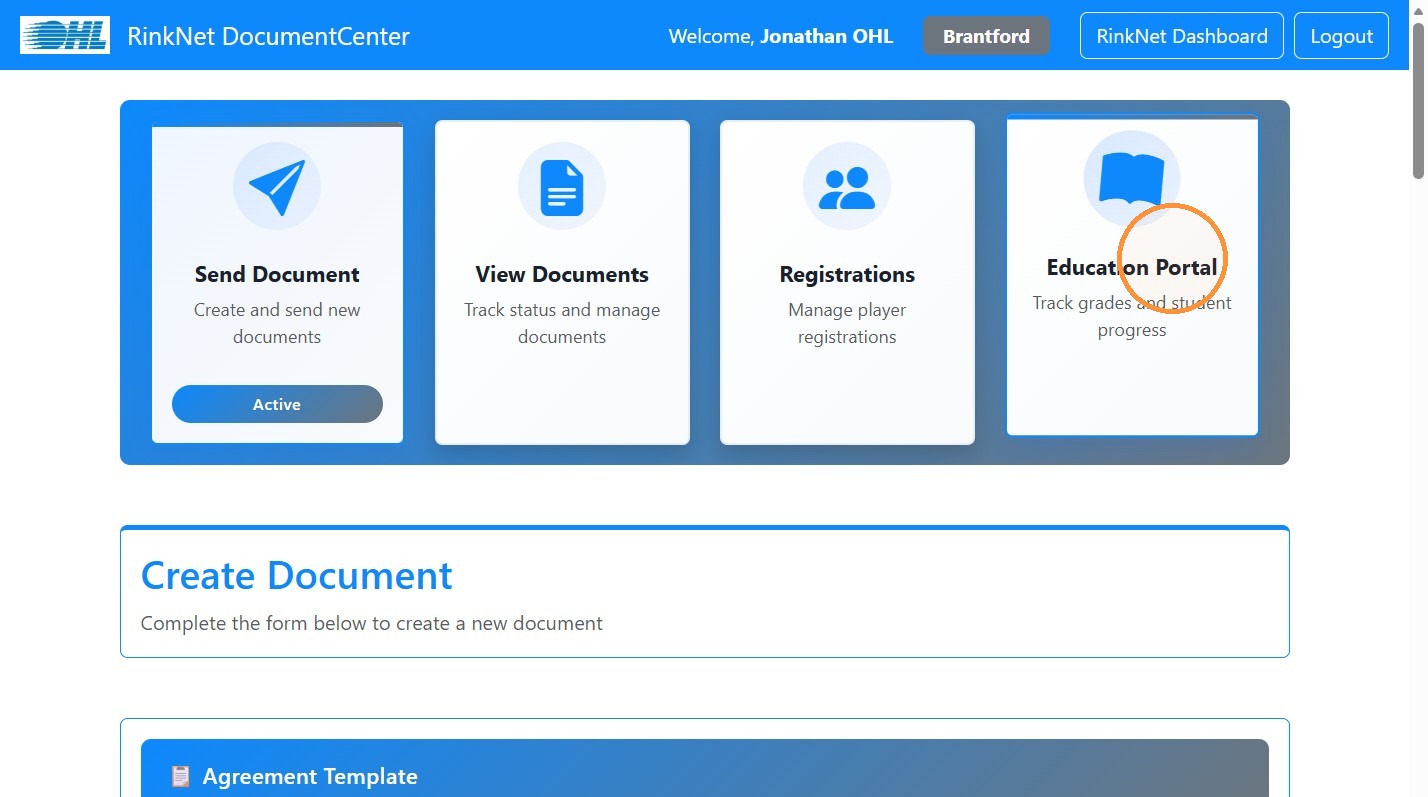
1. Navigate to https://accounts.rinknet.com/ and login select the "Contracts" tile.
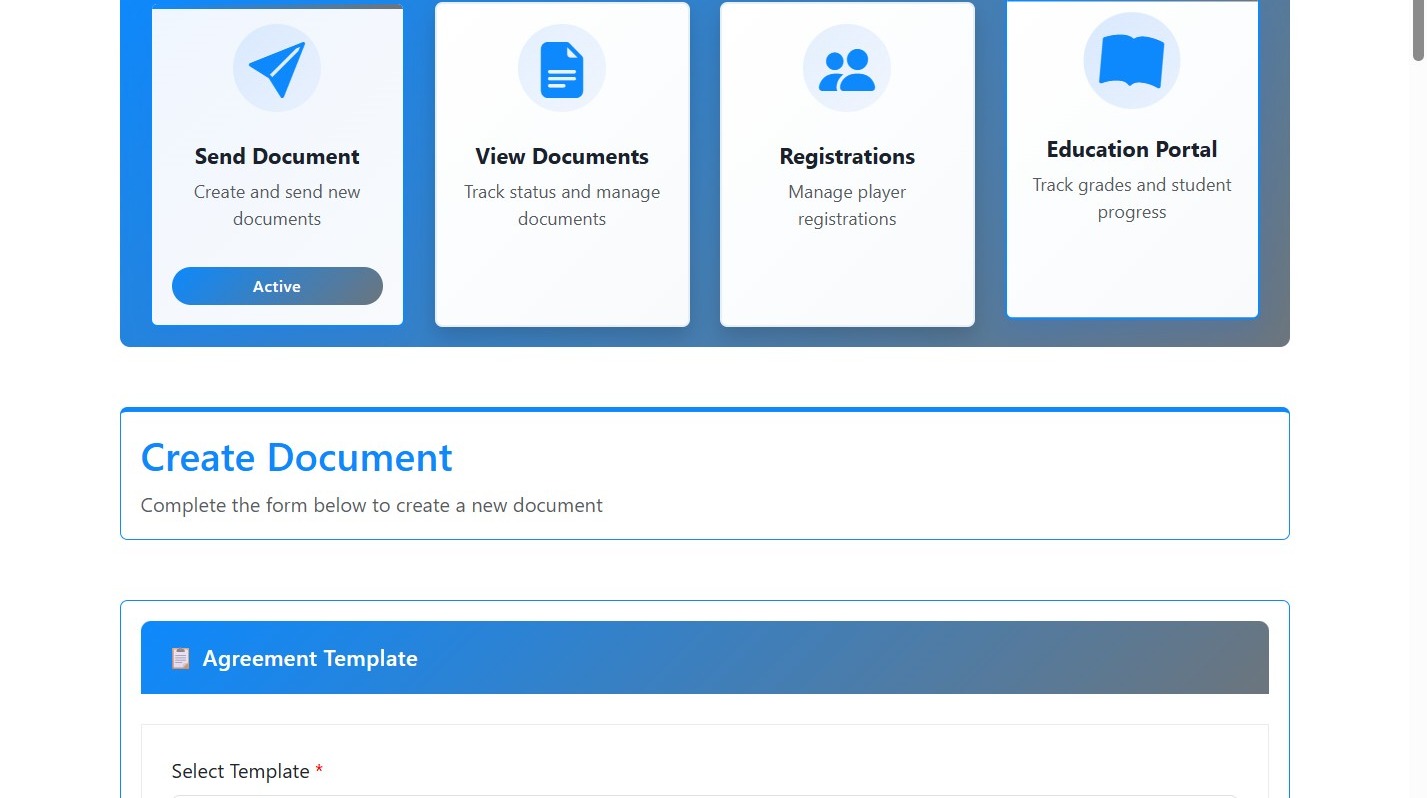
Open Education Portal
2. Click "Education Portal". Depending on access rights you may be automatically directed to the portal.
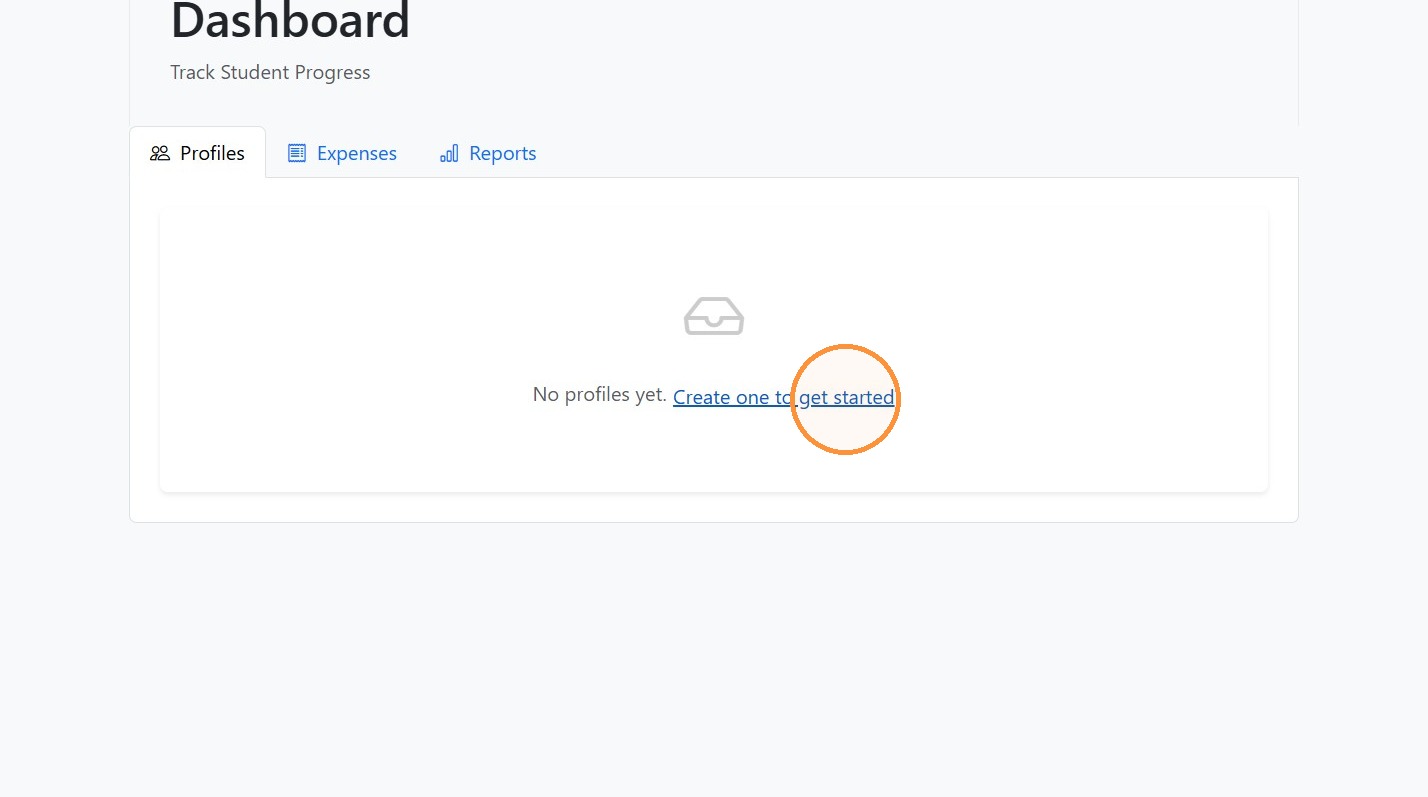
3. Click "Create one to get started" to create a profile to track the players' education.
Import Student Profile
4. Click "Import from RinkNet" to search and import data from the Team's protected list/roster.
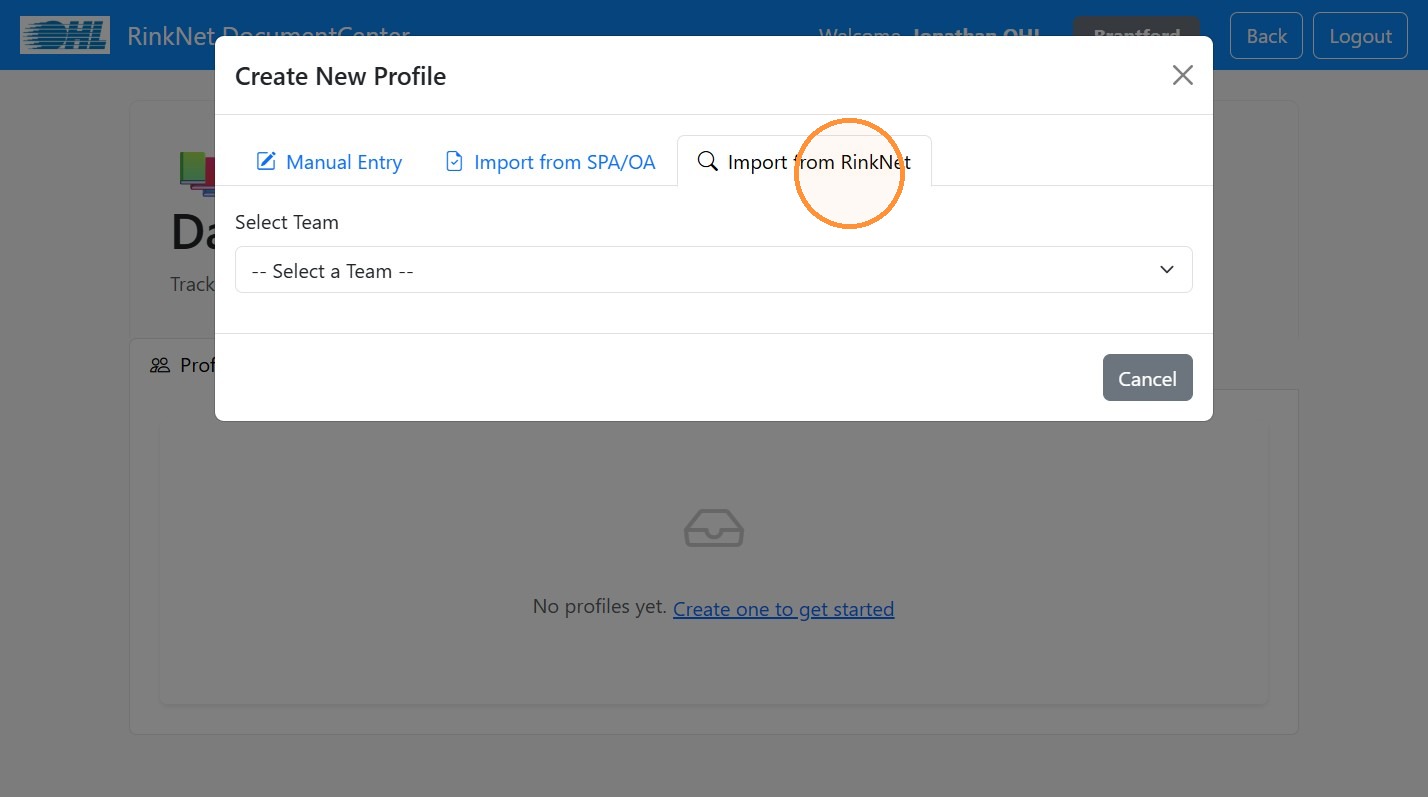
5. Select your team name.
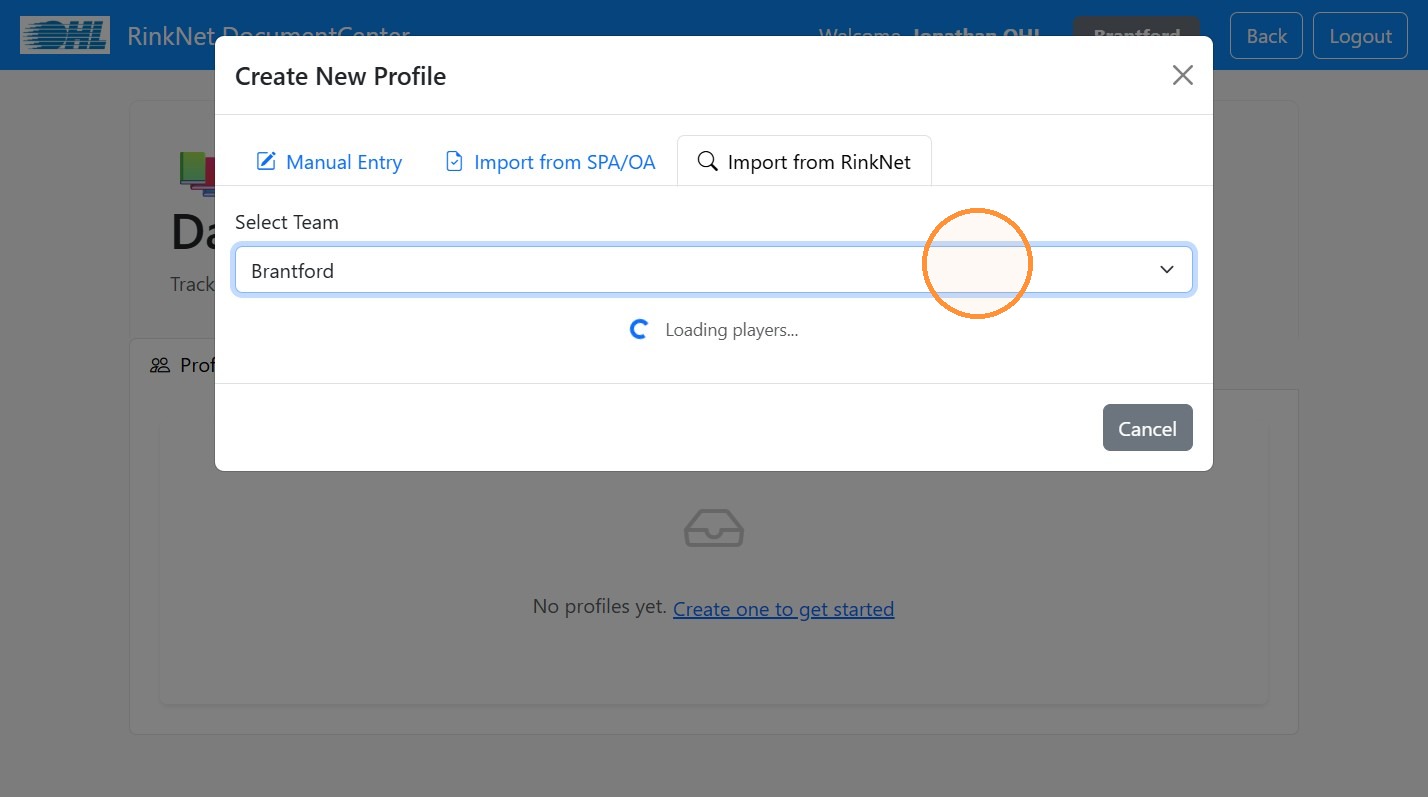
6. Click the "Search players by name..." field.
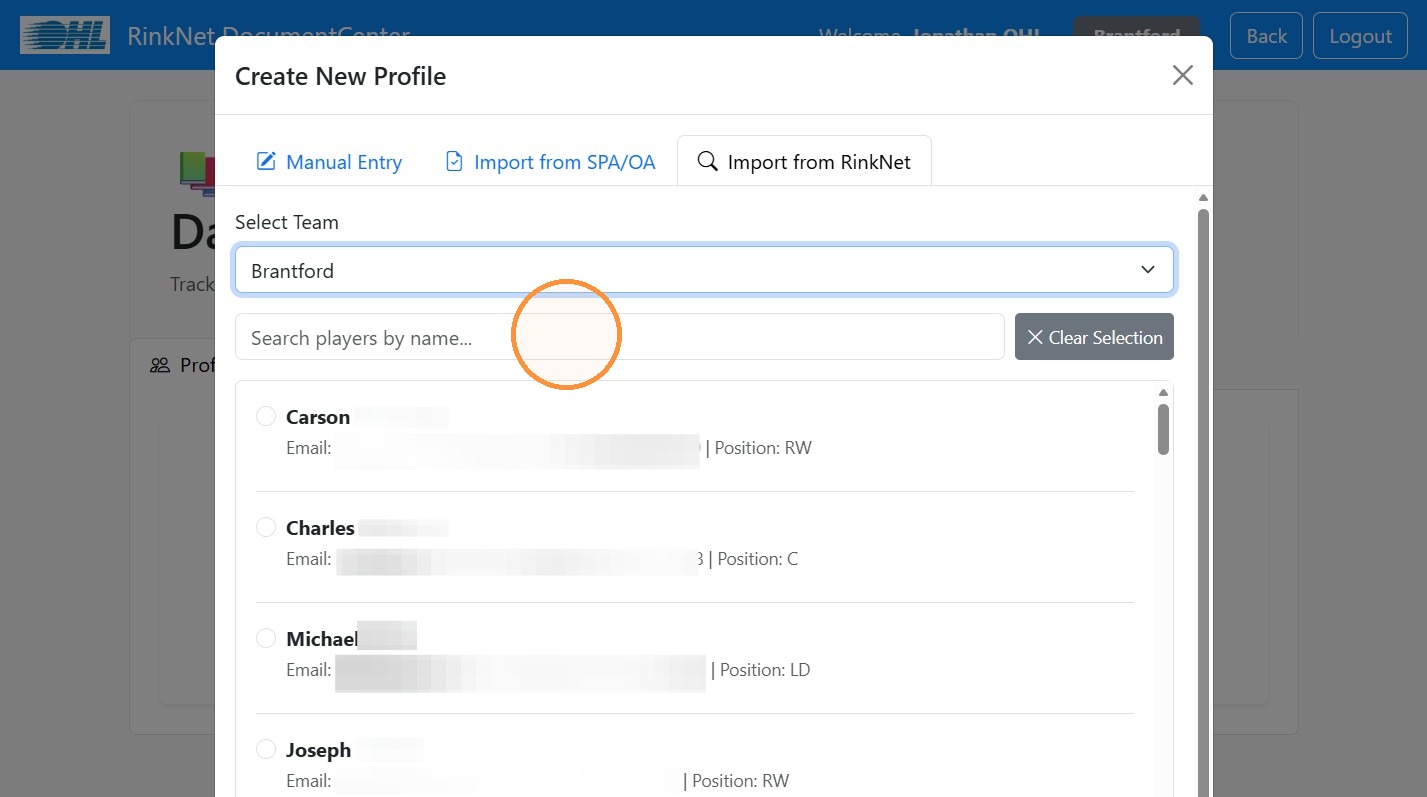
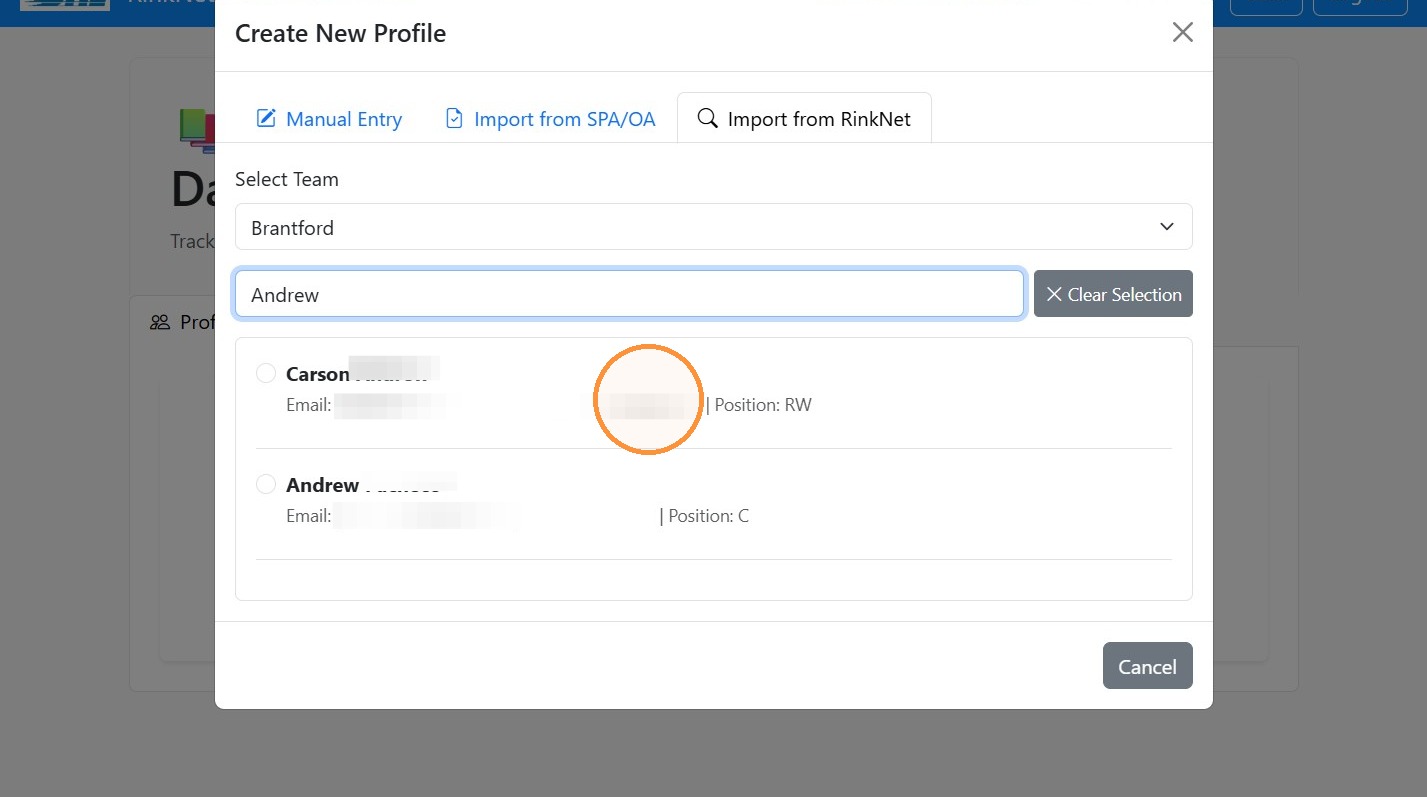
7. Type the player name
8. Click the player, this will pre-populate with player info with e-mail, DOB and secondary contact info available in RinkNet.
9. Enter the require fields for the player such as their Educational Pathway, Eligibility Year, Course requirements and Click "Create Profile"
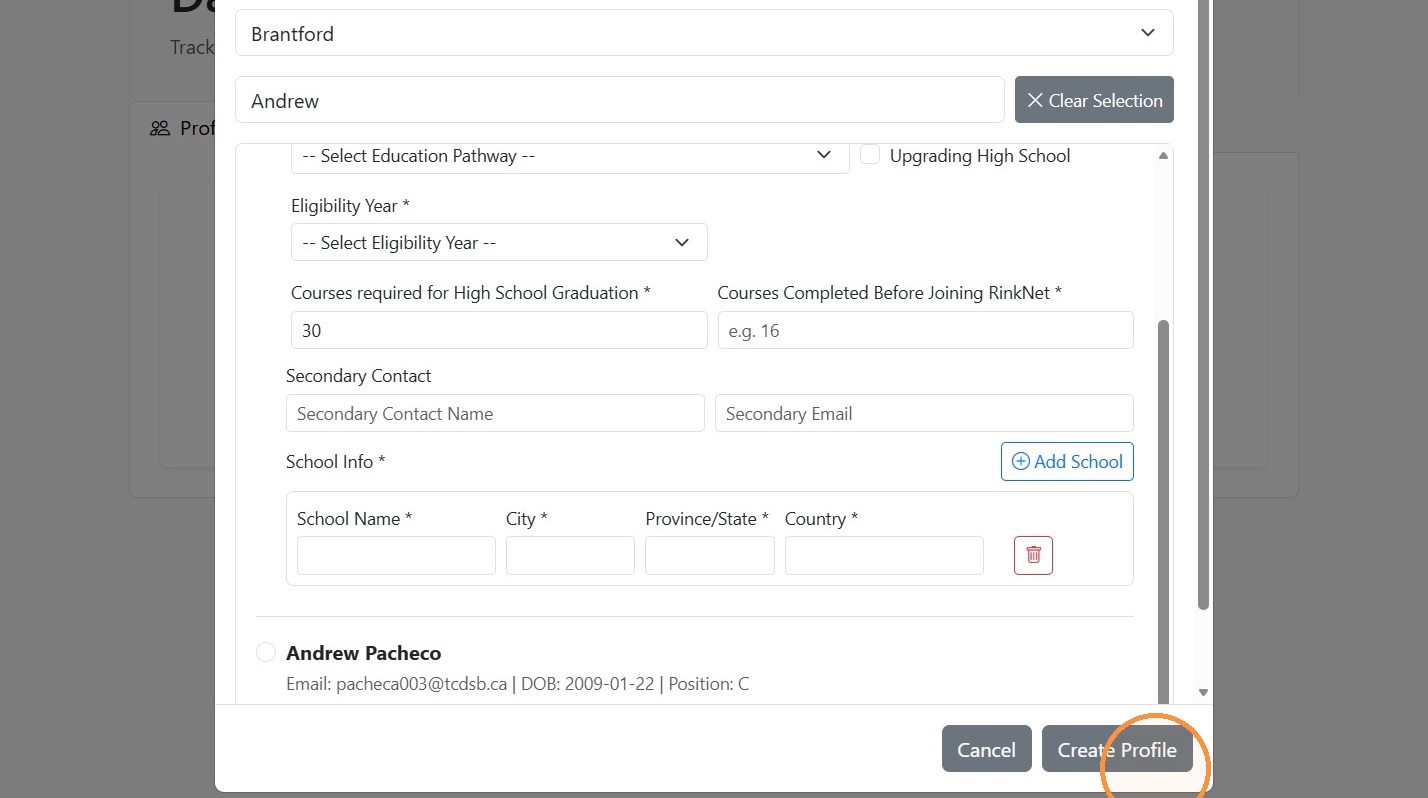
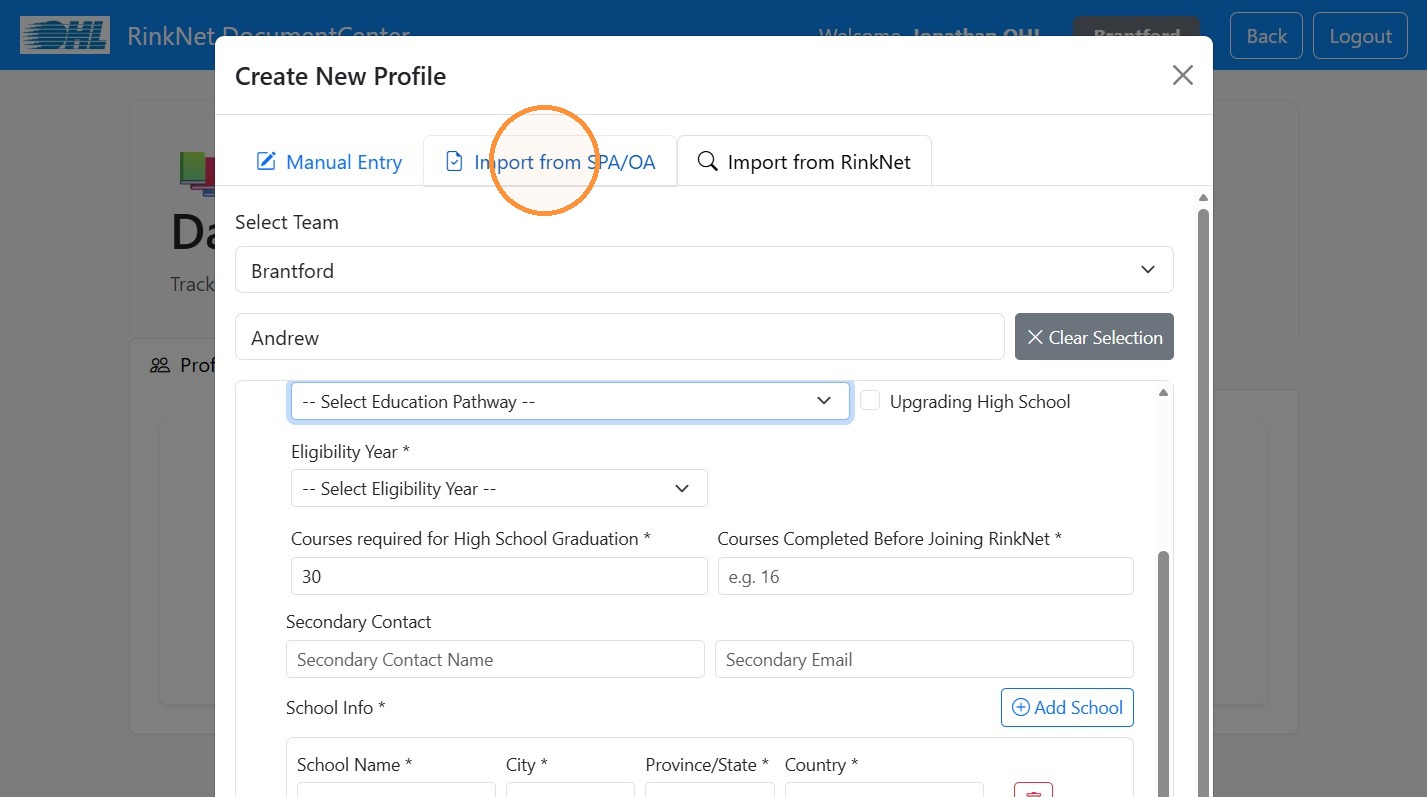
10. Click "Import from SPA/OA" to import a Player if they signed an agreement via RinkNet or if you cannot find the player, you can use "Manual Entry" to manual enter the data to create the player profile.
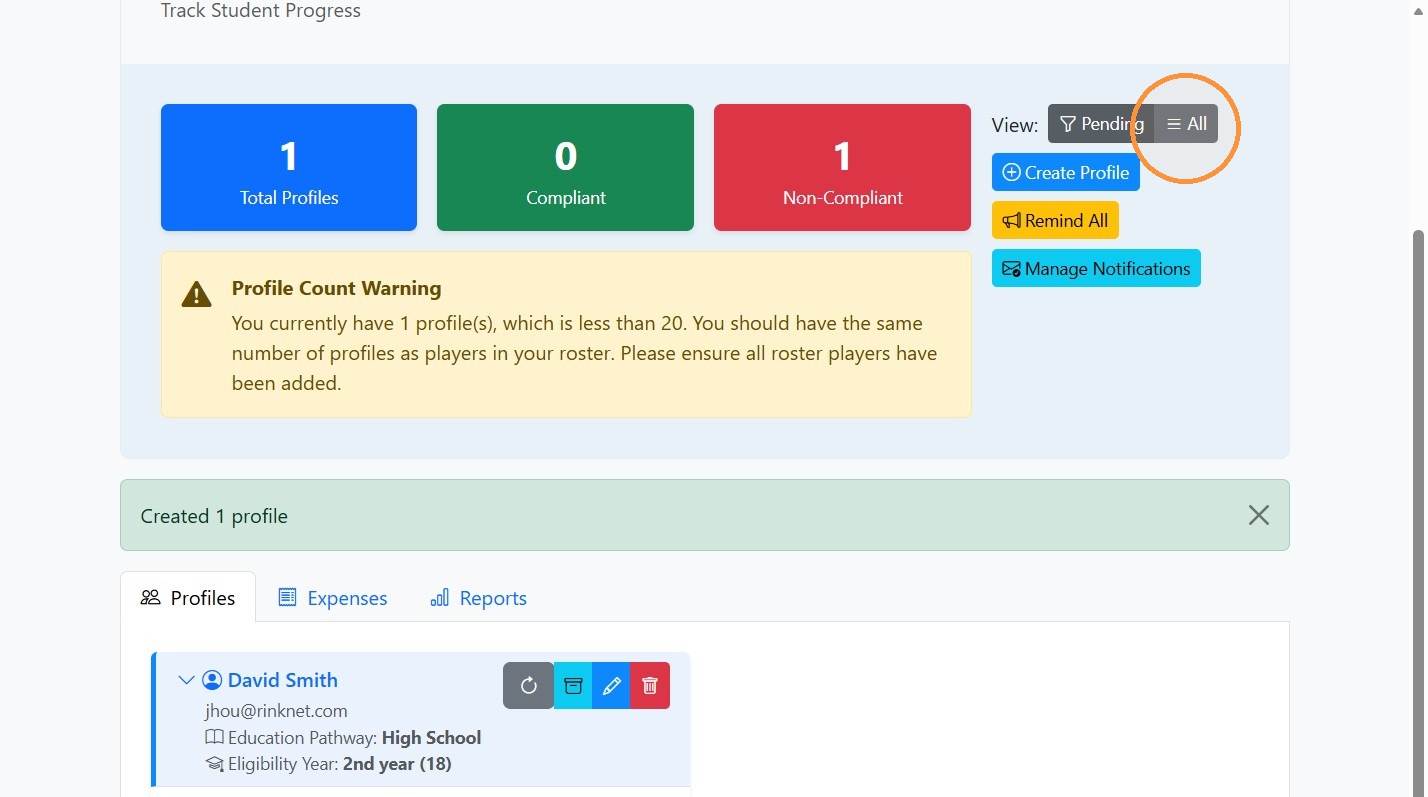
11. Click "All" to view upcoming events and submissions for all profiles on your team.
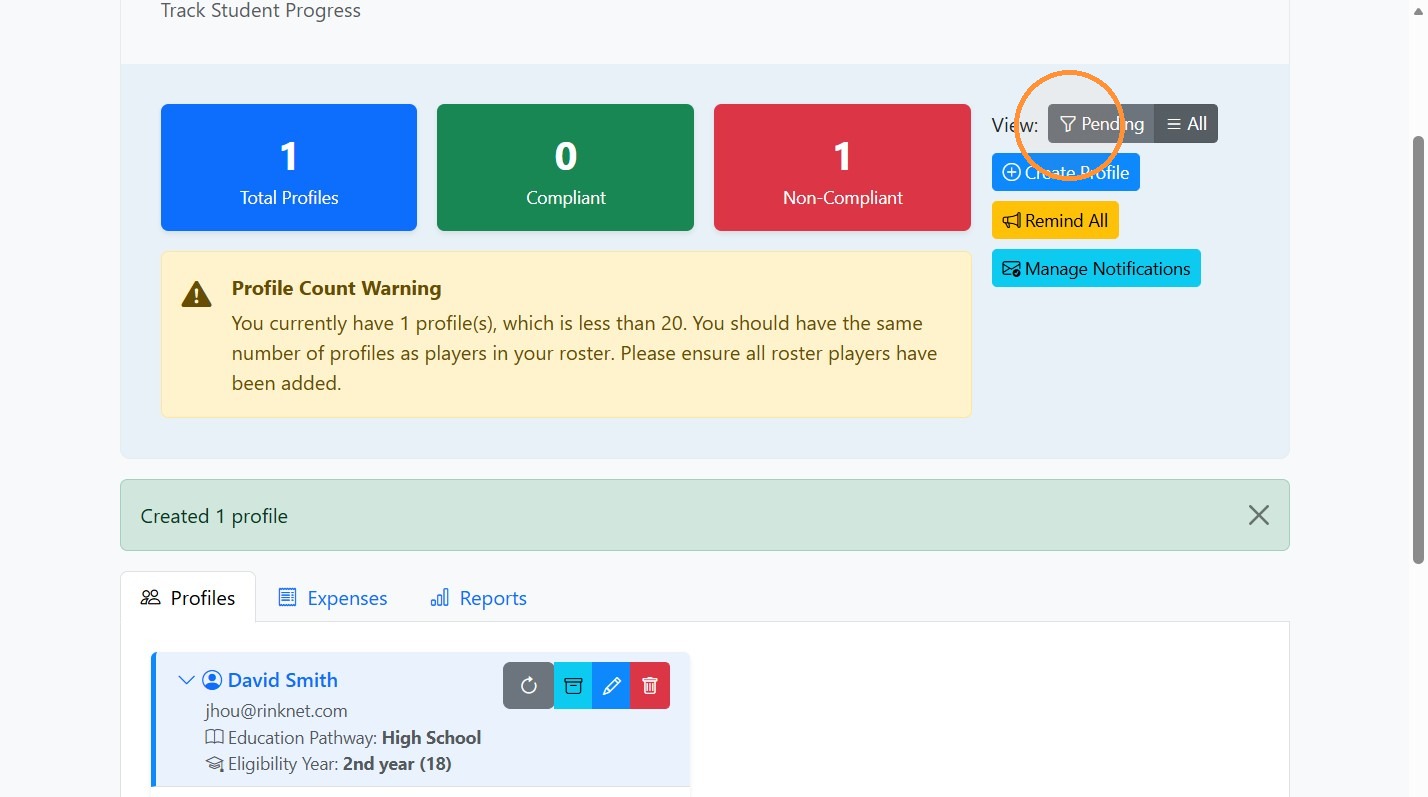
12. Click Pending to filter the profile tasks based on events awaiting approval or that are overdue.
Submit Course Records
13. An e-mail will be sent to the player and the secondary contact ahead of any event to remind them to submit the information.
You can also submit on the player's behalf by clicking on an item.
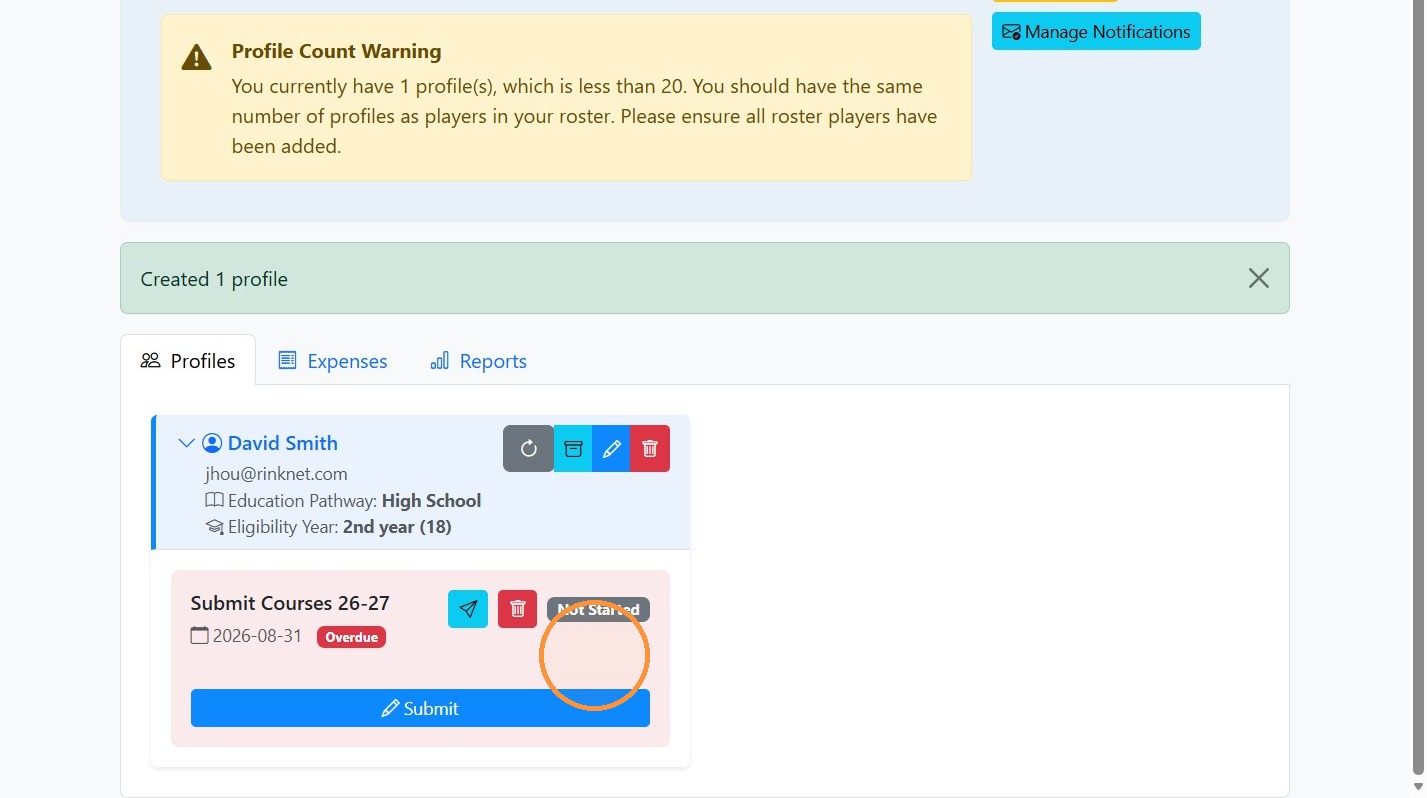
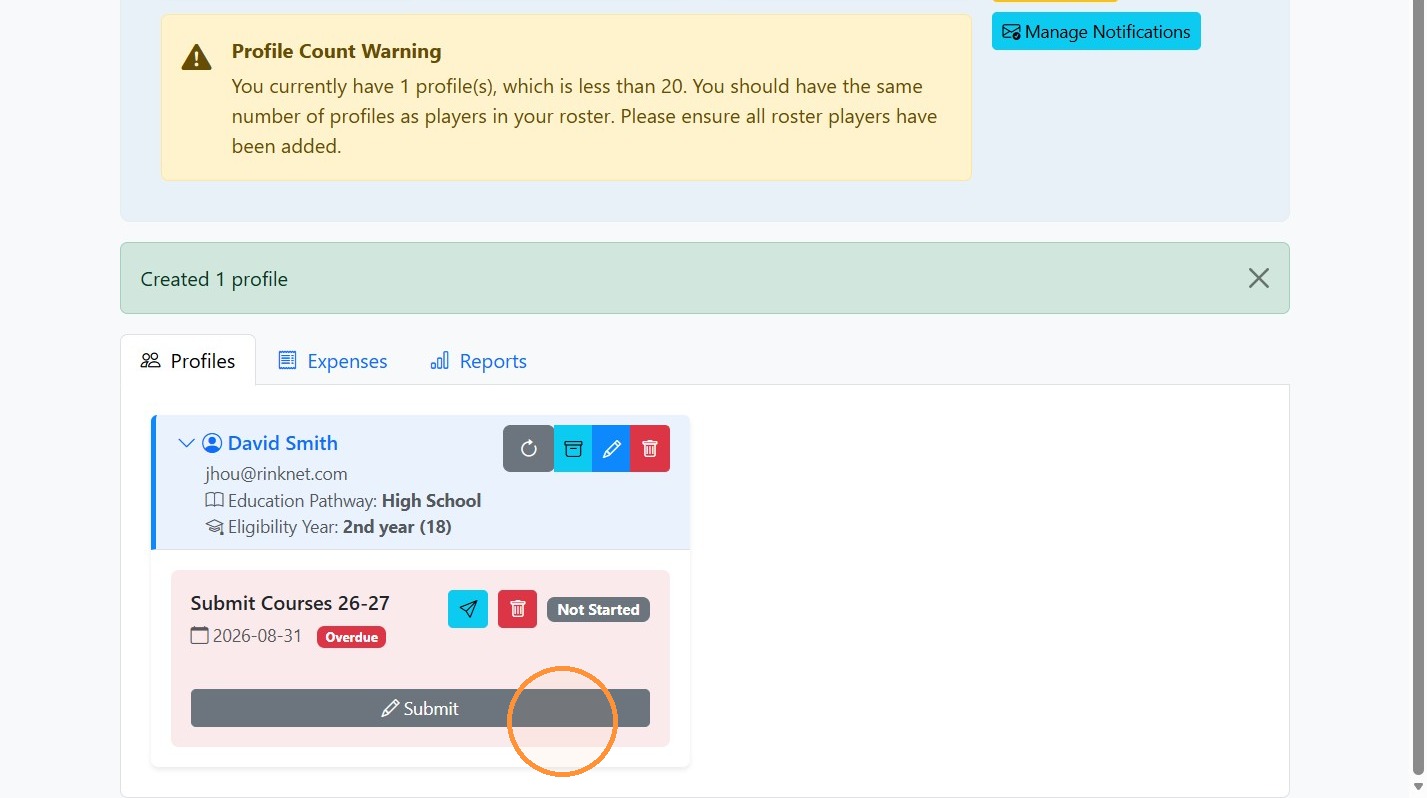
14. We will walk through how to submit courses. Click "Submit"
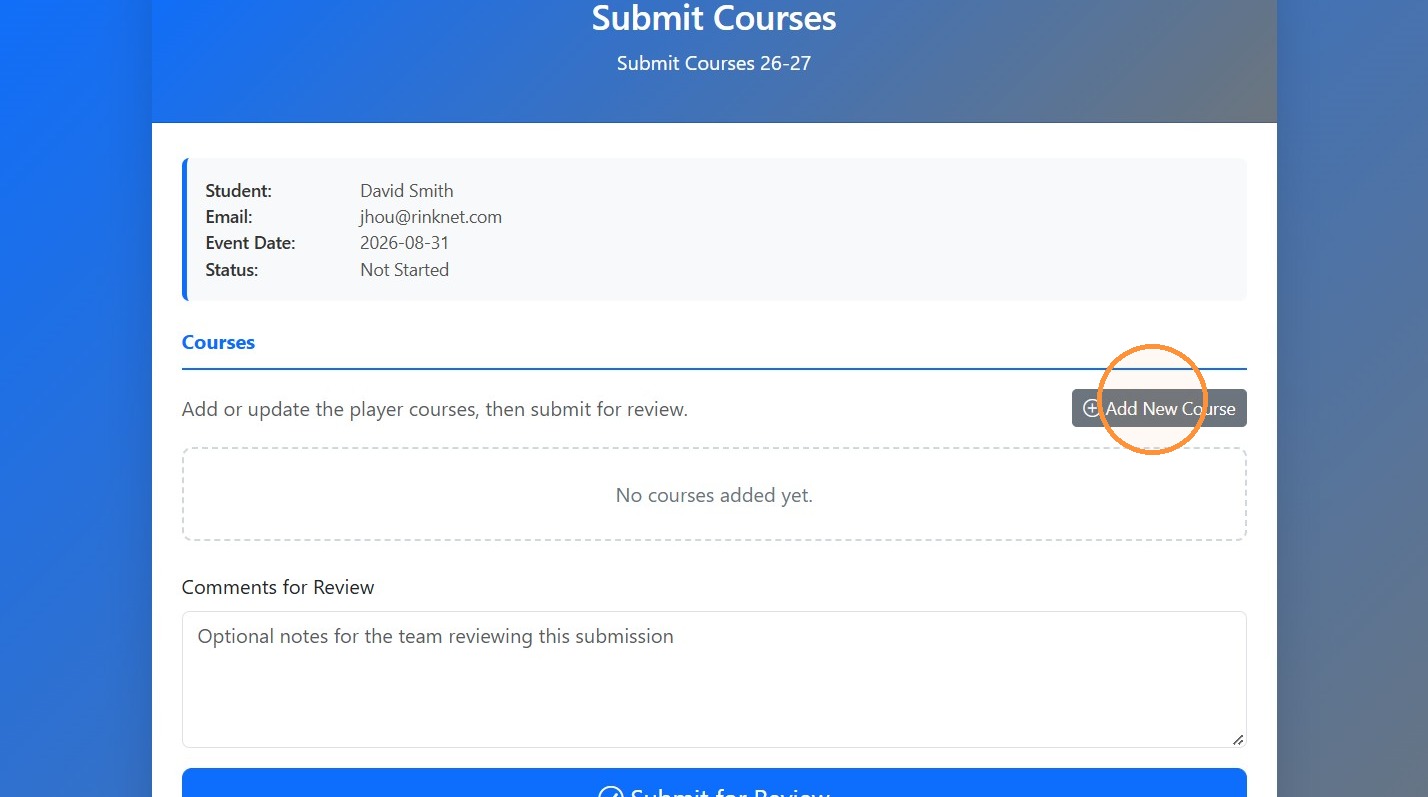
15. Click "Add New Course"
16. The player would enter course details.
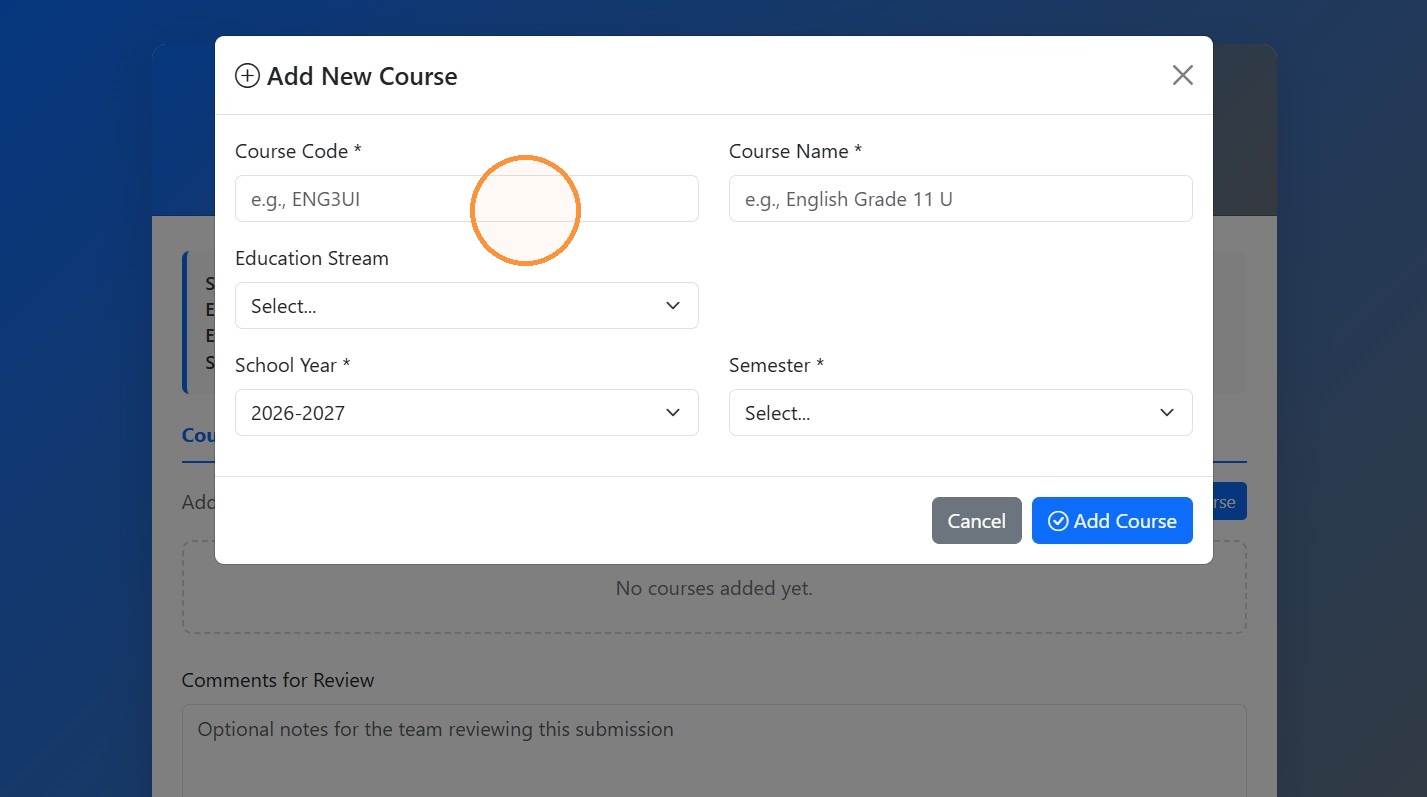
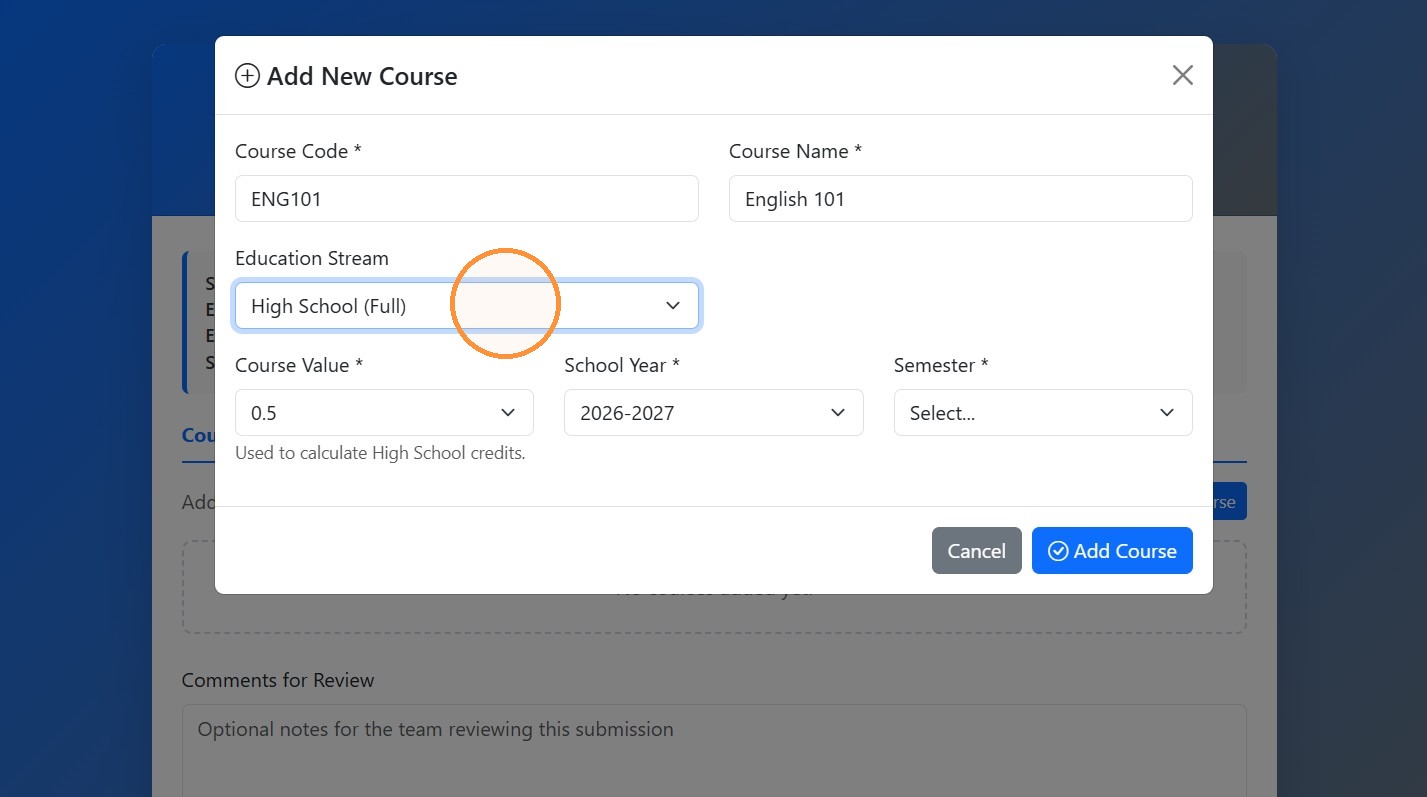
17. Select the Education Stream.
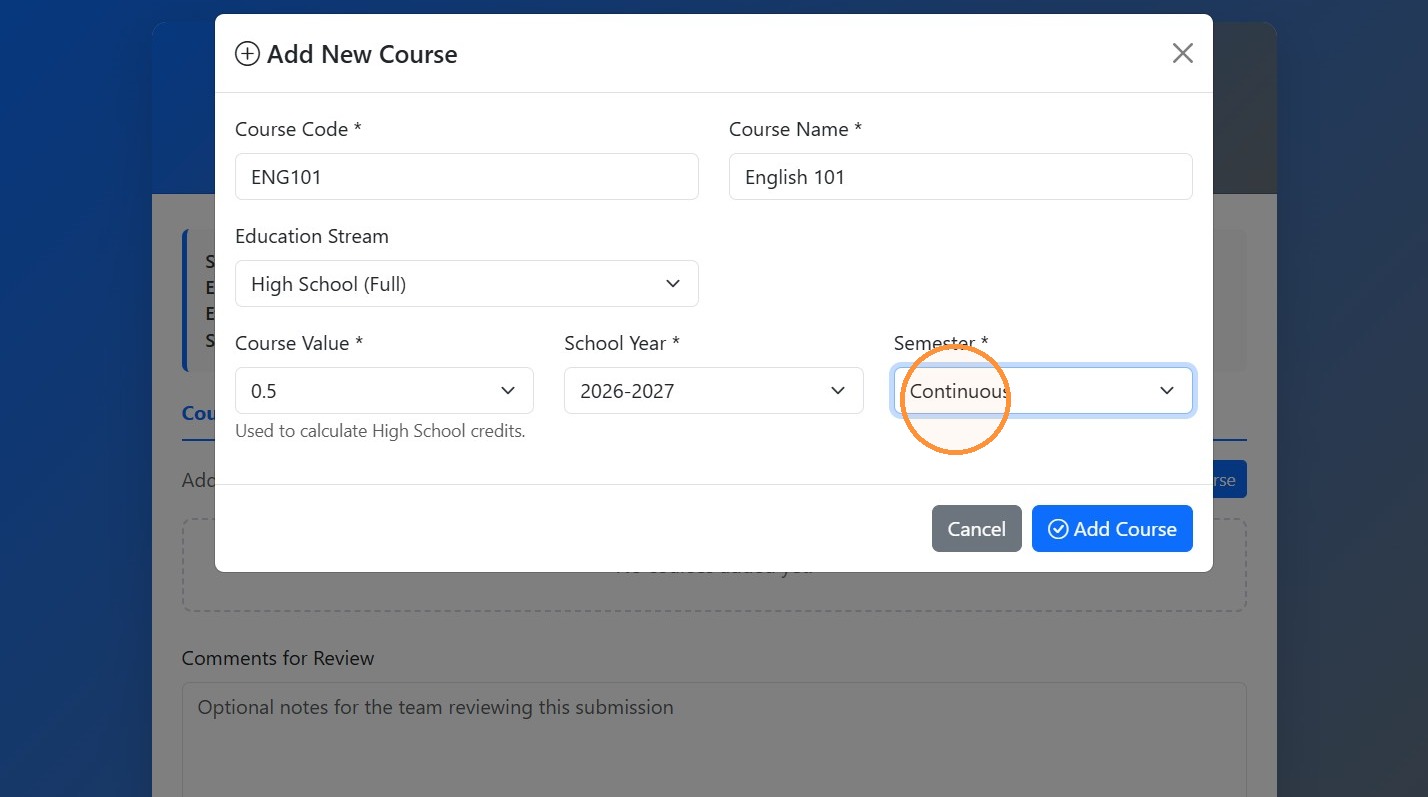
18. Select the Semester (if applicable).
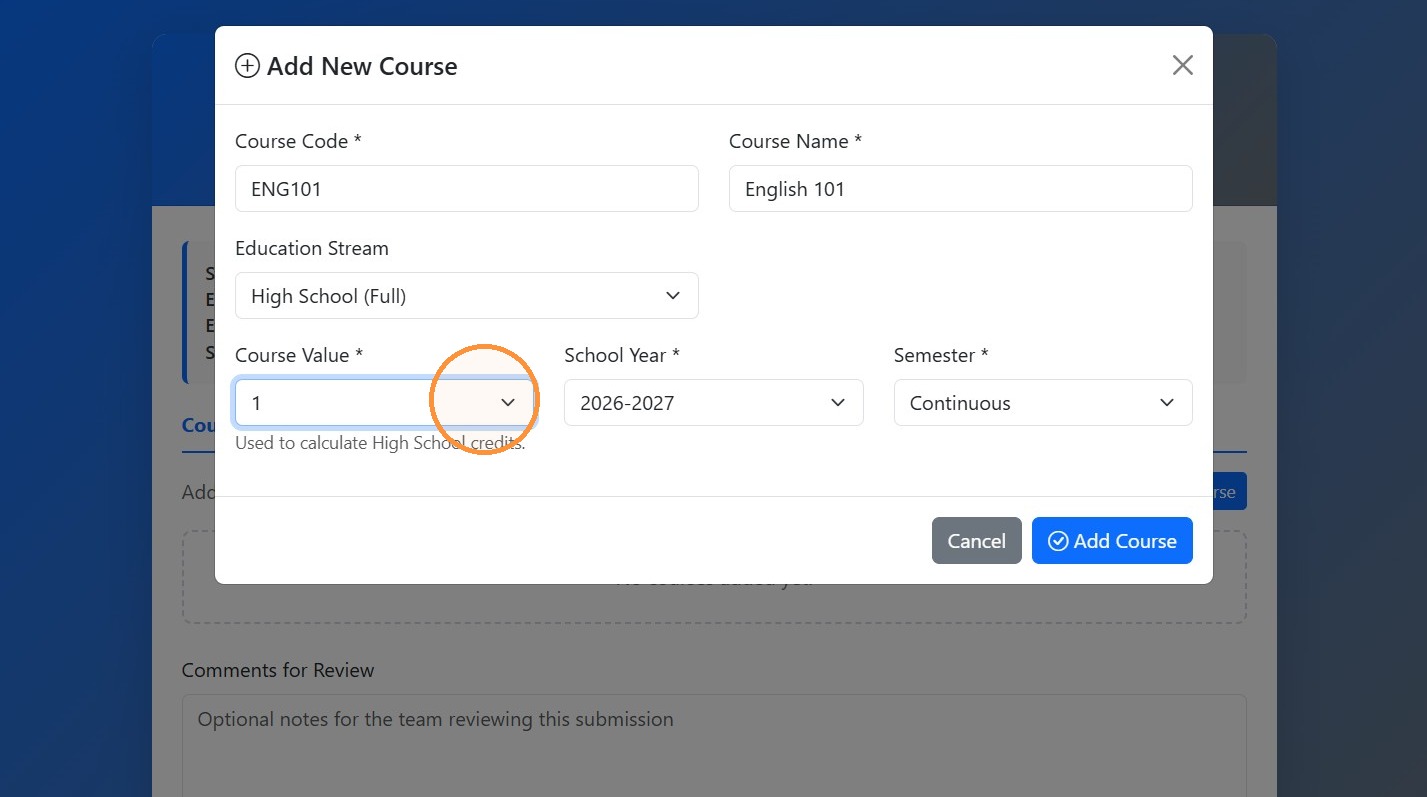
19. Select the Course Value (if applicable).
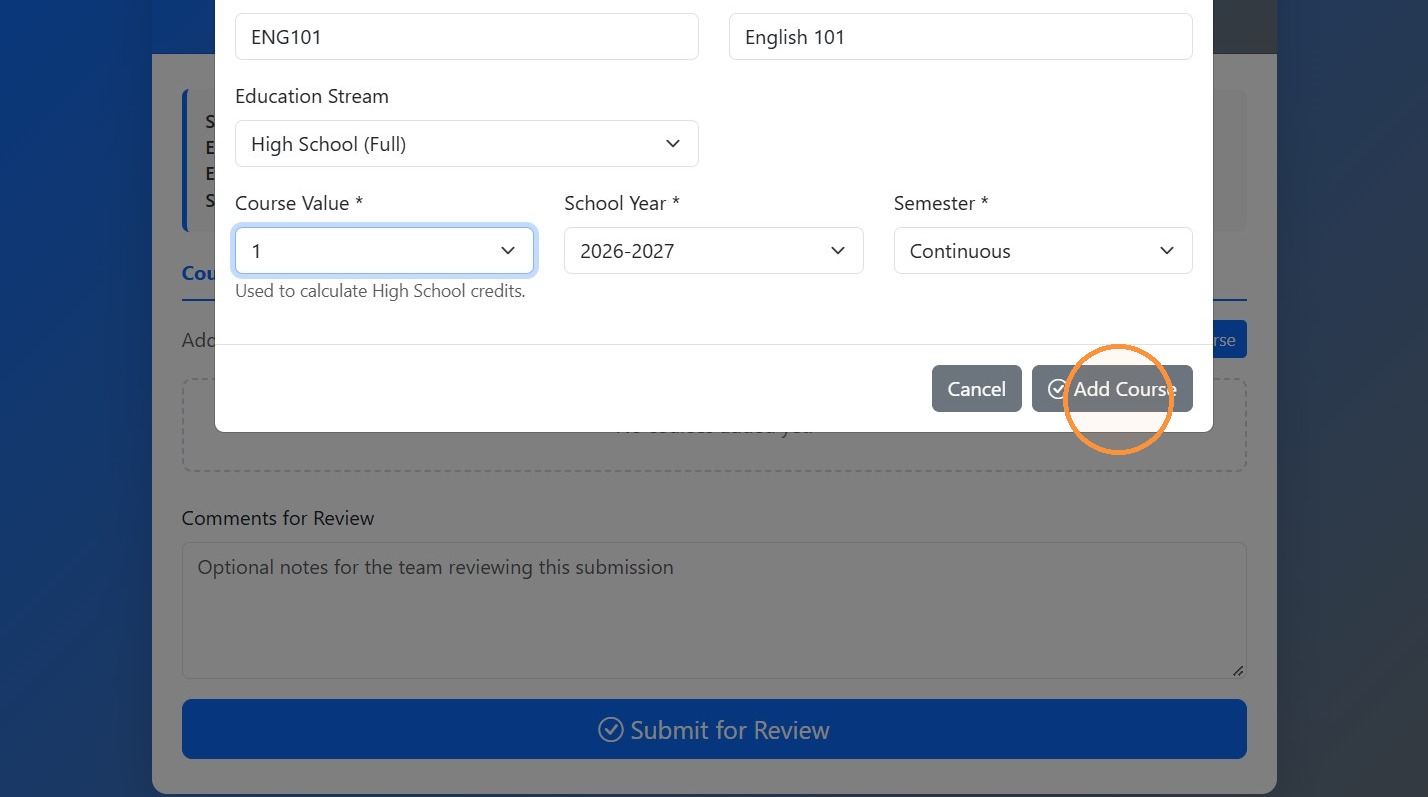
20. Click "Add Course"
21. Click "Submit for Review". Typically the player will submit this and the Advisor will receive a notification with an email for approval.
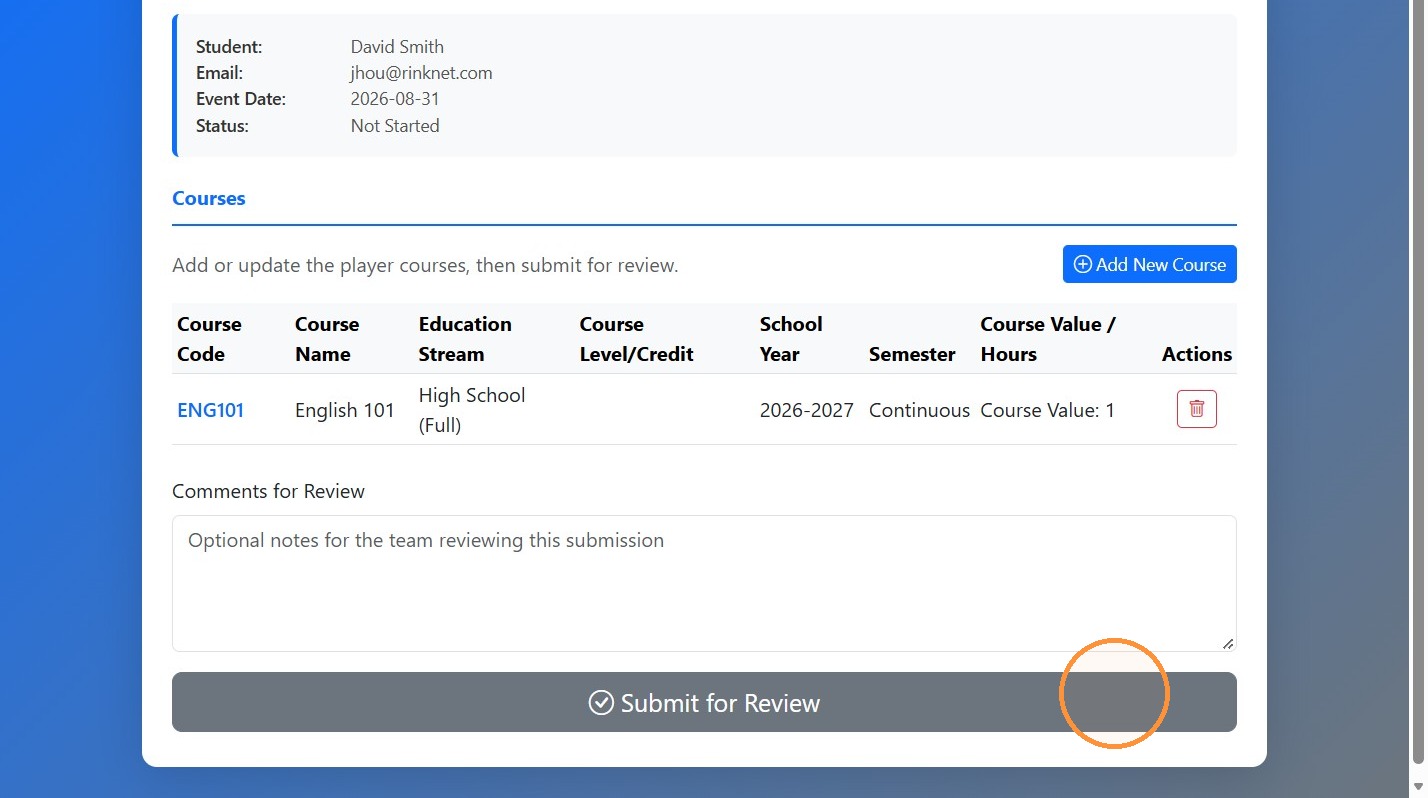
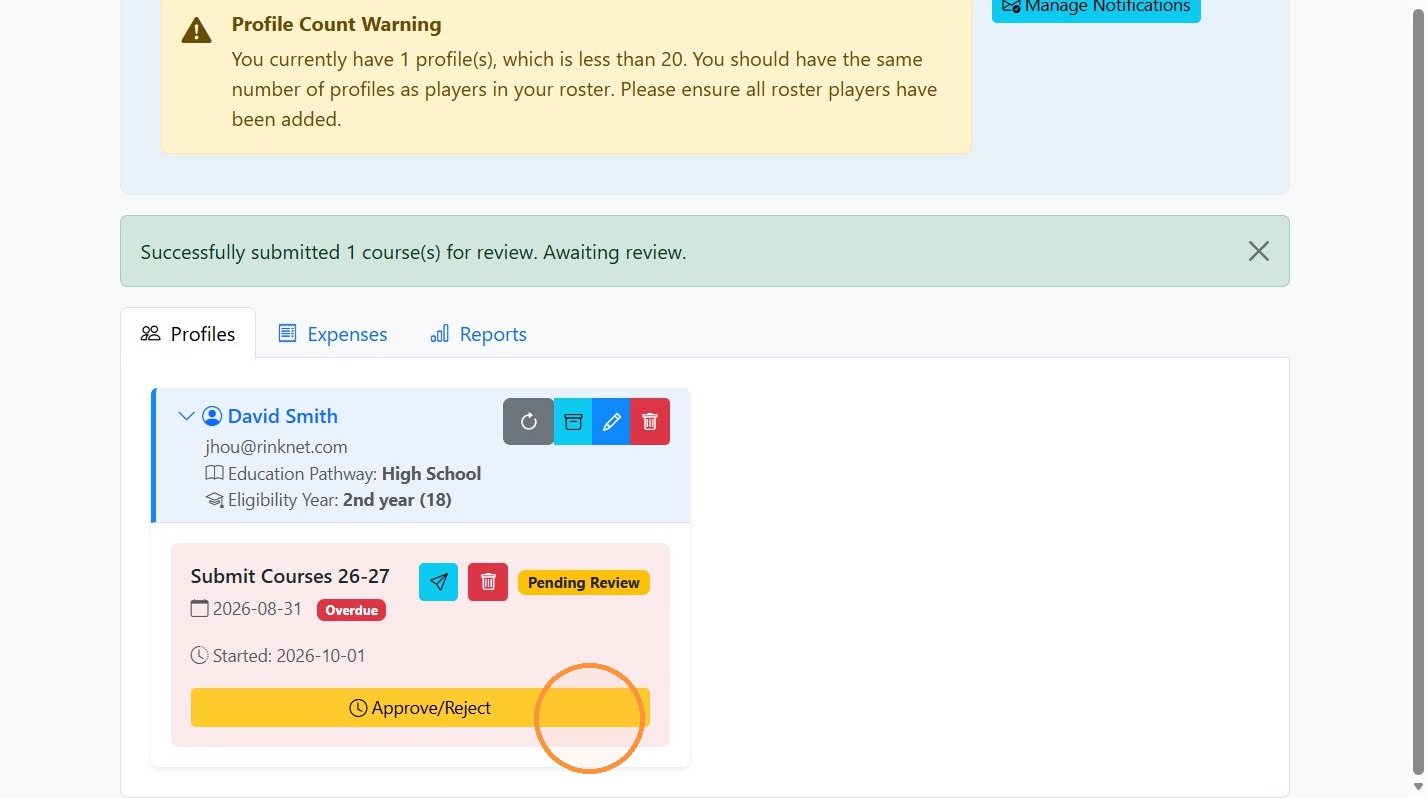
22. The event will now show in yellow for the player, indicating an approval is required. Click "Approve/Reject"
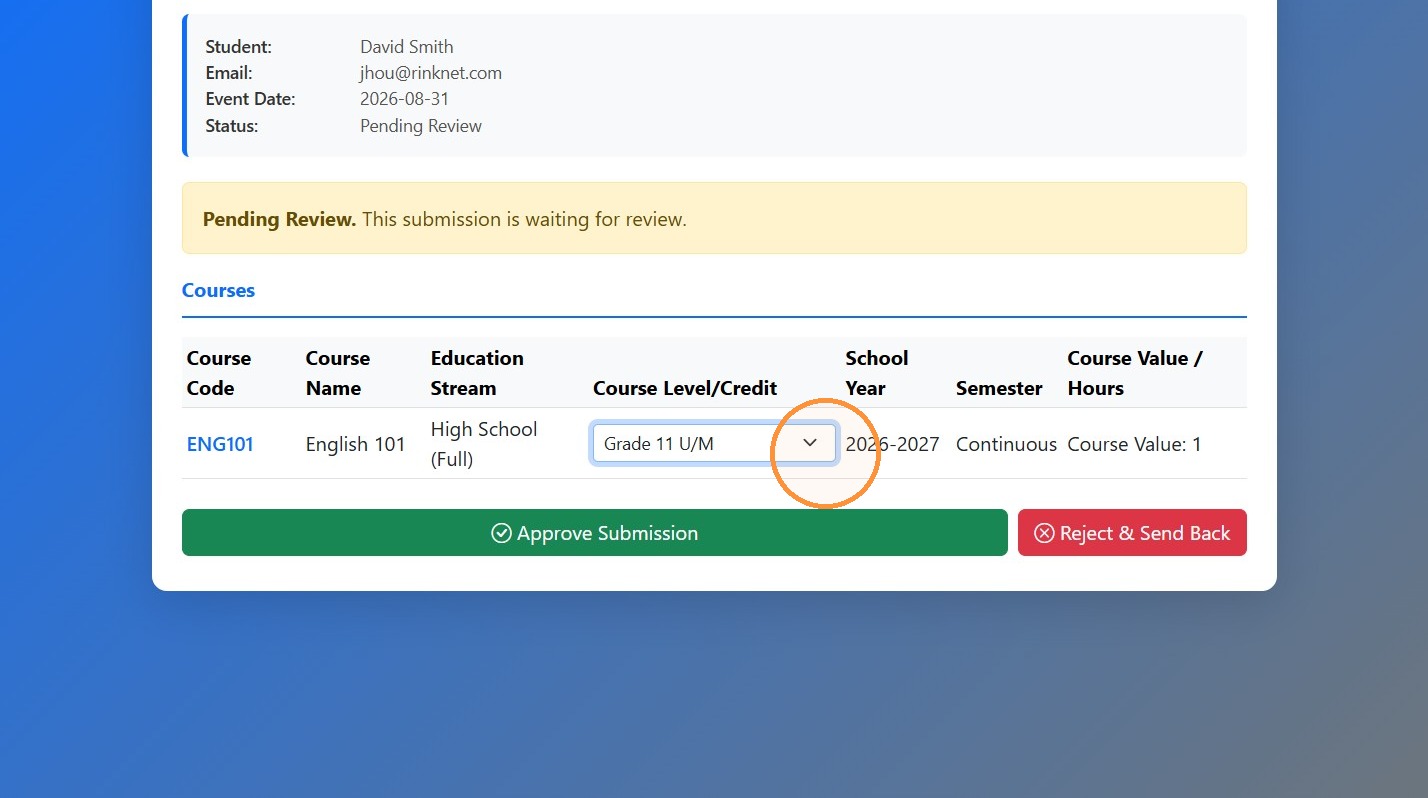
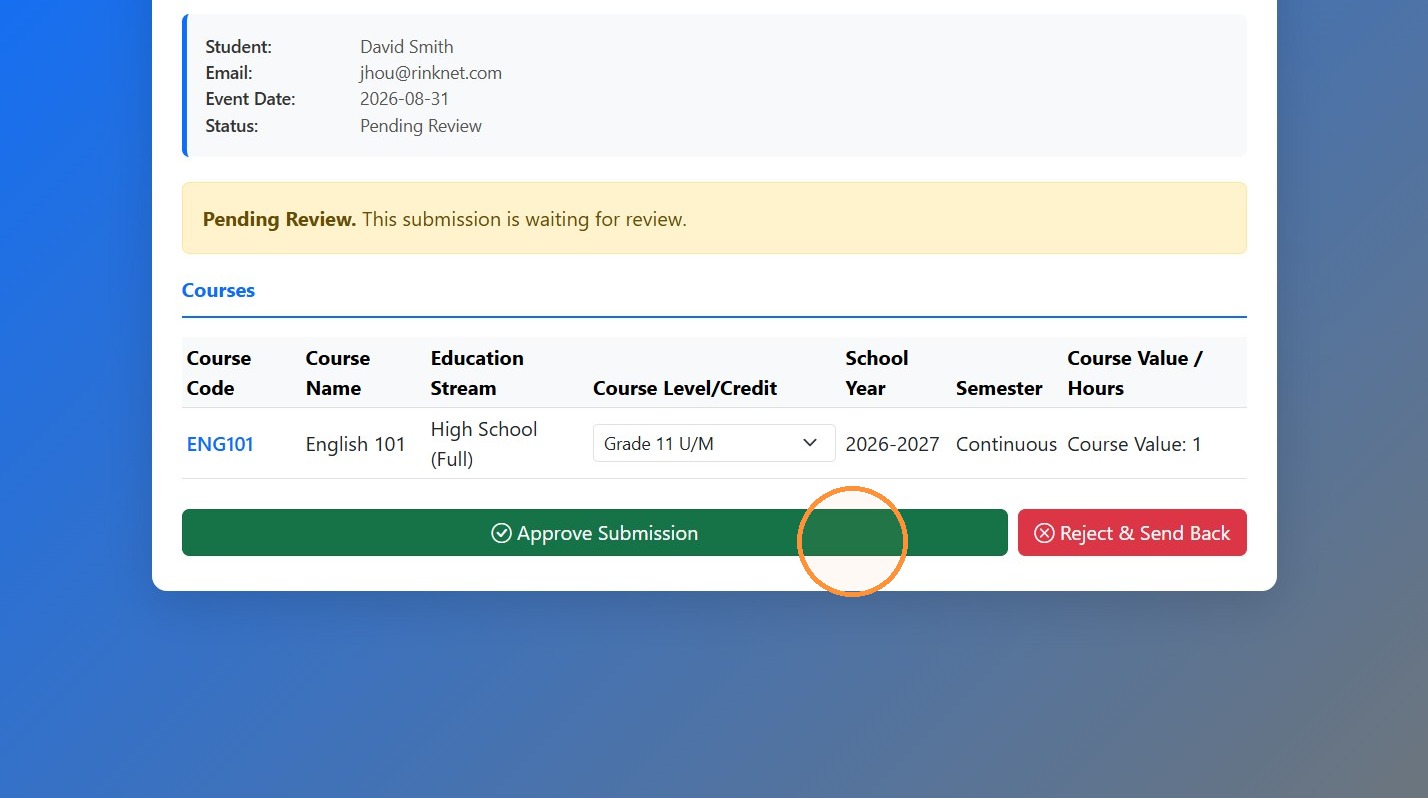
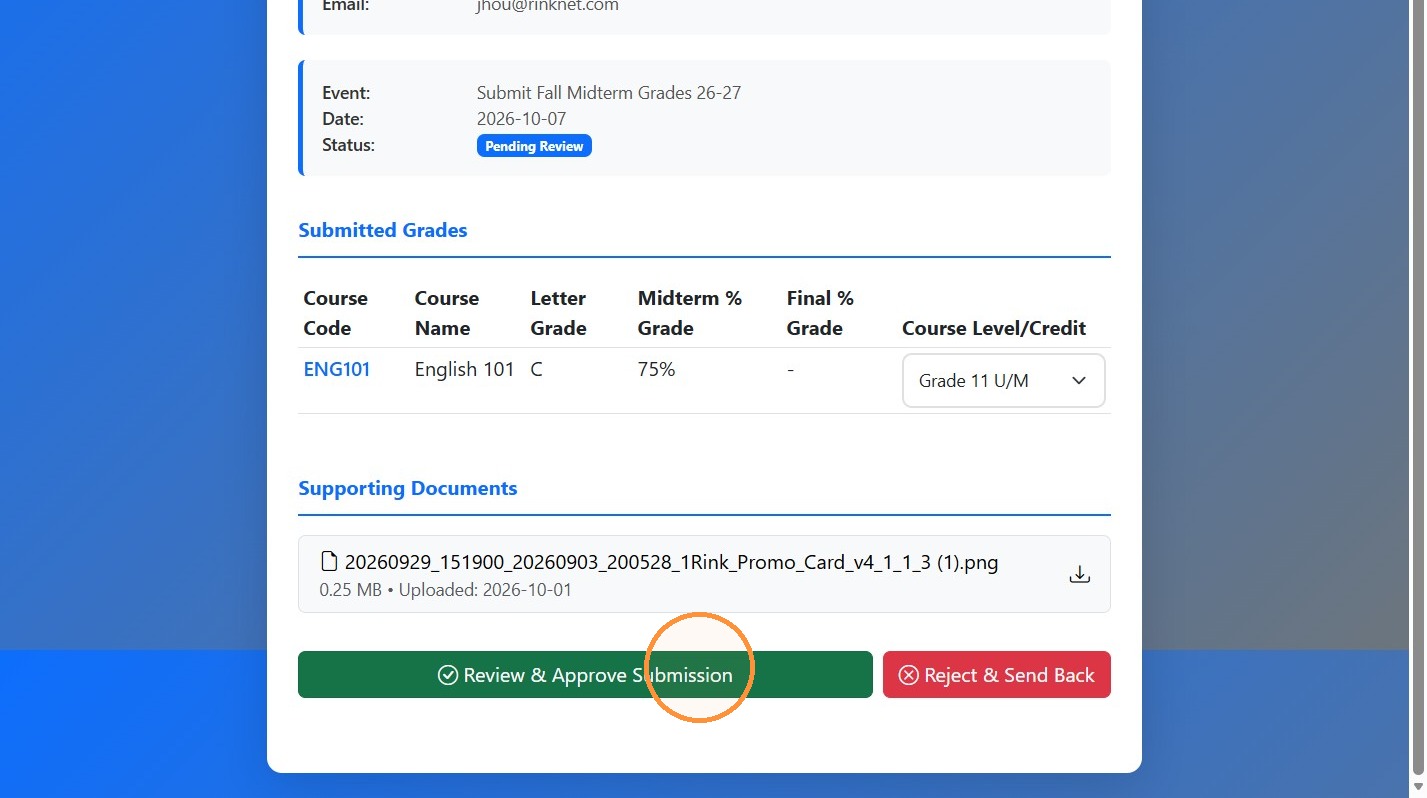
23. When approving courses, the Advisor must select and indicate the Course Level/Credit option for that course.
24. Click "Reject & Send Back" if there is something wrong. You can specify a note. This will trigger an email back to the player update the submission.
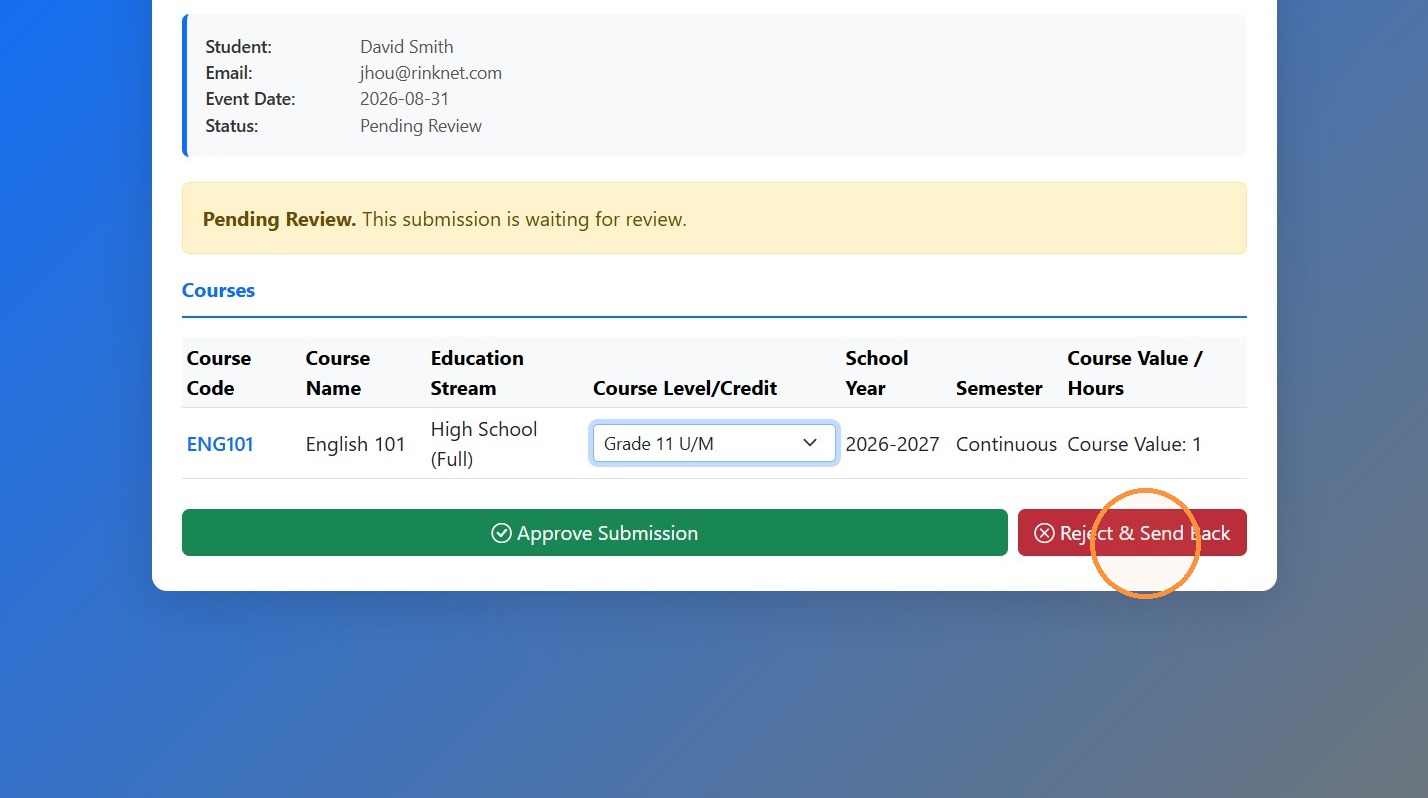
25. Click "Approve Submission" if everything looks OK.
26. Next, here is an example for a grade submission. Click "Submit" to submit a grade on behalf of the player. Normally, the player will receive a notification prior to the deadline to submit.
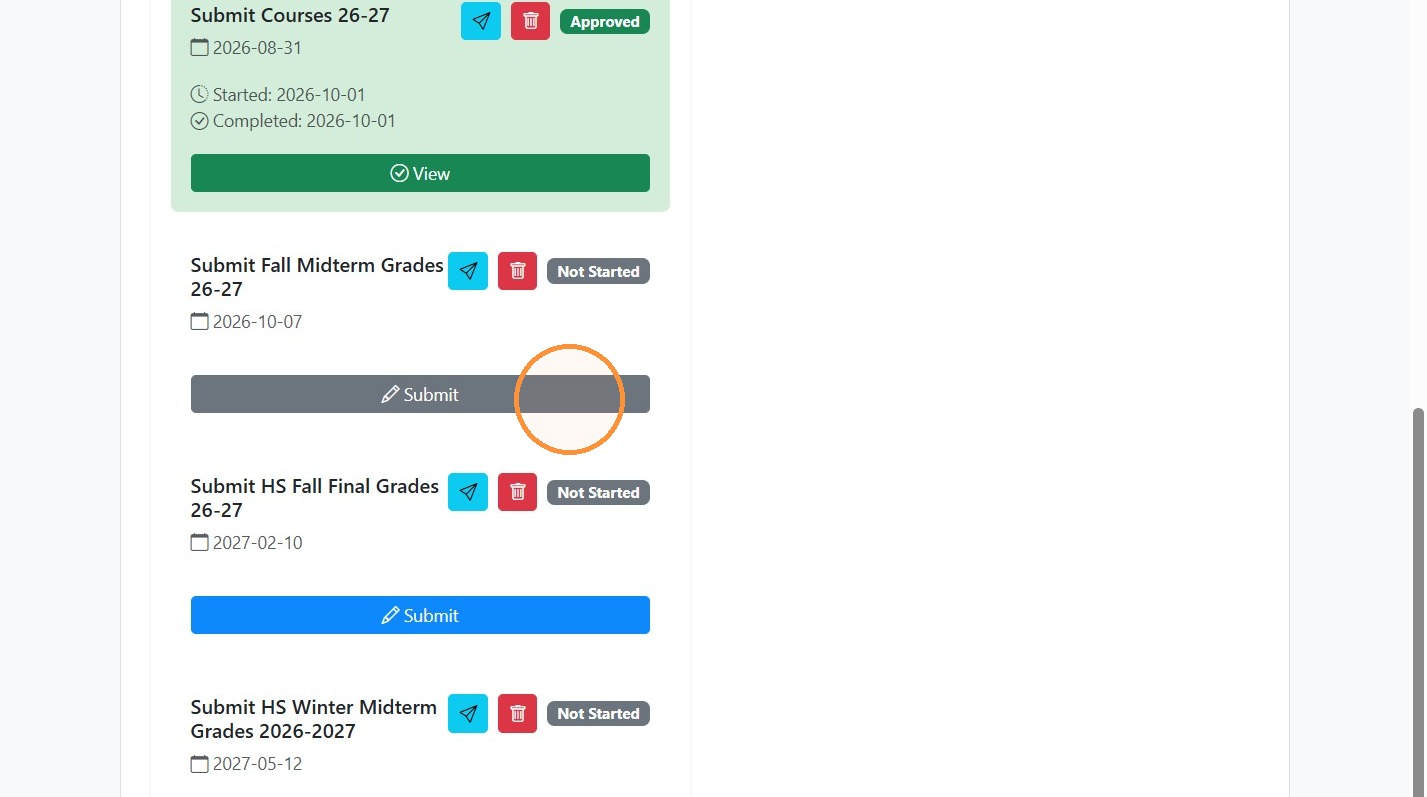
Submit Midterm Grades
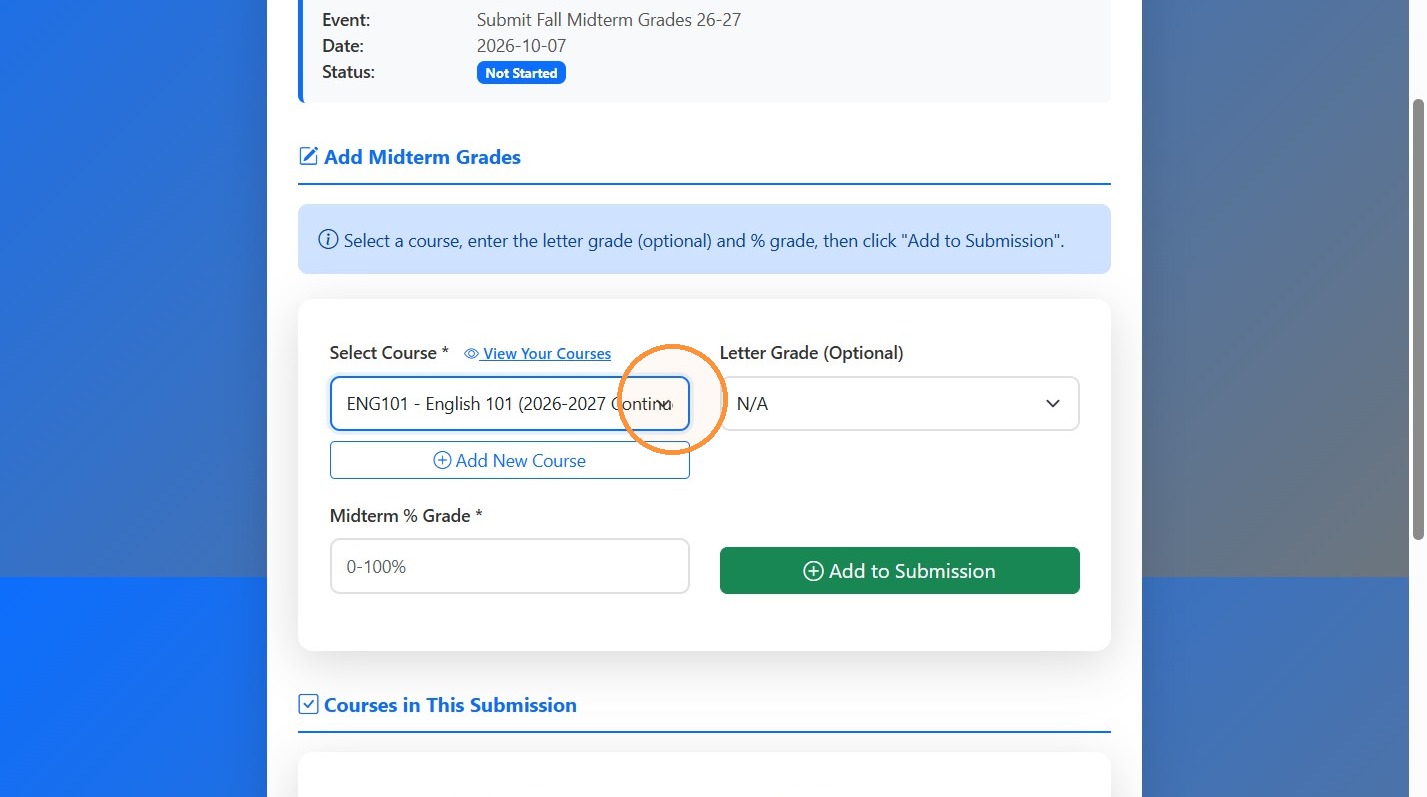
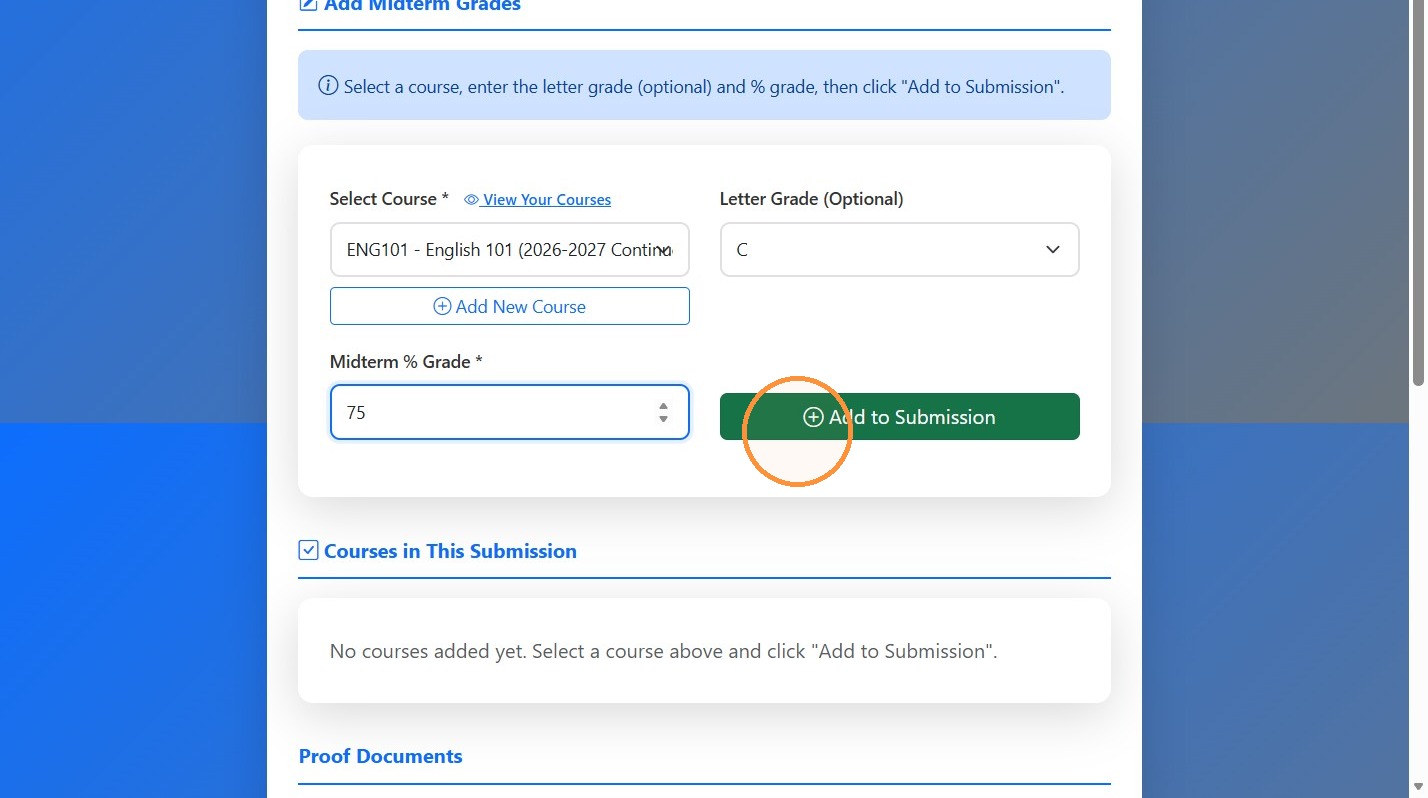
27. Select the course for the grade to add.
28. Select a letter grade or enter the % grade depending on the course.
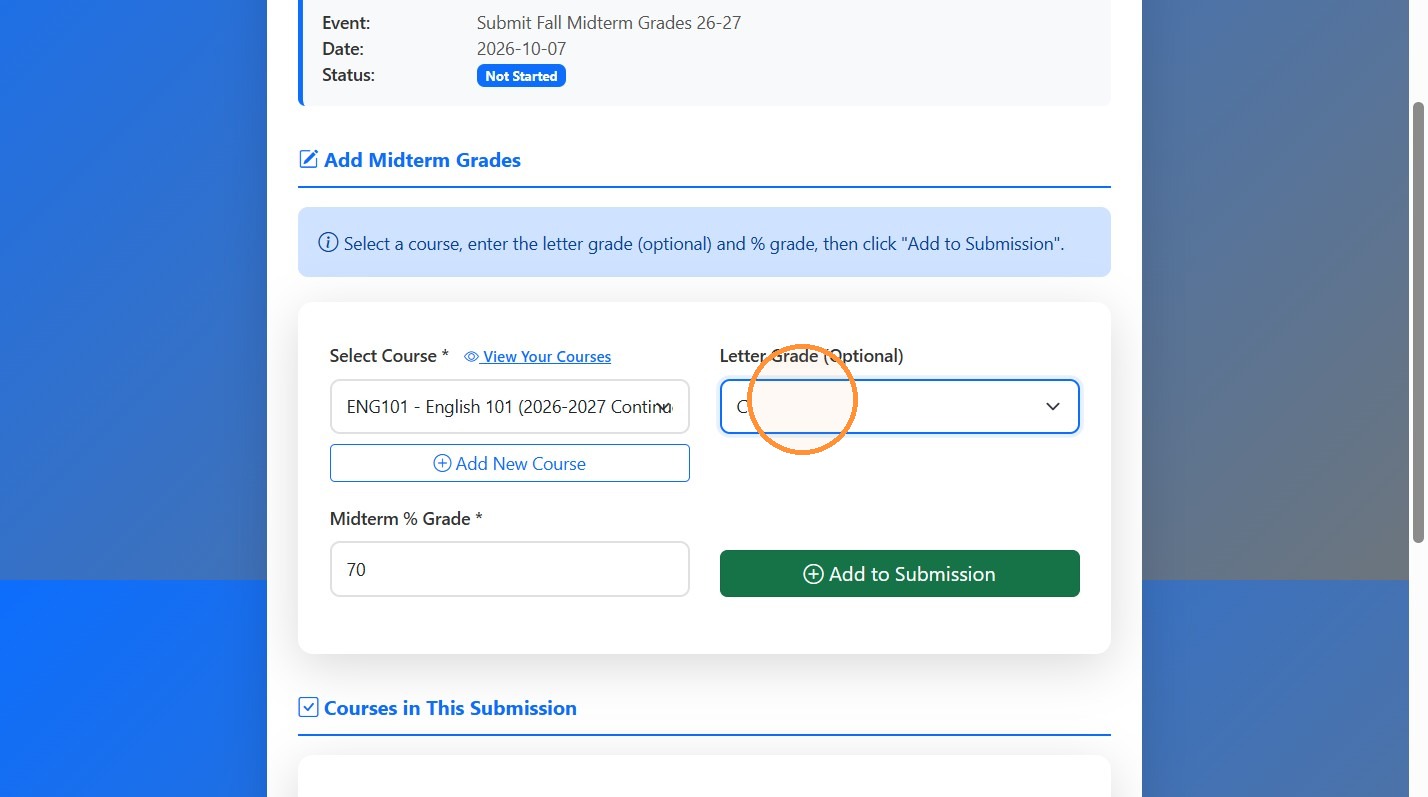
29. Click "Add to Submission"
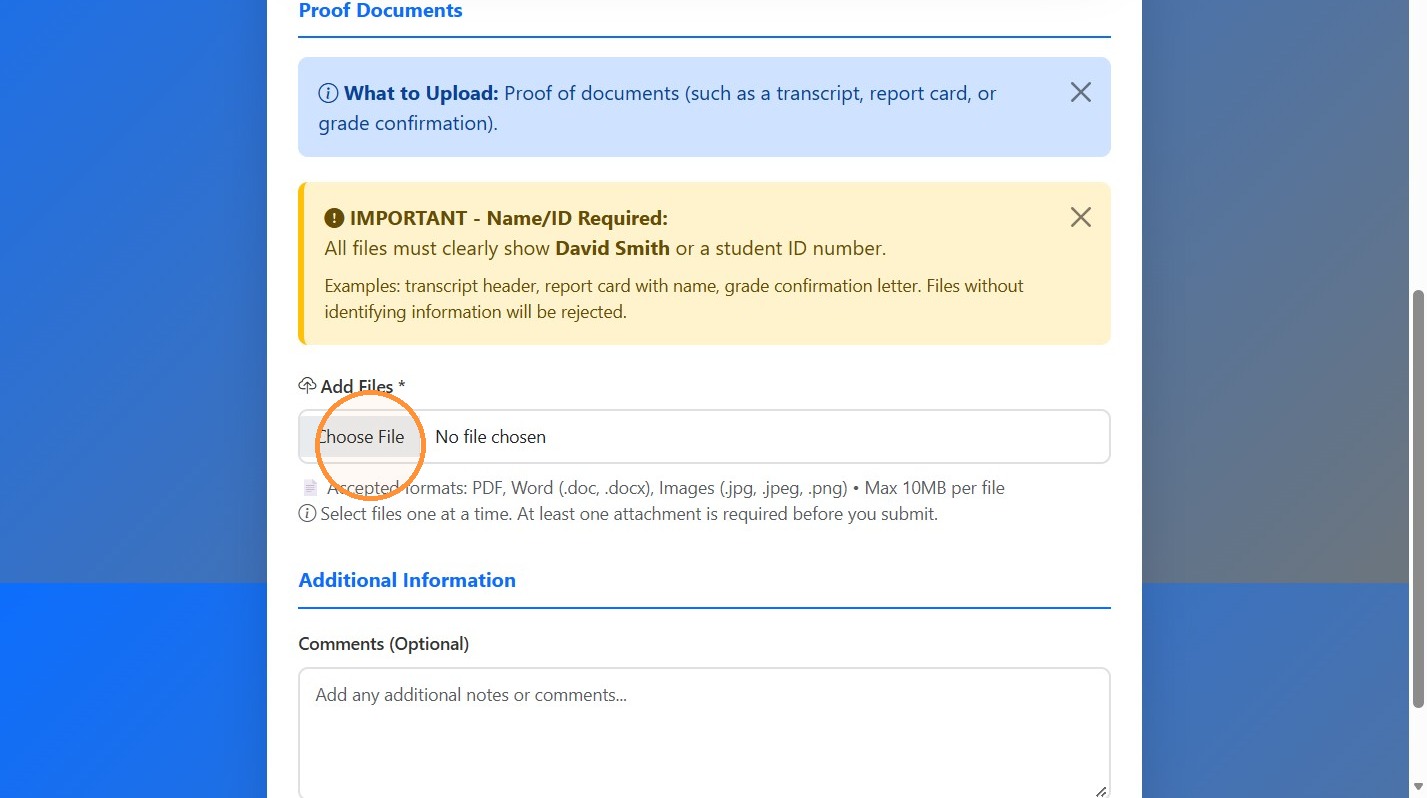
30. Click the "Add Files *" field to submit proof.
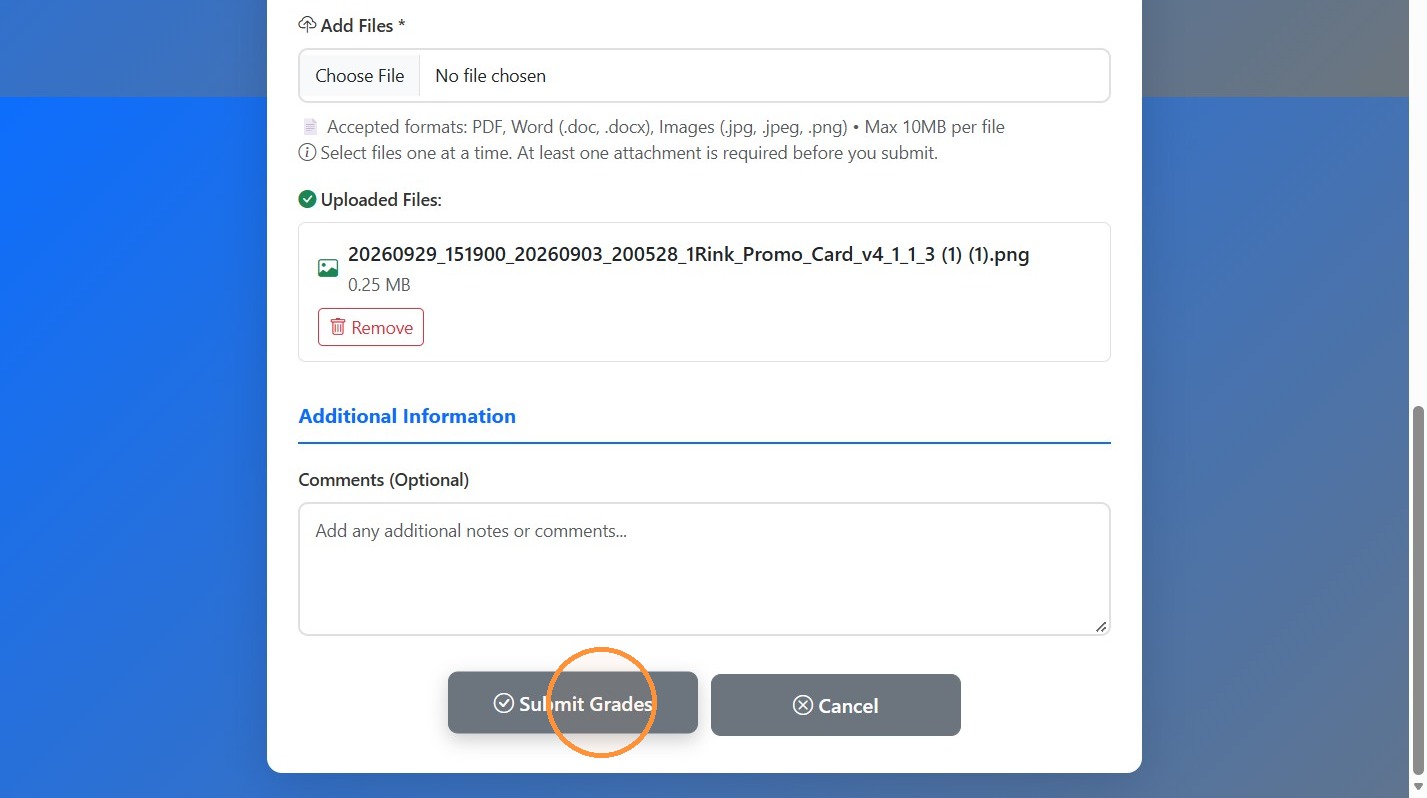
31. Click "Submit Grades"
32. Once the player submits their grades you will receive an email and can approve/reject the submission.
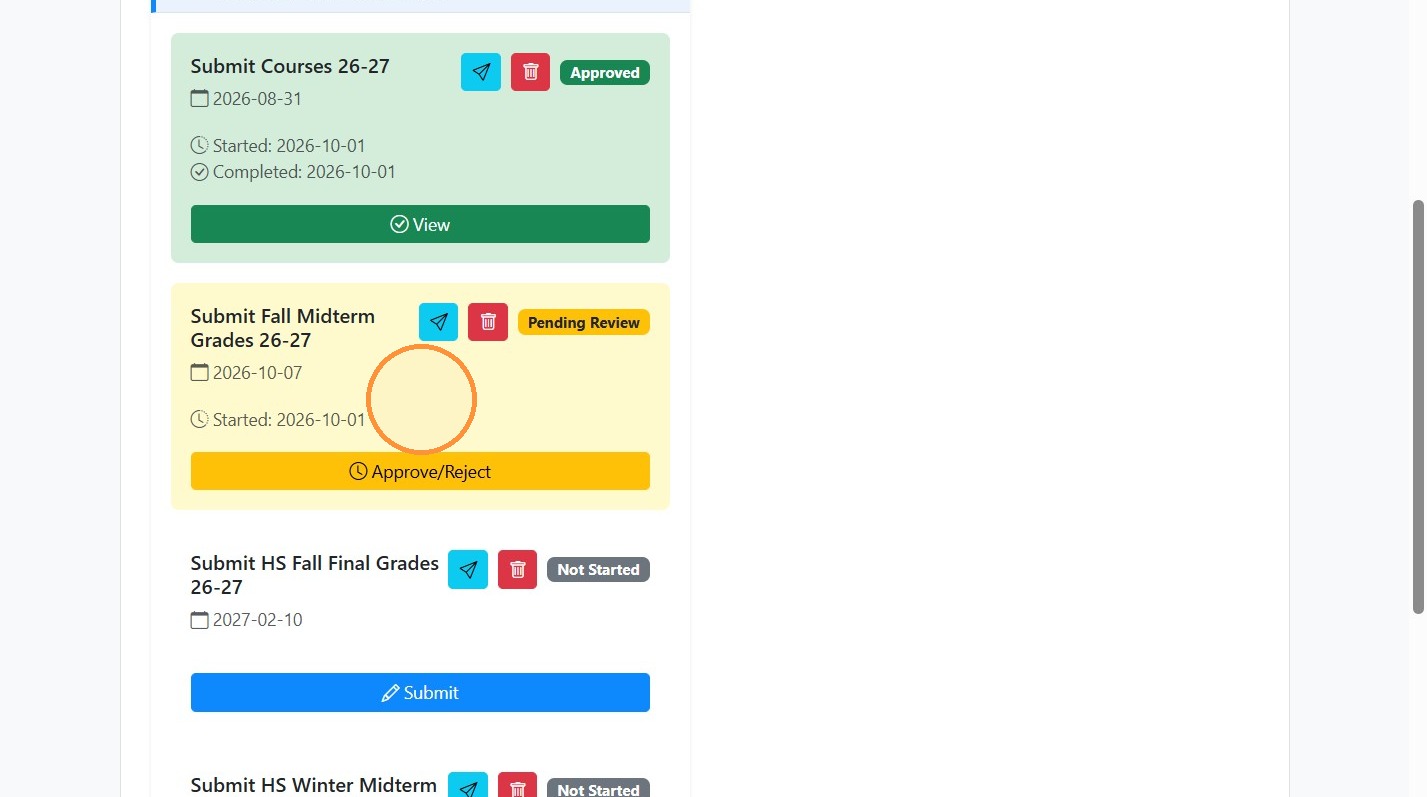
33. Click "Approve/Reject"
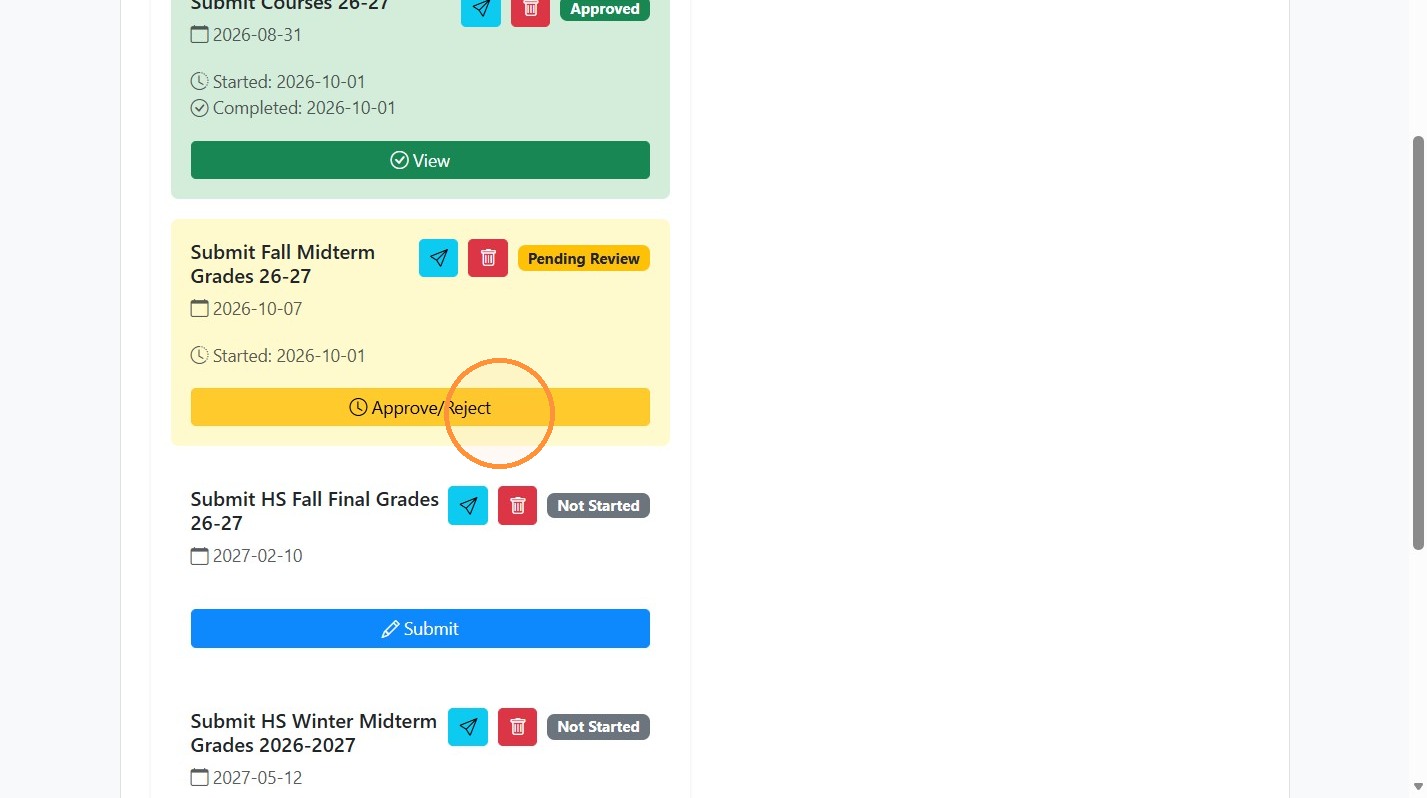
34. Open the pending fall midterm grade submission. You can download the attachments to verify the proof.
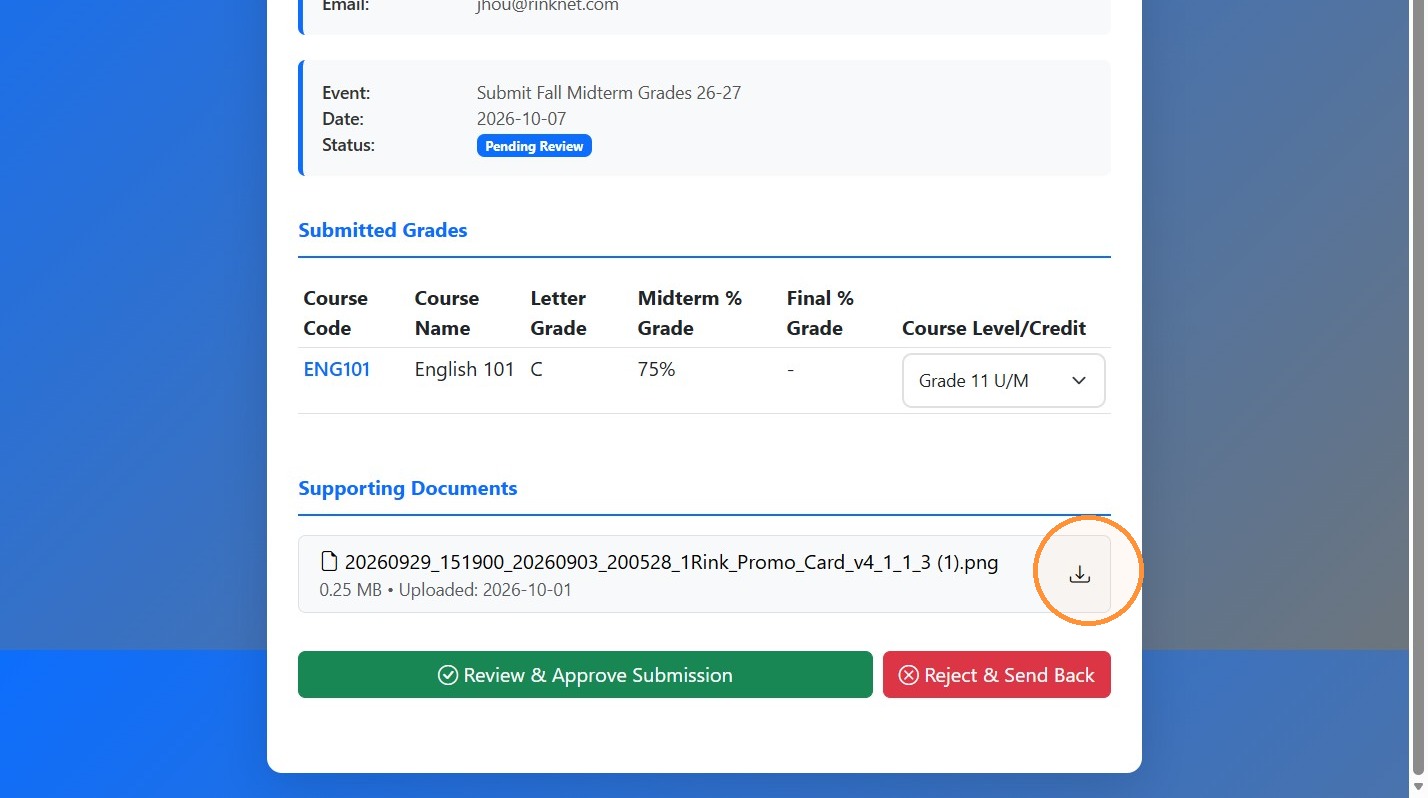
35. Click "Review & Approve Submission"
Record Expenses
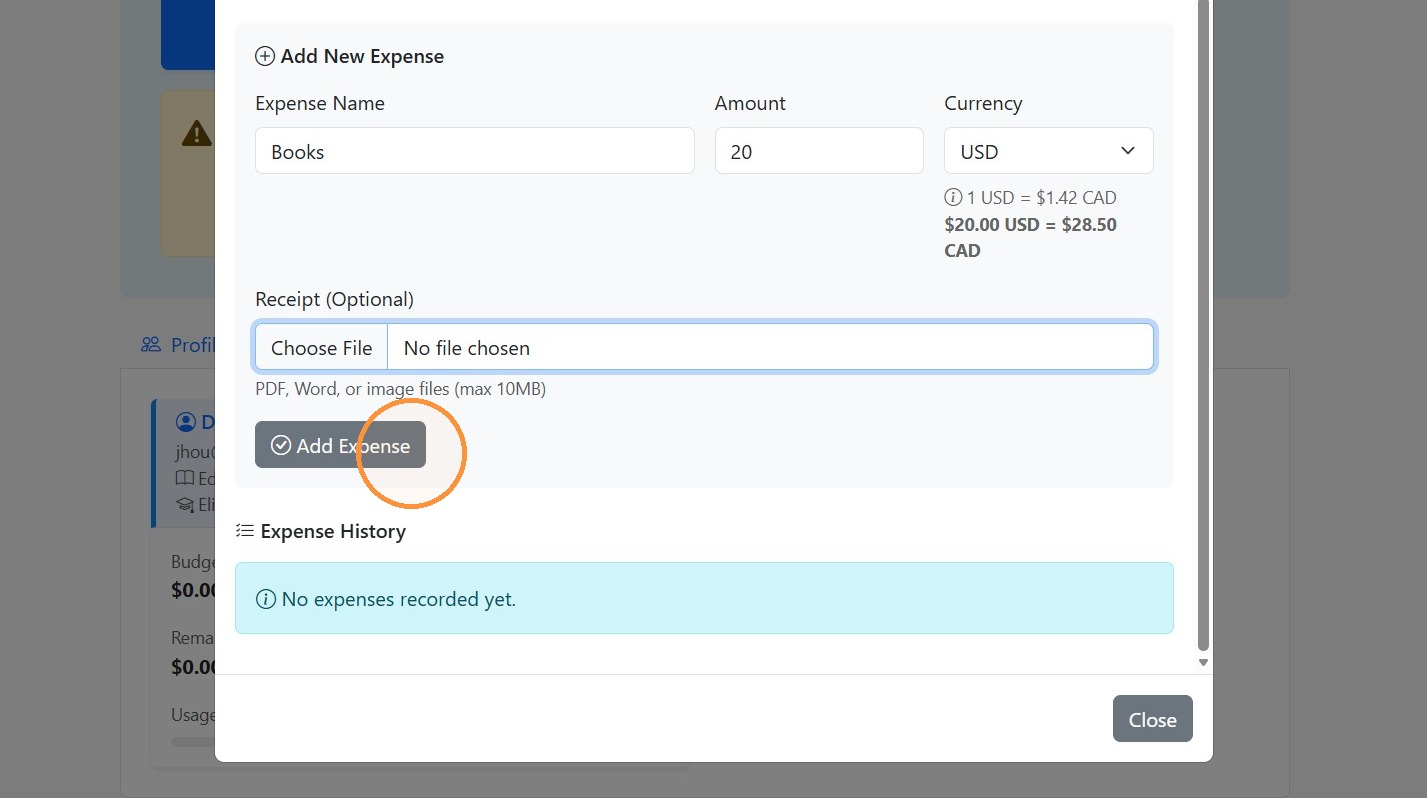
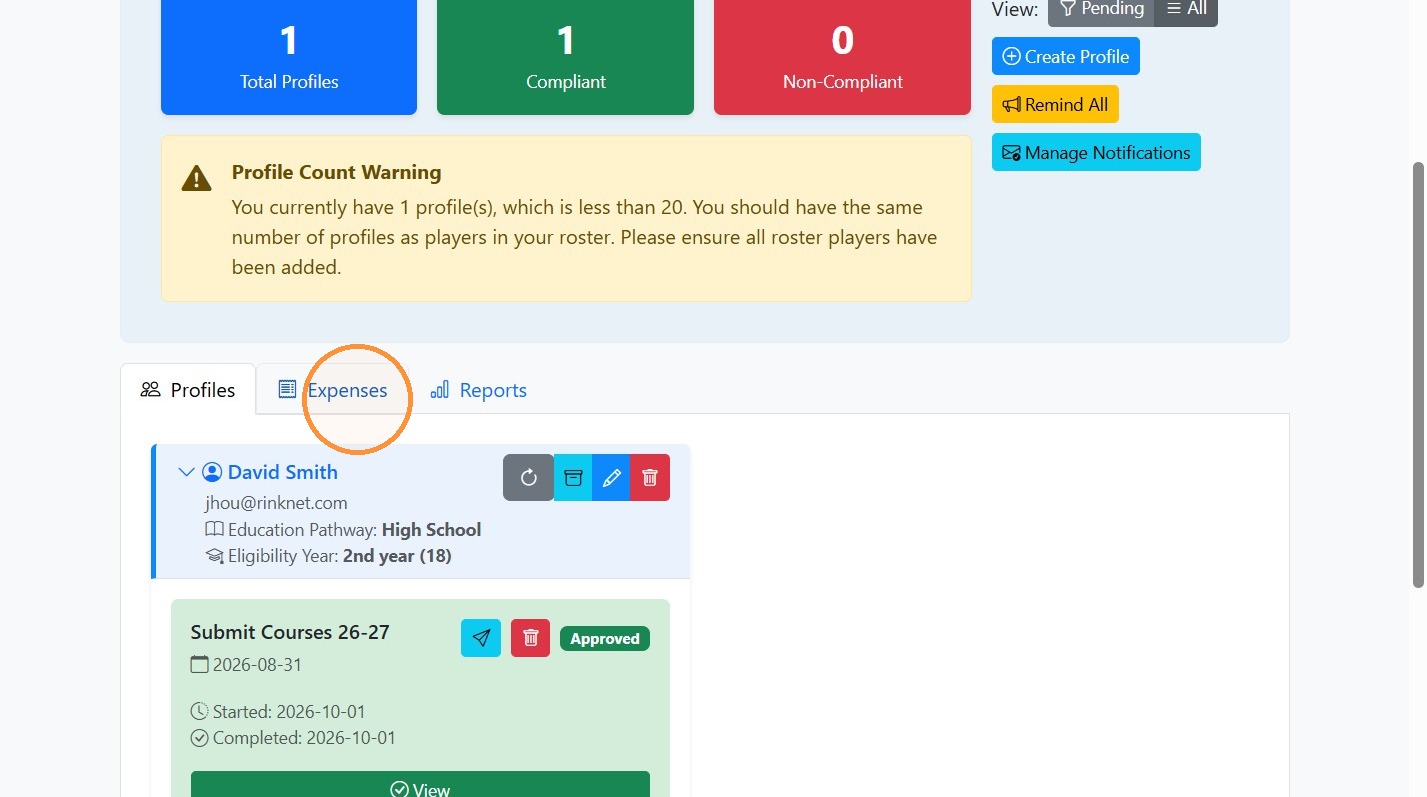
36. Click "Expenses"
37. Click "Manage"
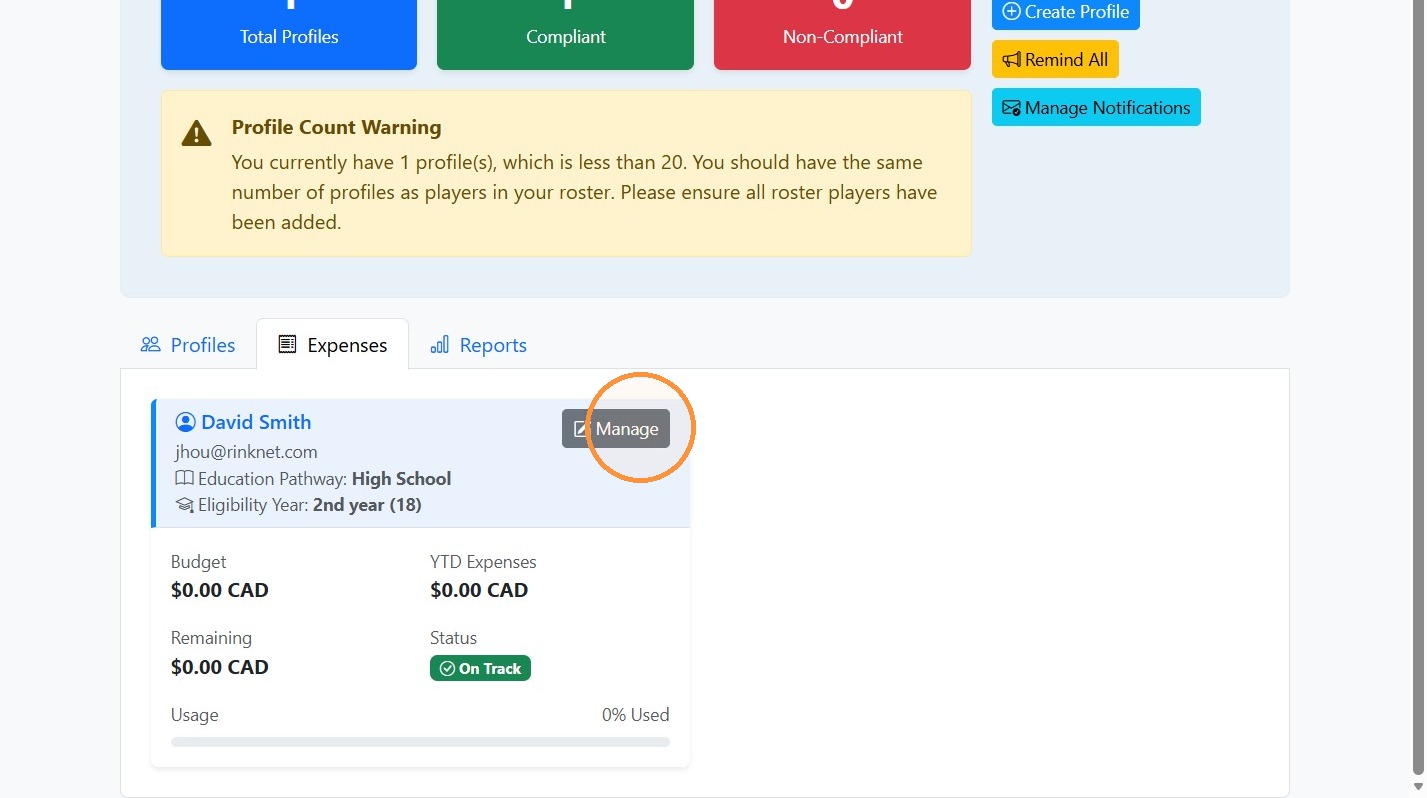
38. Enter Books as the expense name
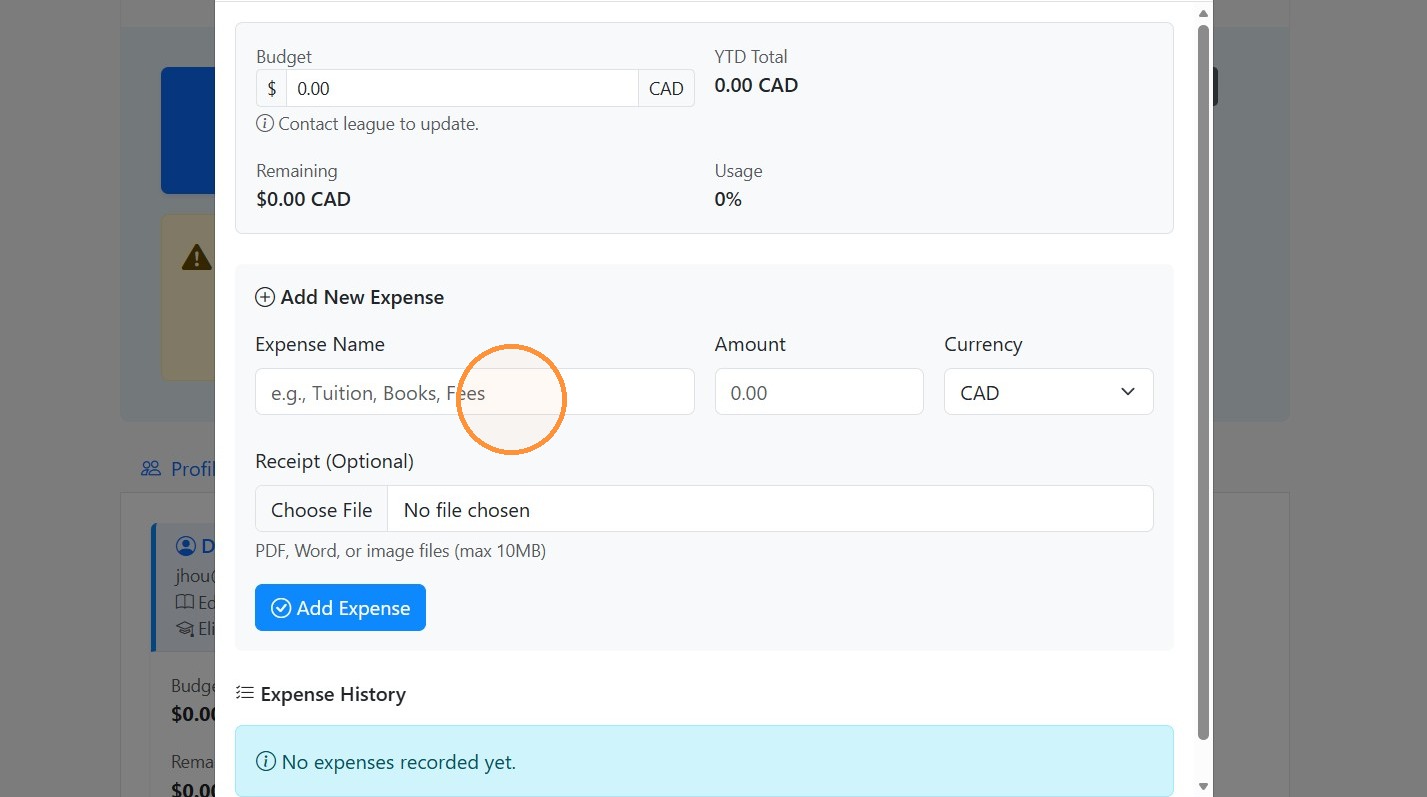
39. Enter 20 as the expense amount
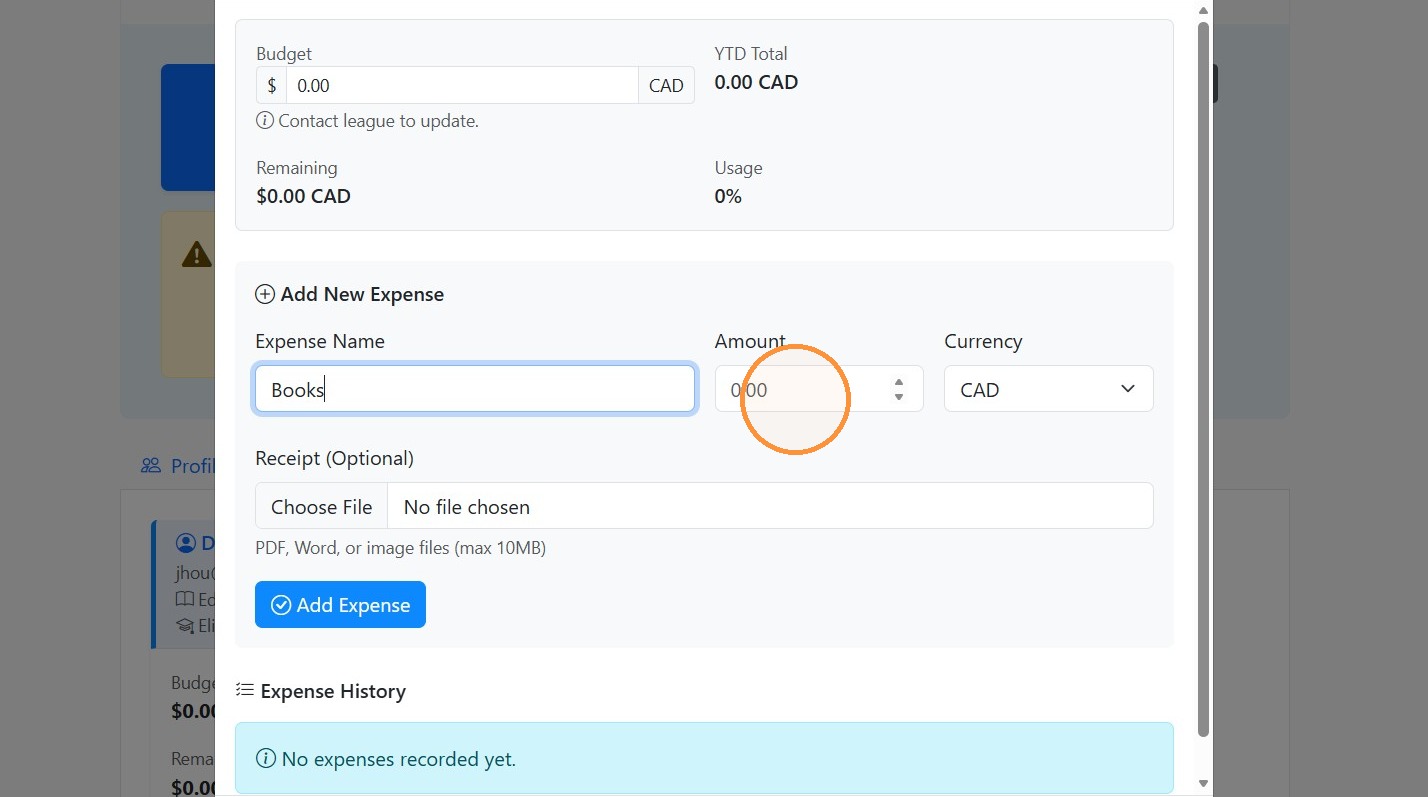
40. Select the "USD" option.
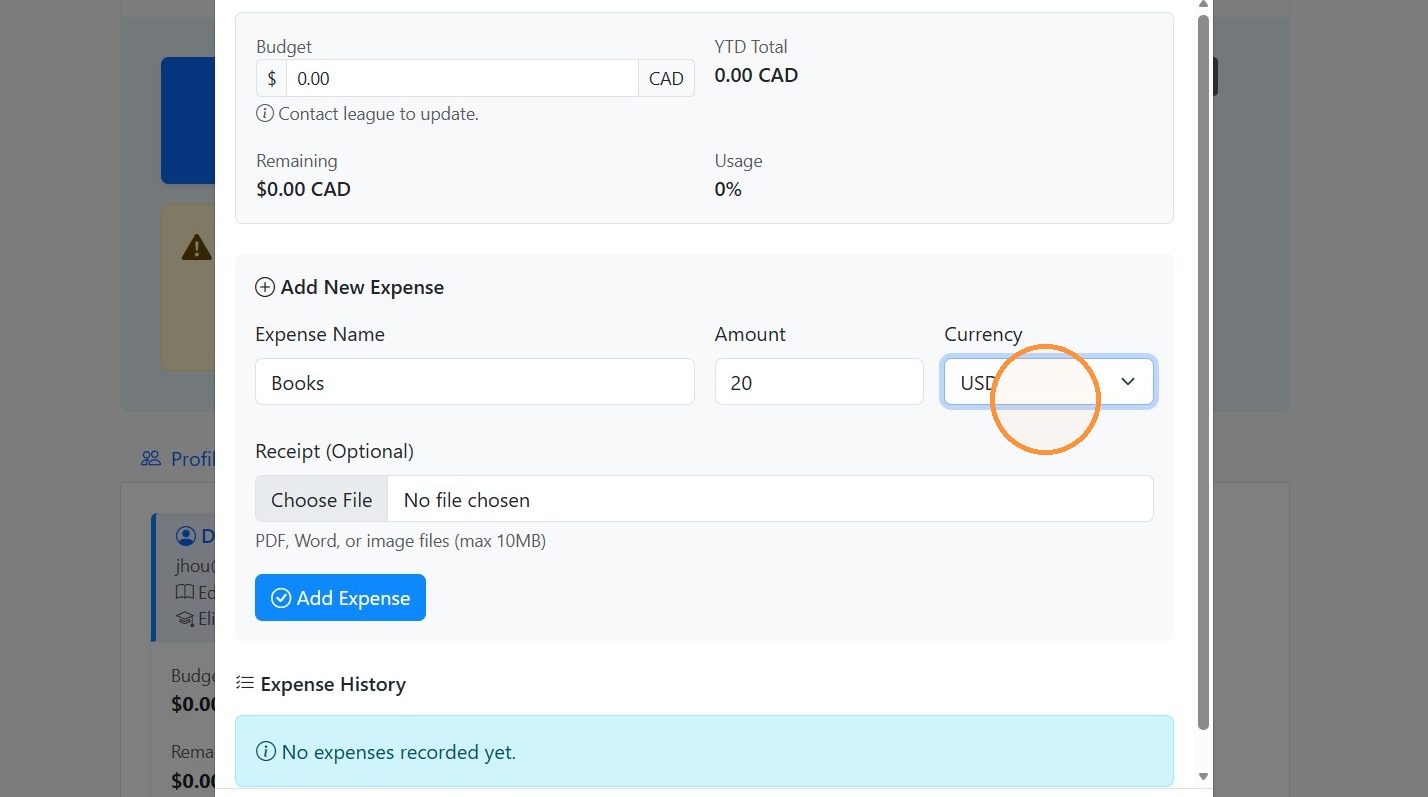
41. Click the "Receipt (Optional)" field.
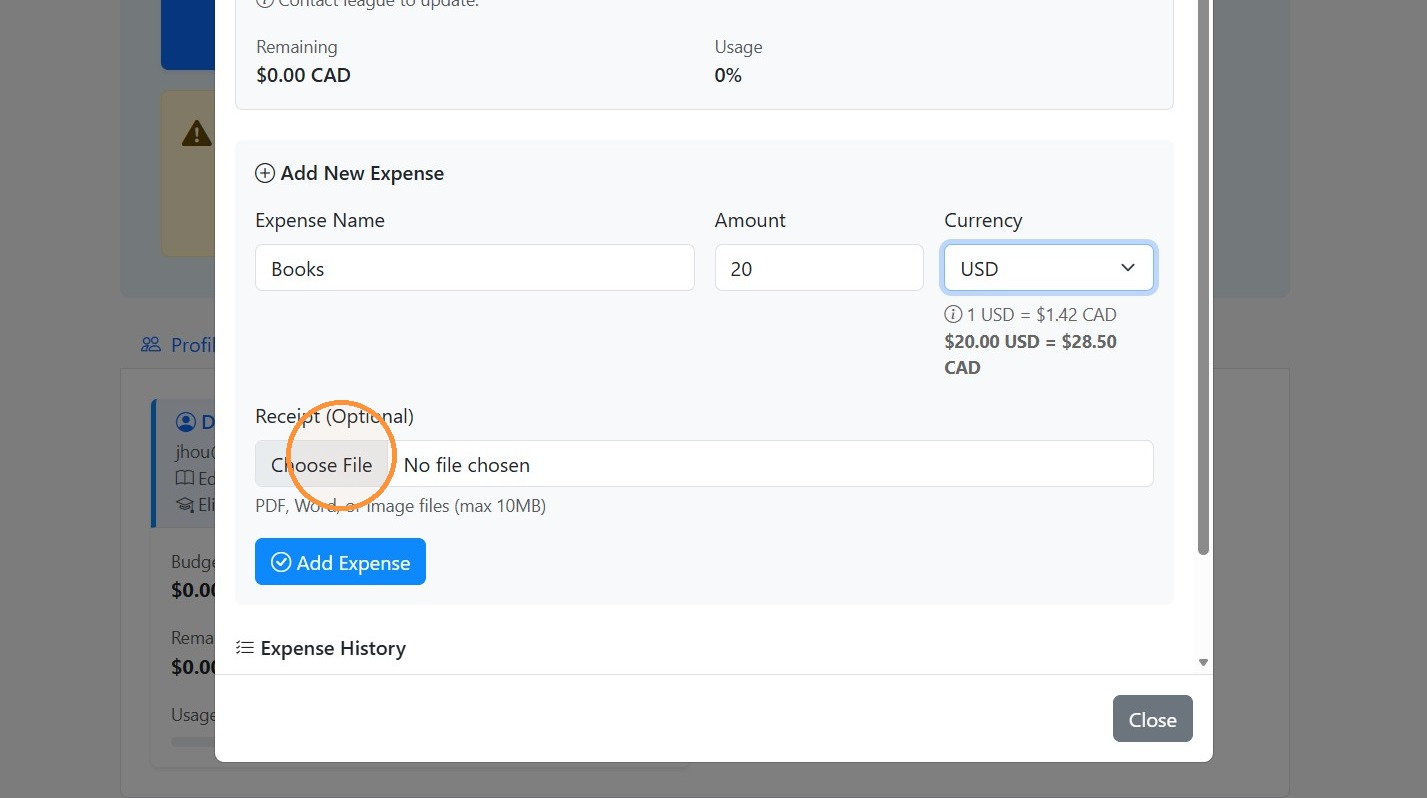
42. Click "Add Expense"