How To Create And Manage RinkNet Player Agreements
How To Create And Manage RinkNet Player Agreements
This guide provides a comprehensive walkthrough for creating, updating, and managing player agreements within the RinkNet ContractCenter. Learn how to input necessary contact details, configure contract terms, and efficiently process agreement statuses.
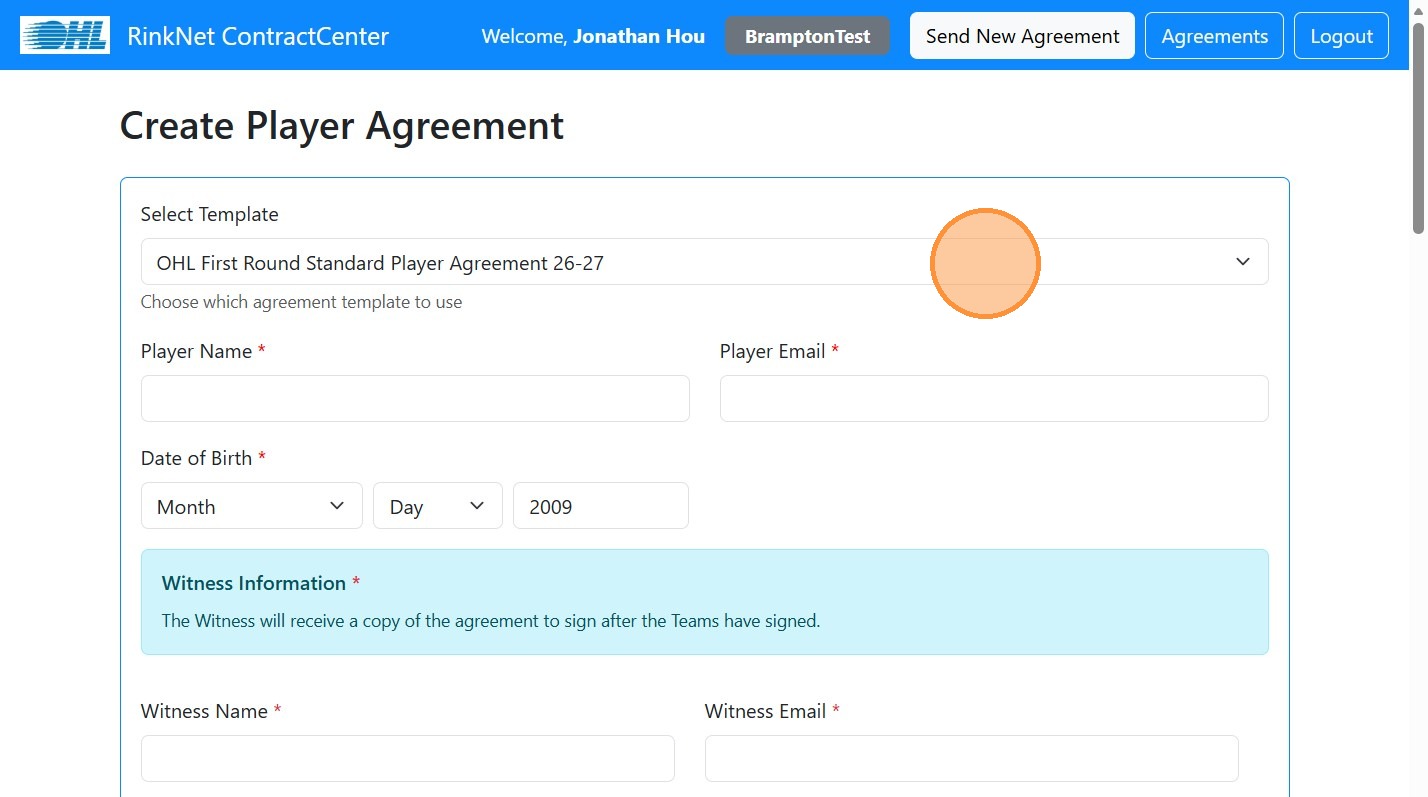
1. Click on the RinkNet Contract tile from https://accounts.rinknet.com
Agreement Configuration
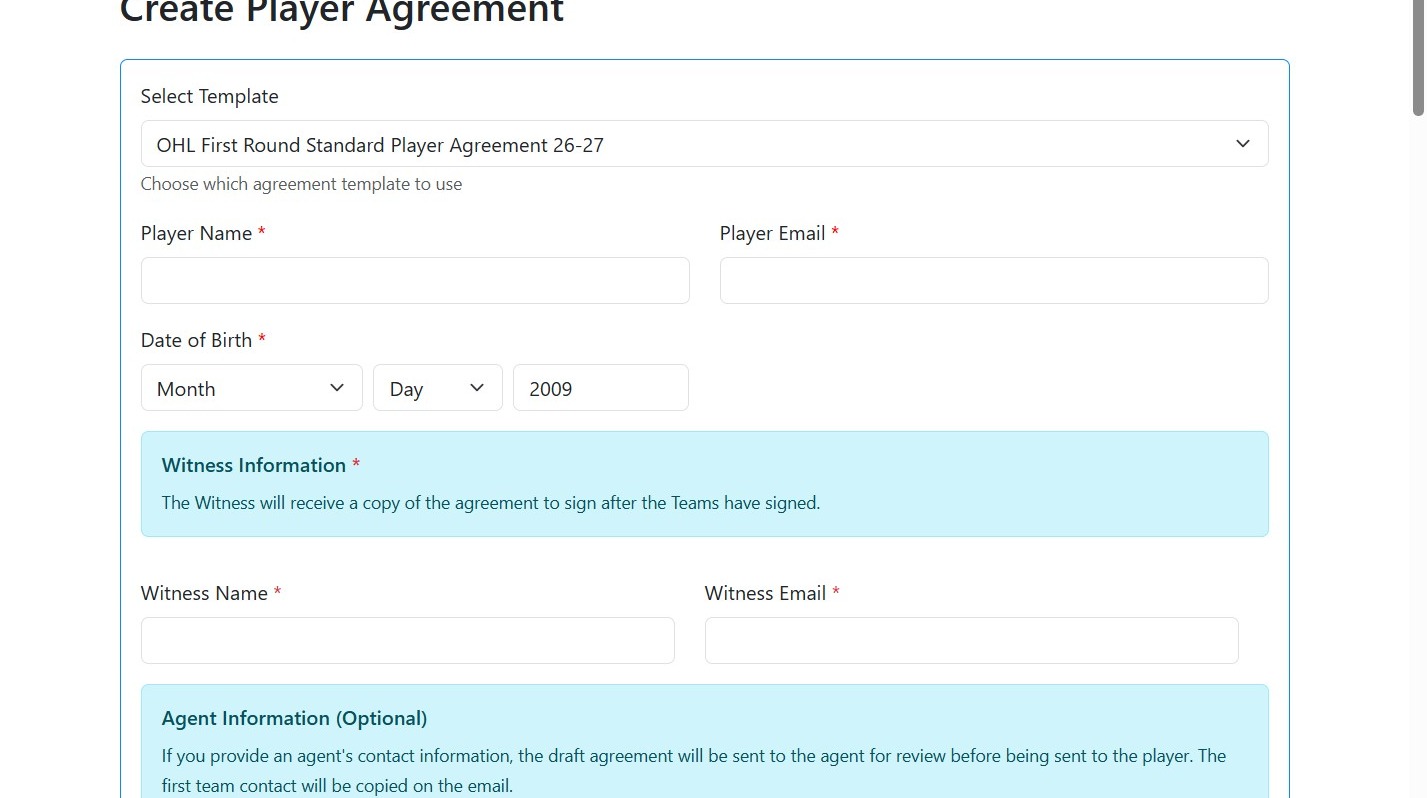
2. Select agreement template from dropdown menu.
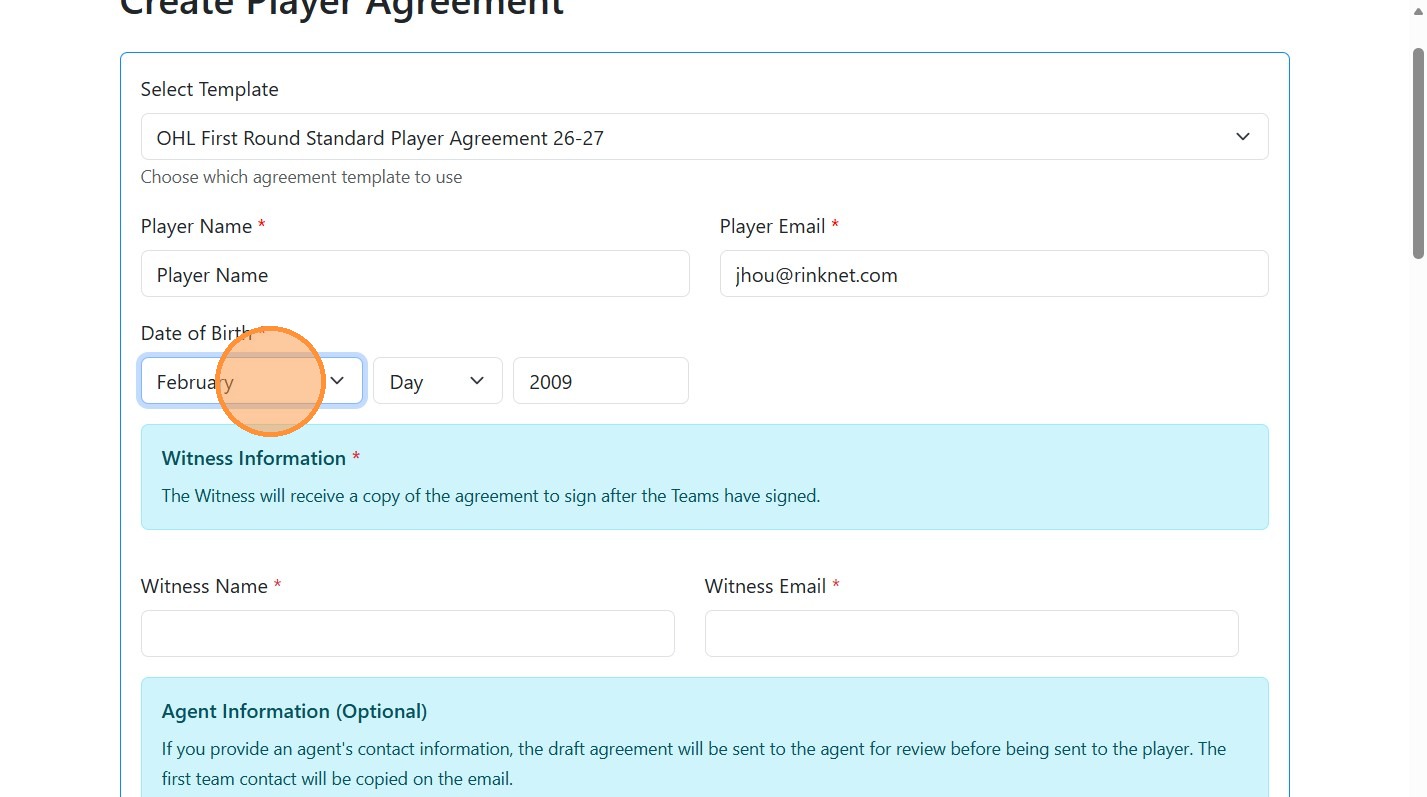
3. Type the Player Name and Email Address.
4. Enter their Date of Birth.
5. If the player is a minor, you will need to enter details for their Guardian.
6. Enter the Witness details, who will sign after the teams have signed.
7. If you working through the player's agent, you can specify the agent details here. This will send a copy of the Permissible Benefits to the agent to review and confirm before it is sent to the player.
Benefits and Reimbursements
8. Click the "Ex: $470 CAD" field.
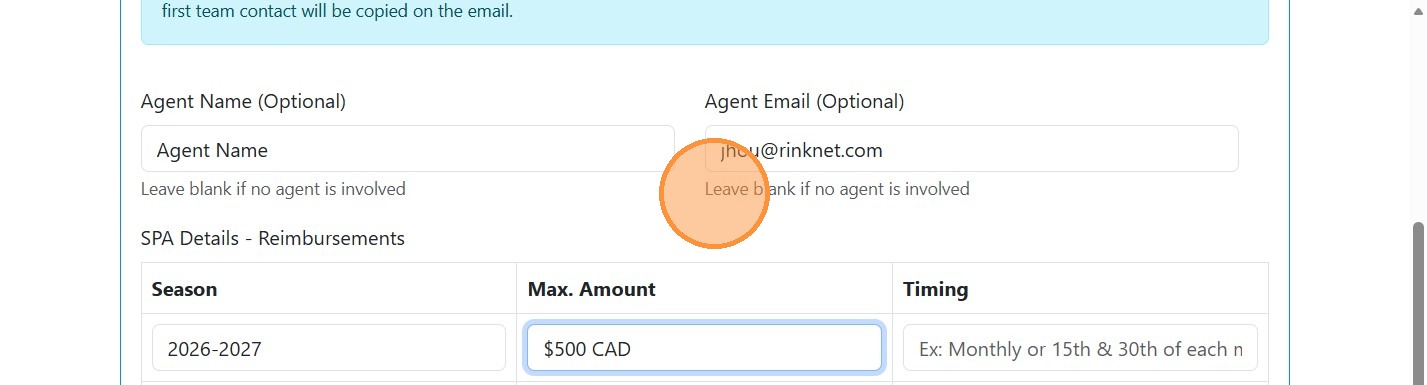
9. Click 'Send Agreement' to finalize and submit.

Agreement Status and Management
10. If an Agent was specified, they will receive an email to review the Permissible Benefits before the contract is sent to the players.
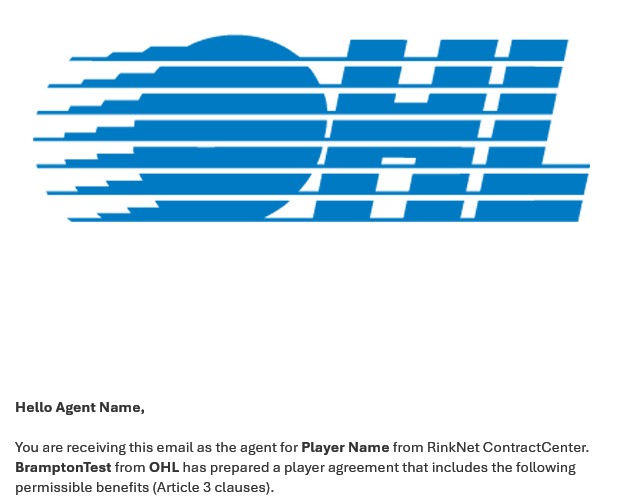
11. Once the agent reviews, they can click on Accept Terms to have the Agreement sent to the Player for review.
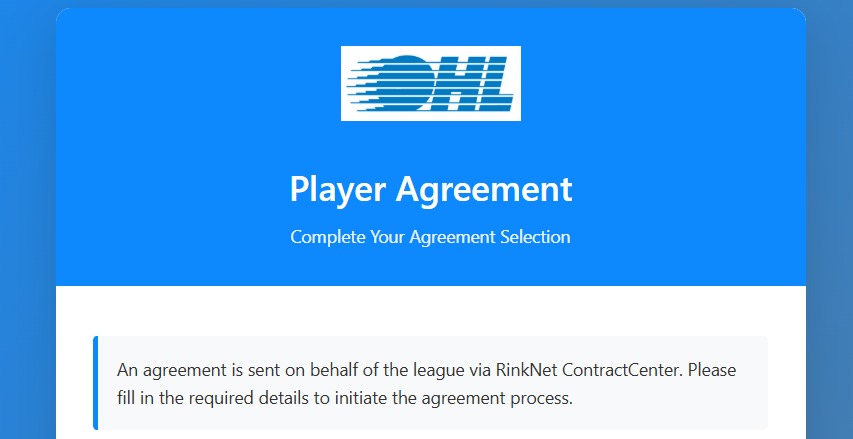
12. The Player will then receive an email to specify their legal details.
13. This will go then through the signing workflow: Lawyer, Player, Guardian, Team (up to 2 signatures), Witness, League
Other functions
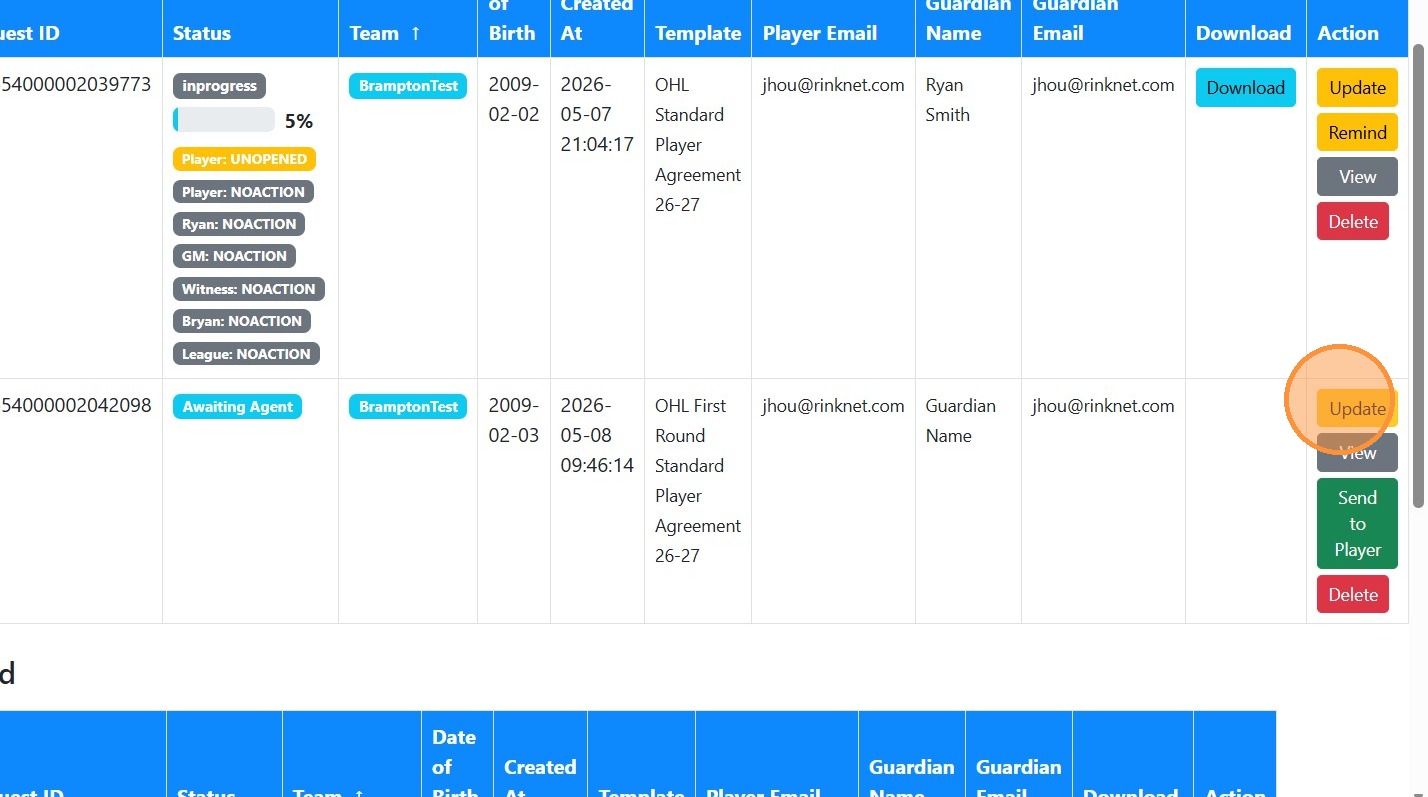
14. To update and agreement, click 'Update' to modify an existing agreement in the "Agreements" view.
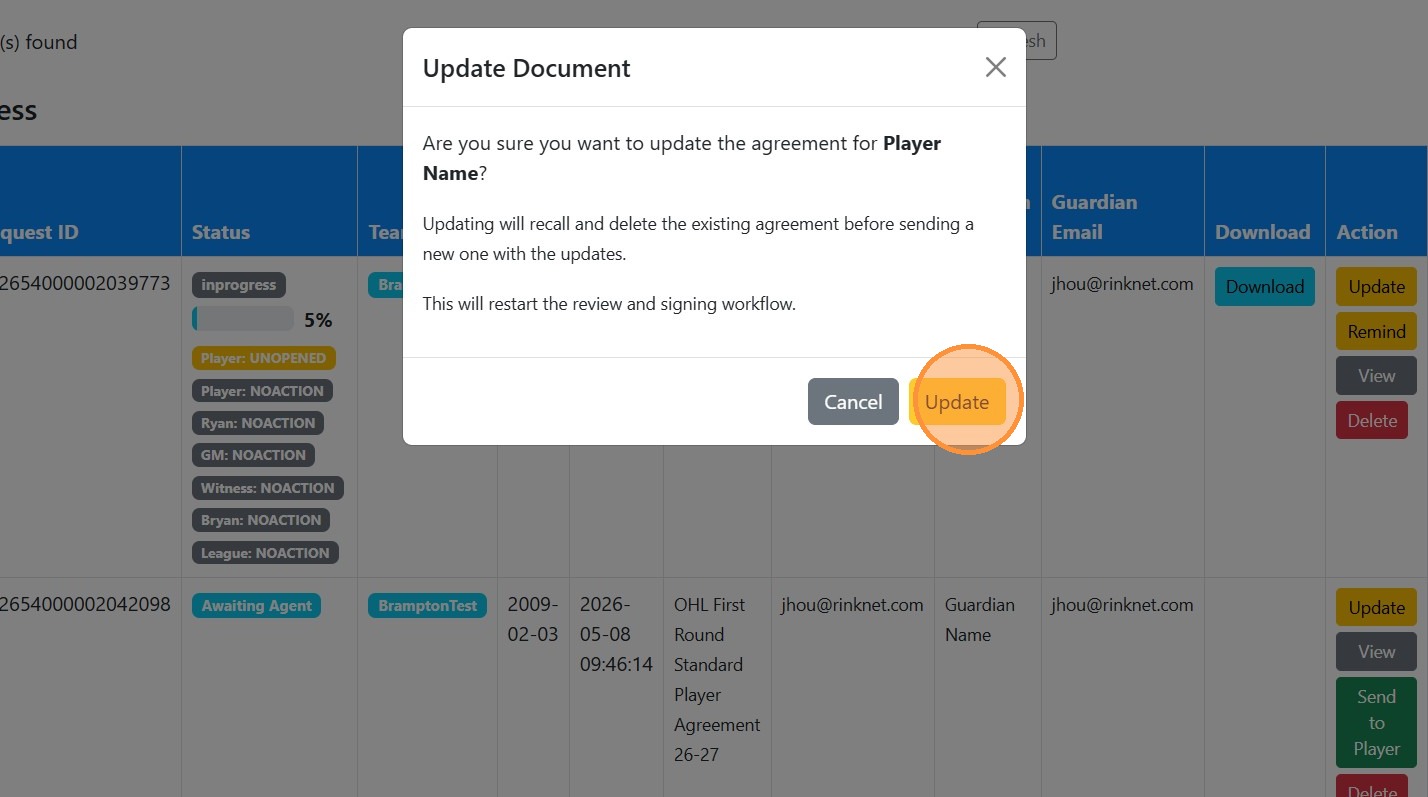
15. Confirm update in modal.
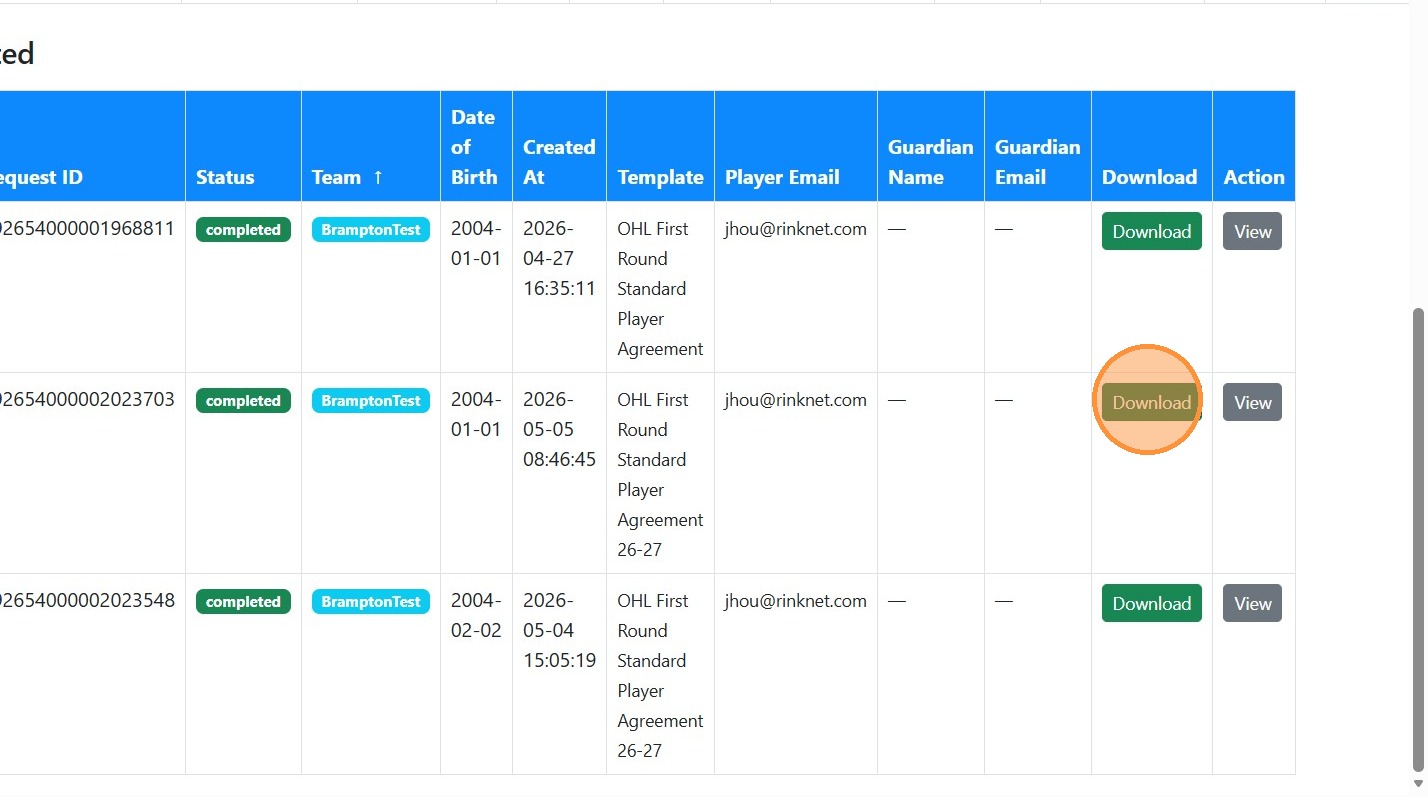
16. To download a copy of the agreement, click 'Download' to save agreement.
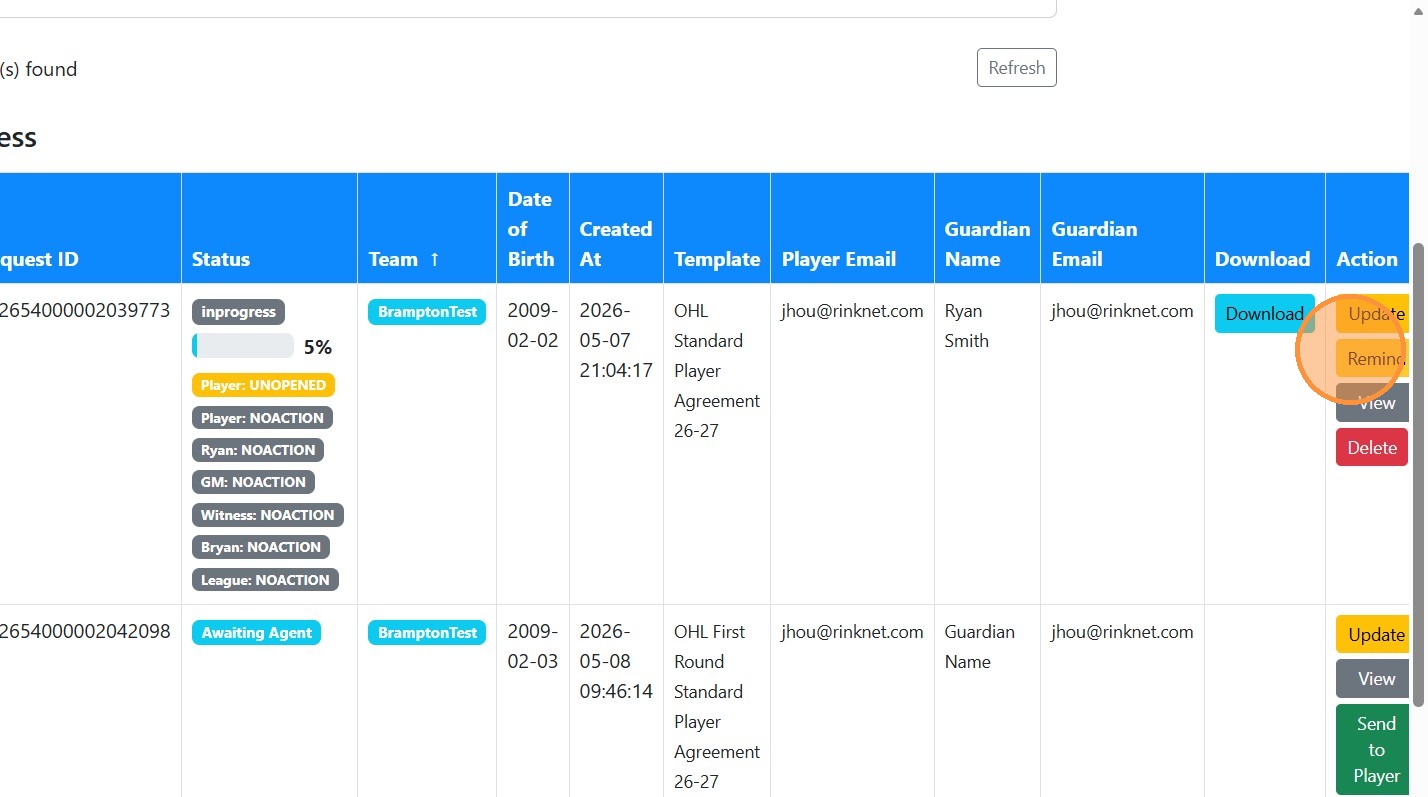
17. If a party did not receive an email with the contract, you can click 'Remind' to send notification reminder.
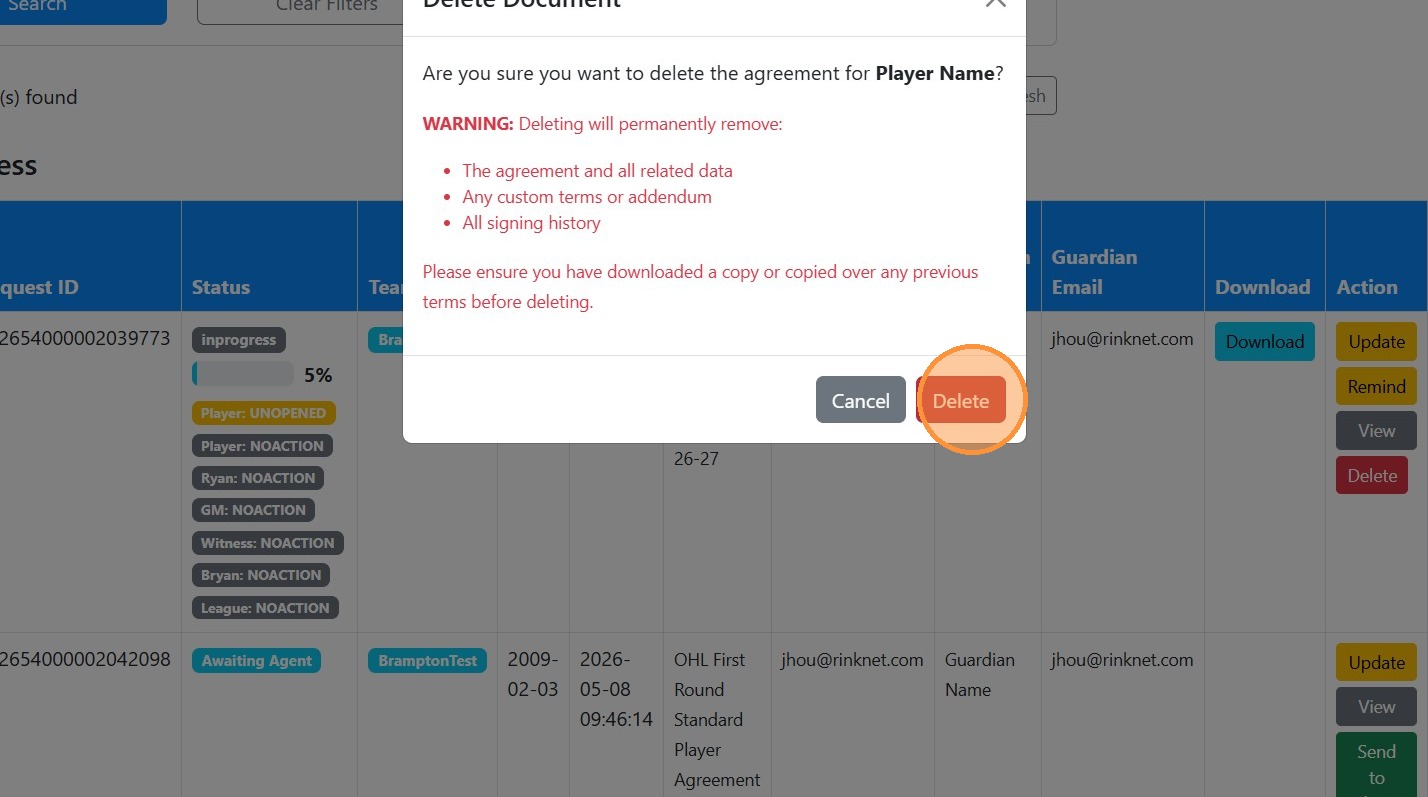
18. Click 'Delete' to remove agreement.
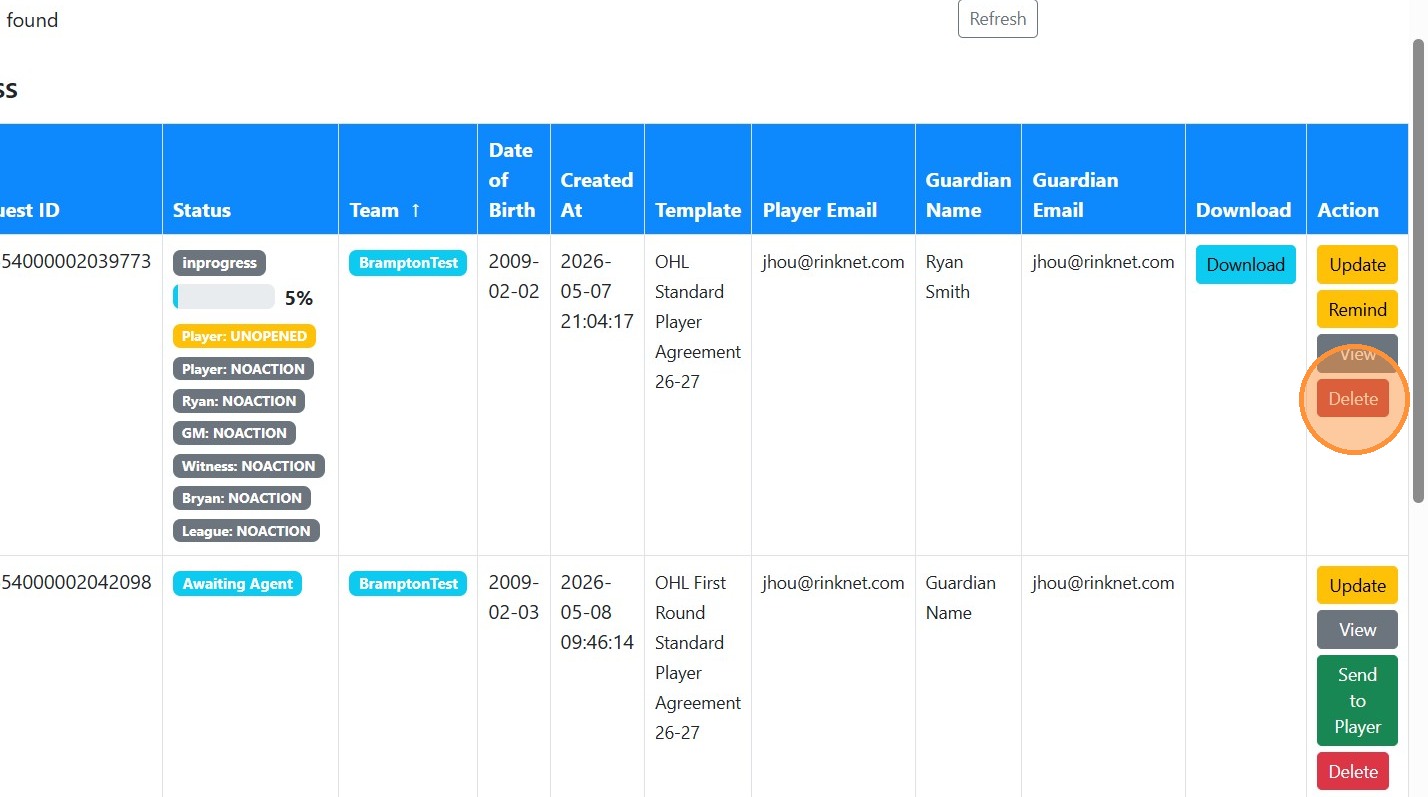
19. Confirm deletion in confirmation modal.