Requesting Player Add(s) in Protected Lists

Requesting Player Add(s) in Protected Lists

Requesting Player Add(s) in Protected Lists

This guide provides a straightforward process for requesting player adds to a protected list, ensuring you can efficiently manage your organization's protected list. It outlines each step clearly, making it easy to follow even for those unfamiliar with the system. By using this guide, you can streamline your player management and ensure your requests are submitted correctly for league review.


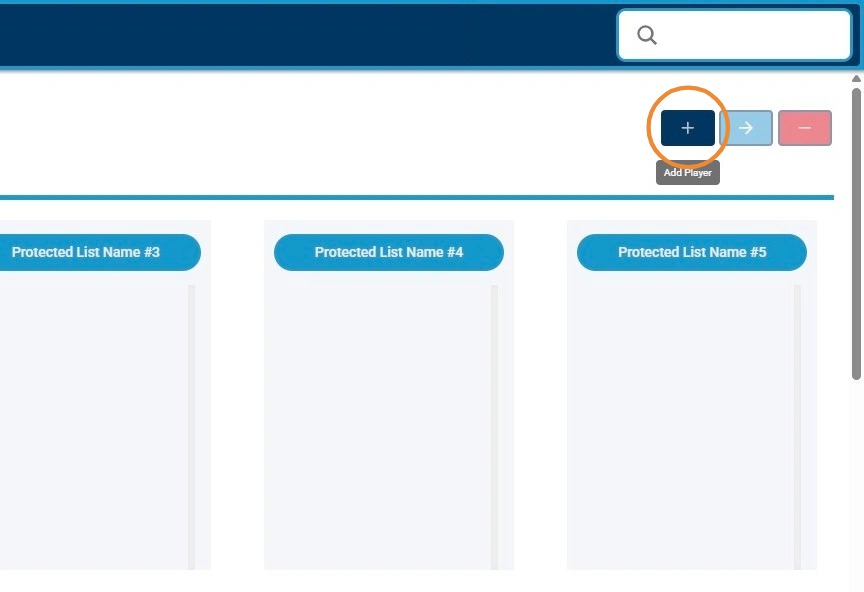
1. Click on the "+" Button to Open Add Player Screen

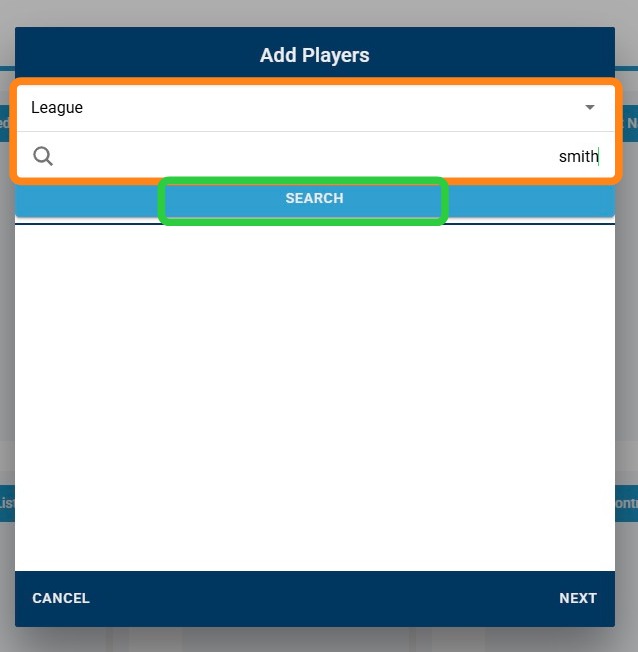
2. Use Either the Screen Bar to Search for Player Name OR Use "League" and "Team" Dropdowns to Find Full League or Team Roster, then Click "Search"

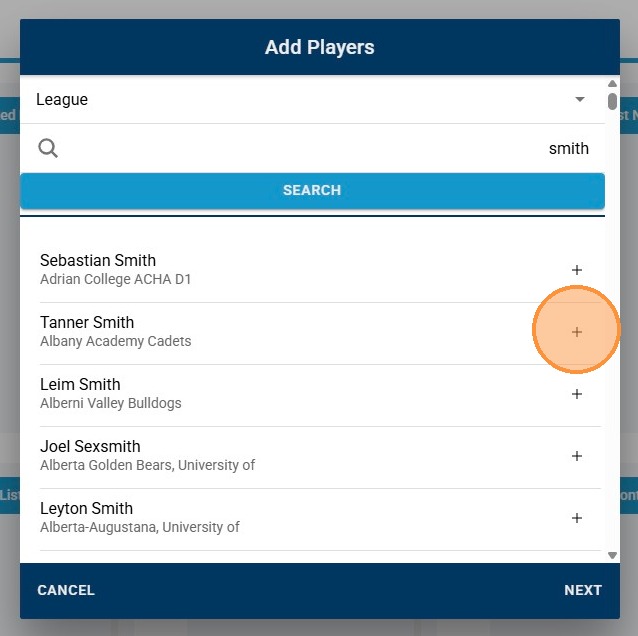
3. Click the "+" Button Next to Player(s) Name to Add to Add Request

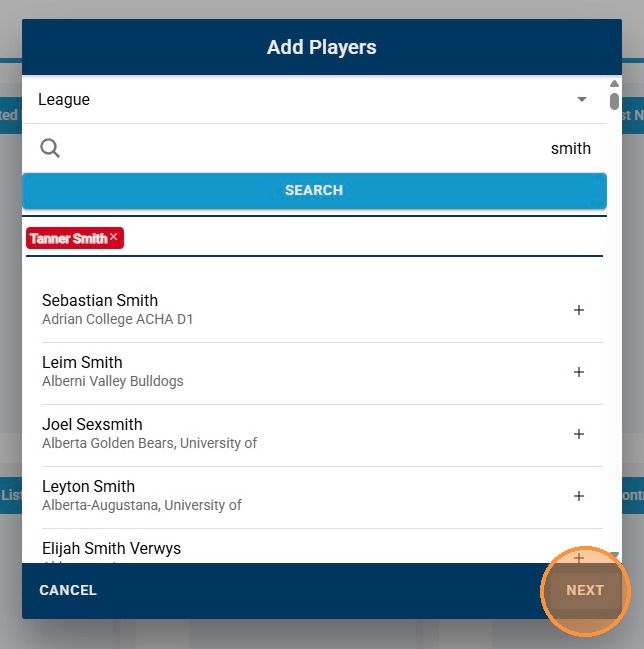
4. Click "Next" to Continue Add Request Process

5. Click "Add Type" Dropdown
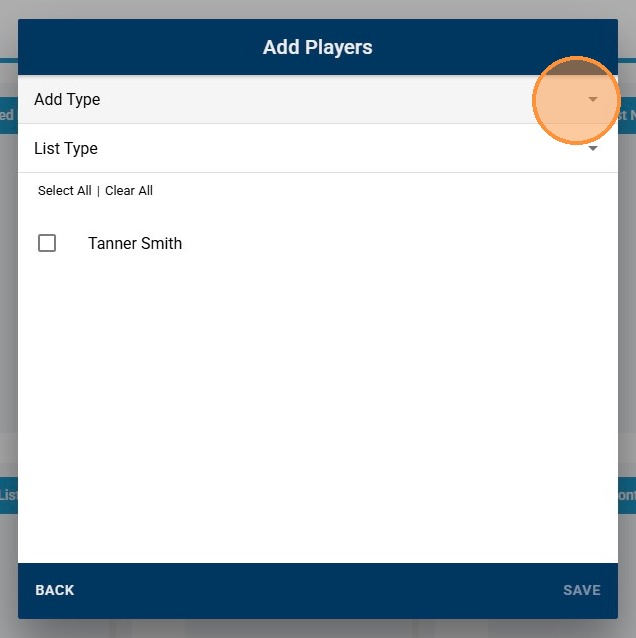

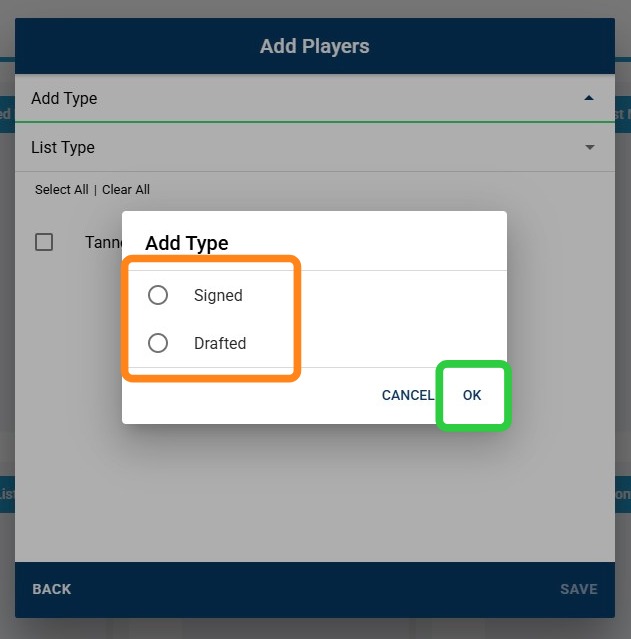
6. Select Player's Add Type, then "OK"

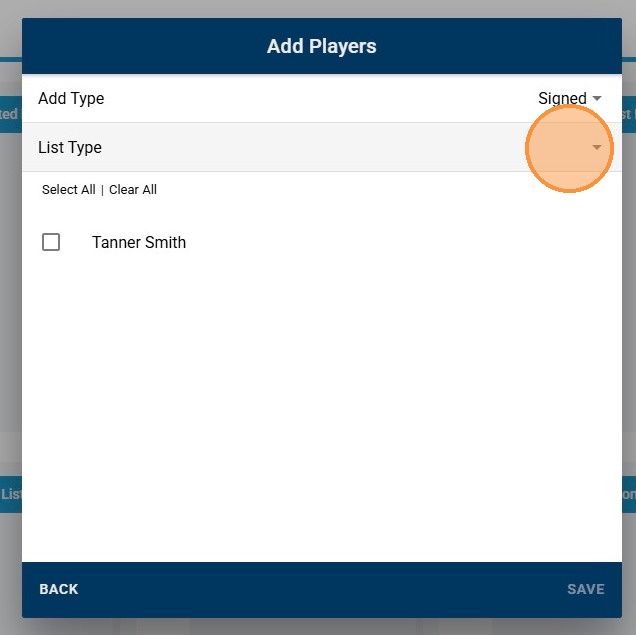
7. Click "List Type" Dropdown

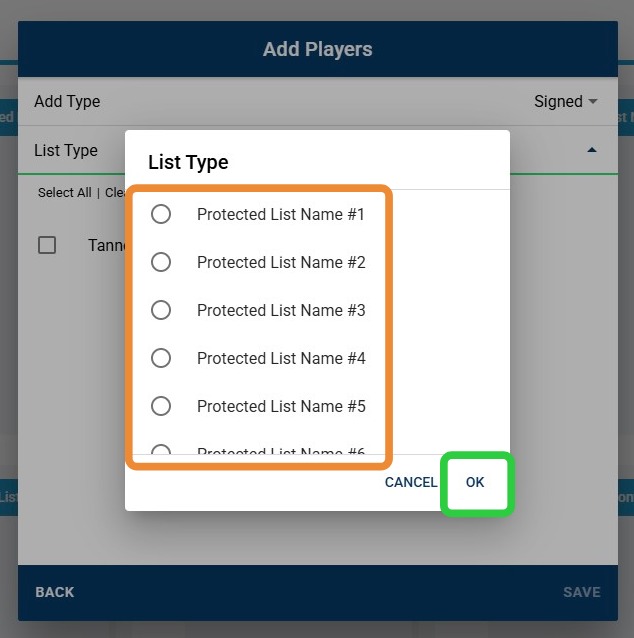
8. Select Player's List Type, then "OK"

9. Check Off Player(s) You Are Requesting to Add
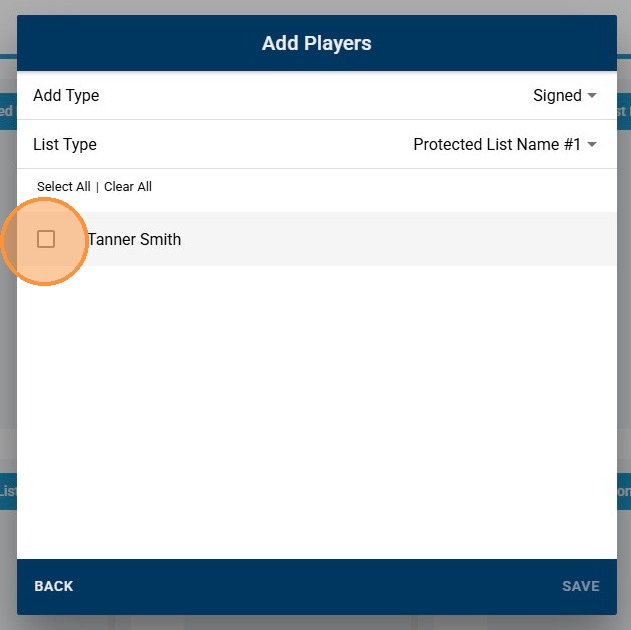

10. Click "Save"
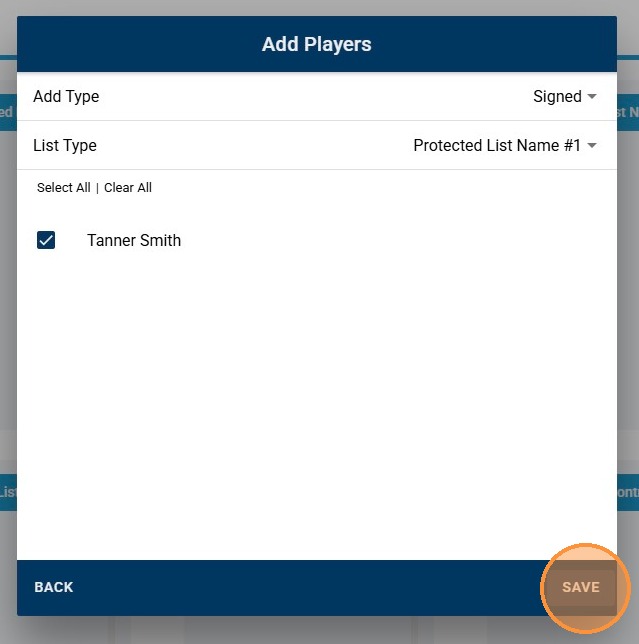

11. Click "Send Changes for Review" to Send Add Request to League for Review
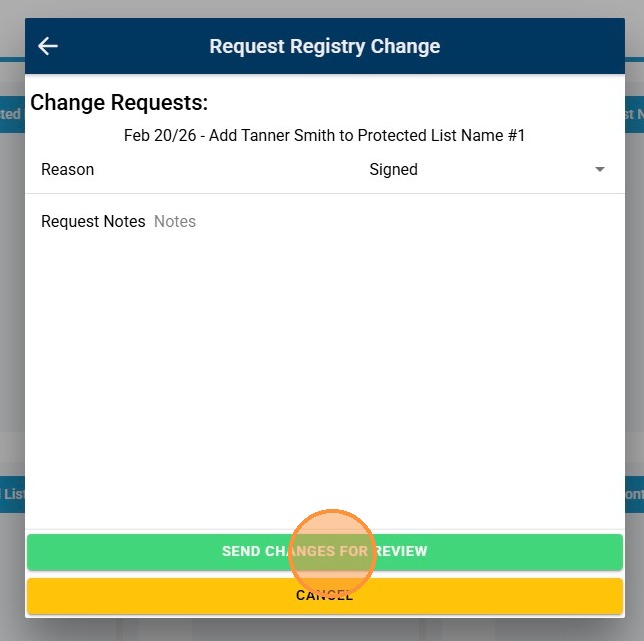

12. Click "Done" to Finalize Process
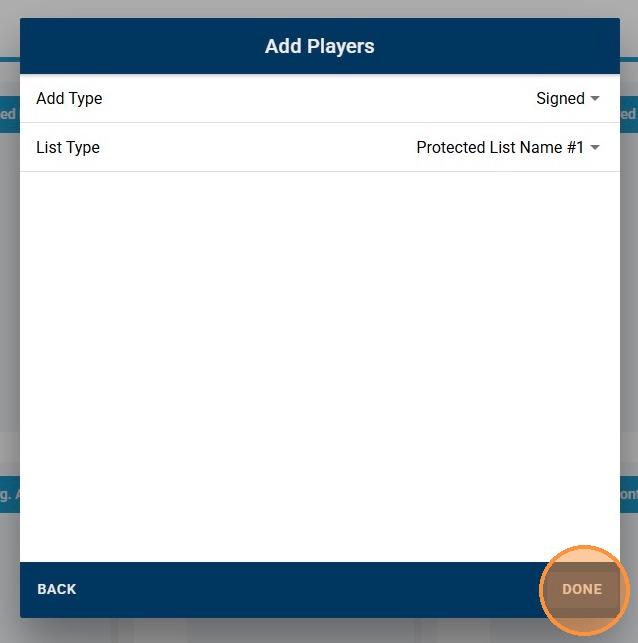

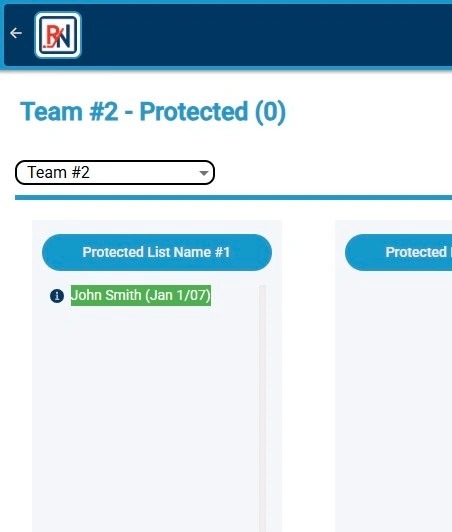
13. Requested Player Add Will Appear in GREEN in Specified Protected List Bucket


    • Related Articles

    • LEAGUE - Adding Player(s) to Protected Lists

      LEAGUE - Adding Player(s) to Protected Lists This guide provides a straightforward process for League staff to add players to a protected list, ensuring you can efficiently manage your league's protected lists for each organization. It outlines each ...
    • Requesting Player Movement in Protected Lists

      Requesting Player Movement in Protected Lists This guide provides a straightforward process for requesting player movement within protected lists. It outlines essential steps, including highlighting players, selecting movement options, and submitting ...
    • Requesting Player Deletions in Protected Lists

      Requesting Player Deletions in Protected Lists This guide provides a straightforward process for requesting player deletions from protected lists. It outlines multiple methods for initiating deletions, allowing for flexibility based on user ...
    • Building Lists in List Builder from Queries

      1. Under the Player tab select the Queries screen  2a. Within the Query screen begin selecting the specific criteria you would like to run your Query off of by checking the specific boxes 2b. In this scenario I selected the following criteria checked ...
    • Lists of Lists Screen

      The "Lists of Lists" screen allows a user to combine many lists from their RinkNet program, into one master list.  This feature is particularly useful at team meetings and drafts. This feature is activated at the request of the team administrator.  ...